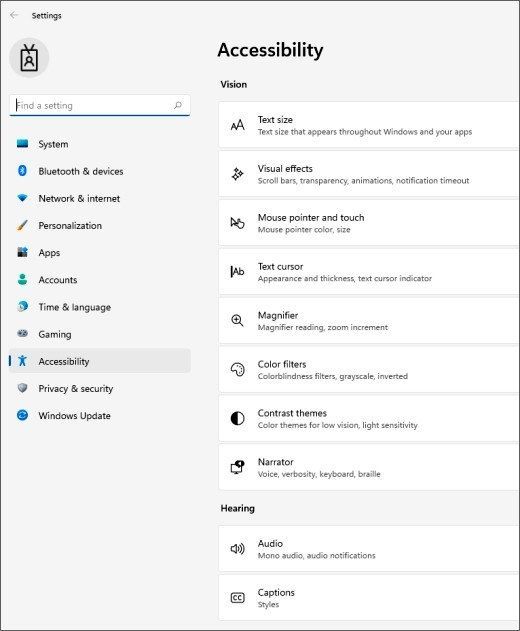
Windows offers several input adjustments before a new mouse or keyboard becomes necessary. Microsoft's accessibility guide points to Mouse pointer and touch for a larger or differently colored pointer, and Text cursor for a thicker cursor or a colored position indicator. Mouse keys can move the pointer with the numeric keypad when that control method is useful.
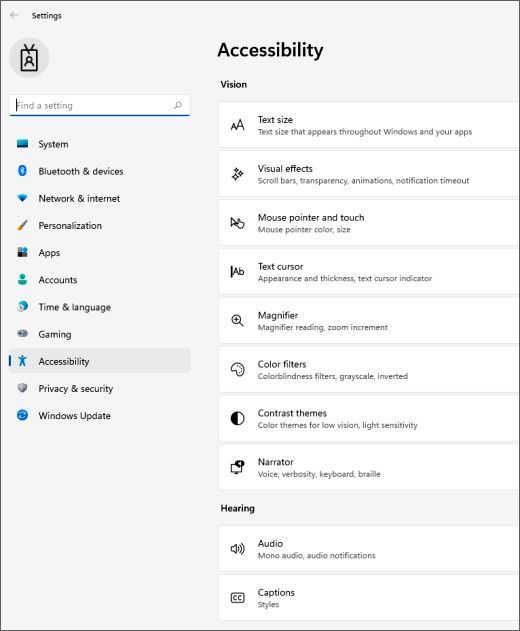
Keyboard options address different difficulties. Sticky keys lets a shortcut such as Ctrl+S be entered one key at a time, while Filter keys changes how brief or repeated keystrokes are handled. Toggle keys adds a sound for lock keys. Open Accessibility with Windows+U and test the relevant setting rather than enabling every option together, since each changes a specific part of input behavior.
Pointer visibility and keyboard assistance can make an existing desk setup easier to operate.


Leave a Comment
Comments (0)