
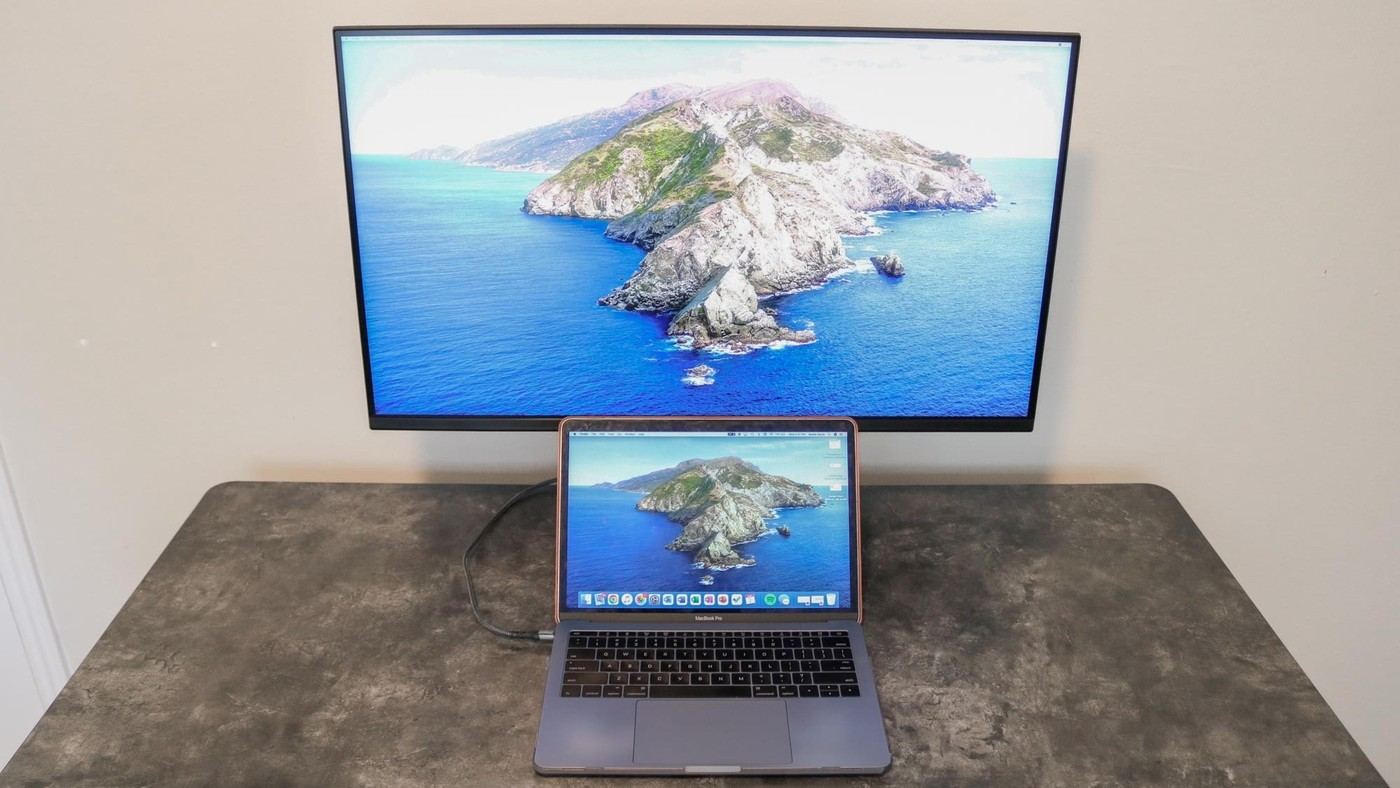
A USB-C display can act as the connection point for a home-office laptop, but only when its supported functions match the computer.
Verify video and charging support
Tom's Guide's laptop-workstation advice distinguishes the presence of a USB-C socket from support for video output and power delivery. The laptop needs the relevant capabilities, and the display must provide enough charging power for the machine's workload. Otherwise, a separate laptop power cable remains necessary even when video is carried through USB-C.
Keep shared devices in one place
The article also describes monitors with hardware KVM switching, allowing a keyboard and mouse to work across more than one connected computer. That can reduce repetitive cable swapping in a mixed work-and-personal desk arrangement. The feature requires the correct video and data connections; it is not included in every monitor with a USB hub. Plan the ports and daily switching tasks first, then decide where the laptop can sit comfortably.
Distinguish charging power from data switching
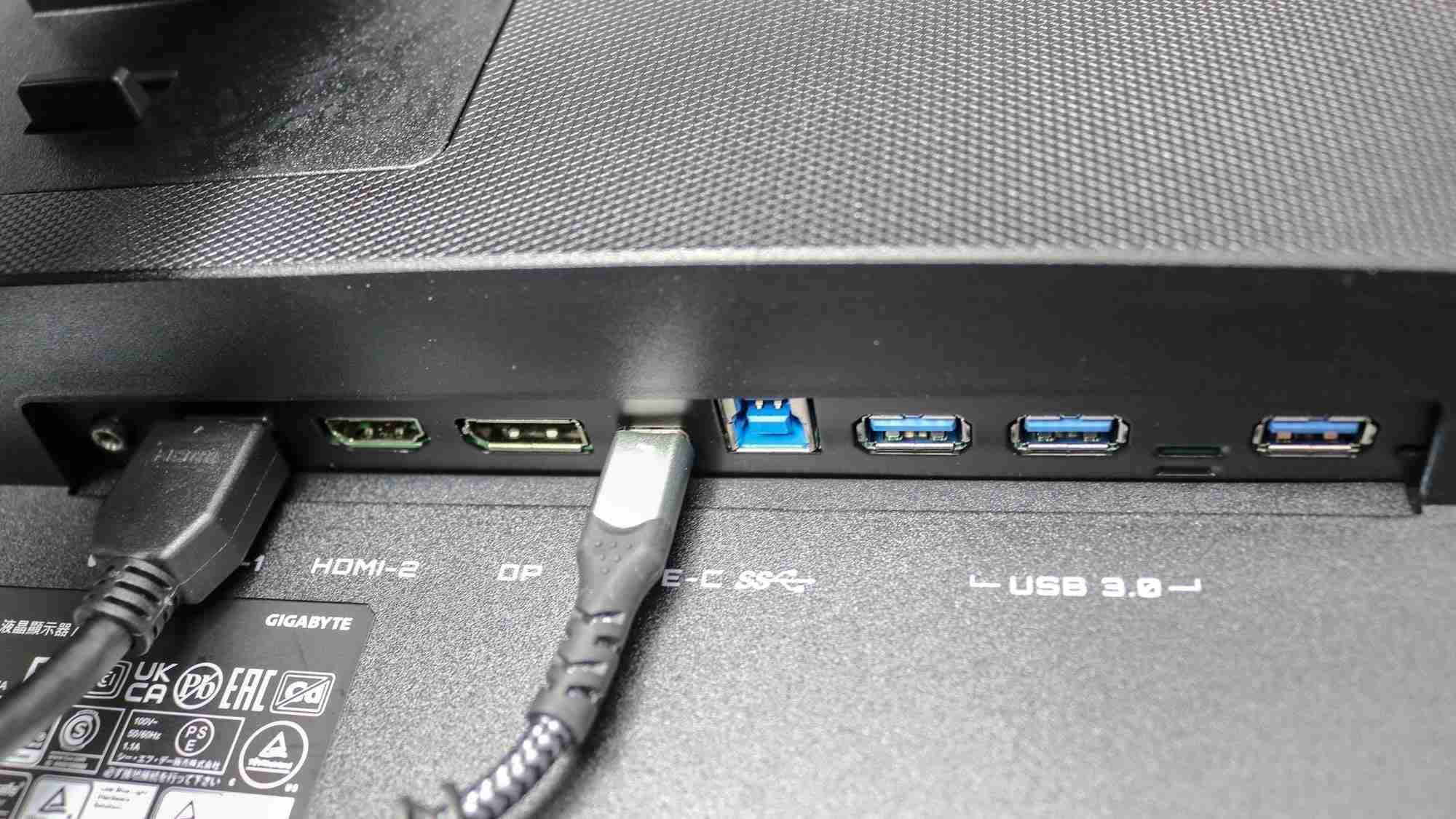
The source suggests checking for at least 65W of power delivery for many smaller laptops and considering 90W to 100W for more demanding machines. These are selection guidelines, not a promise that every laptop will charge at full load. A KVM-equipped monitor also needs an upstream data path for each computer. In the example, one machine uses USB-C while another uses HDMI or DisplayPort plus a USB data cable. Keyboard and mouse connections stay in the monitor's downstream ports. Finally, a replacement USB-C cable must explicitly support the required video and power functions. A charging-only lead can undermine an otherwise suitable workstation even when its connector physically fits.
Draw the connection chain before buying the display
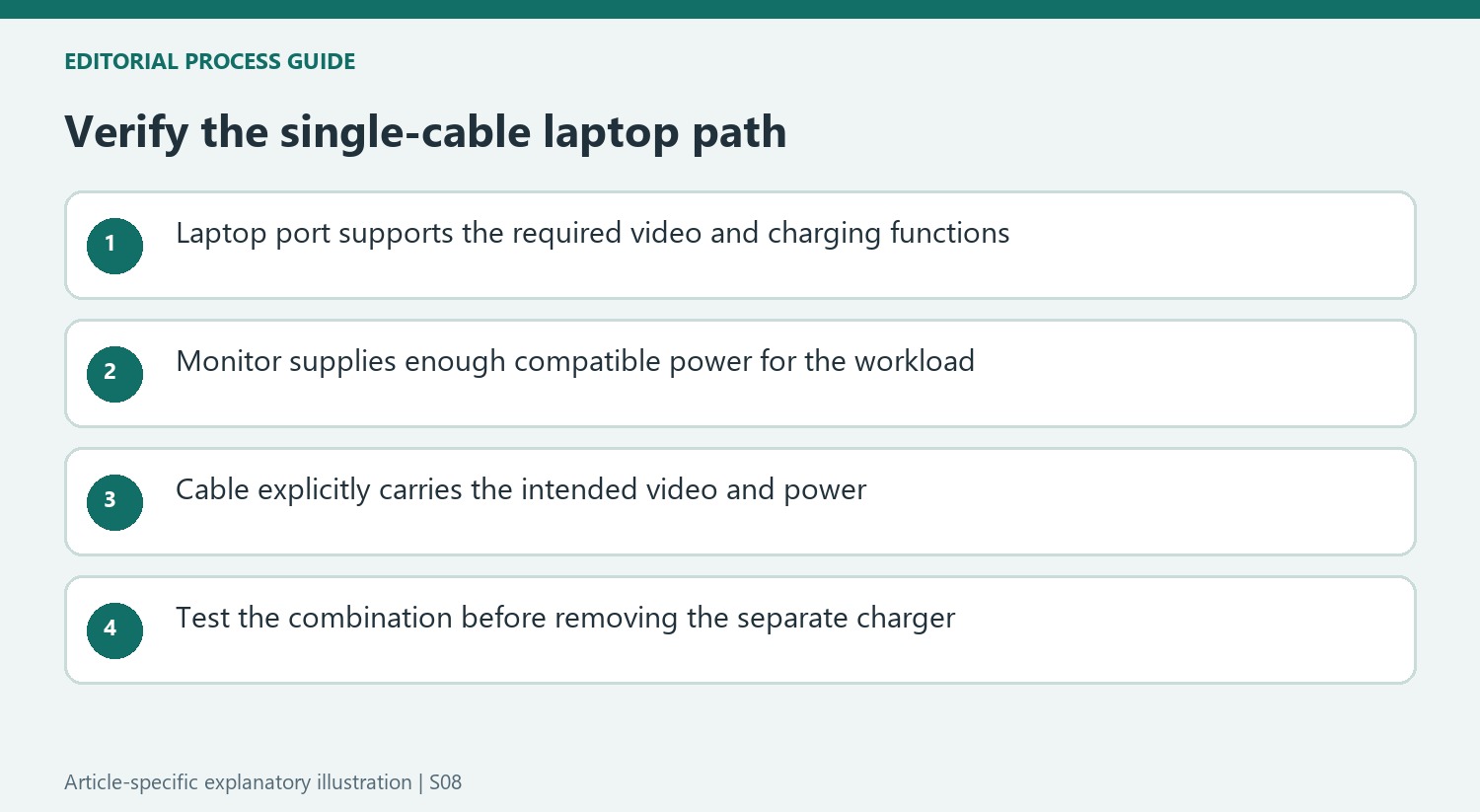
The article's single-cable proposal depends on three compatible parts: the laptop port, the monitor's upstream connection and the cable between them. A USB-C connector alone does not confirm video output, enough charging power or the desired data functions. Read the laptop and monitor specifications together. If one function is absent, a separate video lead or charger may remain necessary even though the sockets appear to match.
Power delivery also deserves a workload check. The source's wattage suggestions are useful starting categories, but the machine's actual requirements and the monitor's supported output govern the result. A laptop may display an image while charging slowly or losing battery charge under heavier work. Confirm the planned combination before leaving the dedicated charger out of a travel bag or building the furniture layout around its supposed absence.
Plan a second computer as a separate data path
A desktop connected by HDMI or DisplayPort receives the screen image through that lead; it does not automatically receive the keyboard and mouse attached to the monitor's USB sockets. The source adds a separate USB upstream connection for this second computer. A compatible hardware KVM then switches the relevant paths. Check the monitor's instructions for input mapping and switching behavior rather than assuming that selecting any image input will route every peripheral correctly.
This becomes especially relevant when a work laptop and personal computer share one small desk. List which devices need to move between them, such as keyboard, mouse and webcam, and check the required ports. A monitor with a USB hub can gather accessories without offering a KVM, while a KVM-equipped model can still provide limited charging power. These are separate capabilities and should remain separate rows in the buying comparison.
Check the physical role of a monitor that replaces a television
The dorm-room argument is primarily about giving one display more than one job in limited space. A monitor on a compatible arm may be turned toward a chair or bed, whereas its supplied stand occupies a different footprint. Verify desk suitability, attachment requirements and room rules before choosing either route. The source's space-saving example does not guarantee that a particular desk edge can accept a clamp or that every display supports the same mounting pattern.
A smart monitor with its own streaming interface can work without opening the laptop, but an ordinary computer display may need a connected playback device. Compare those behaviors alongside speakers, remote control and the applications actually used. Finally, retain or replace the connecting cable according to explicit video and charging specifications. The article's convenience claim is most useful after these everyday details are checked, so the shared screen supports study and leisure without creating an unexpected second set of leads.
References
- Forget a dorm room TV: I’d pick up a monitor with USB-C and fast charging for back to school instead. Tom's Guide; Anthony Spadafora.


Bir Cevap Yaz
E-posta adresiniz yayınlanmayacak. Gerekli alanlar * ile işaretlenmişlerdir.