
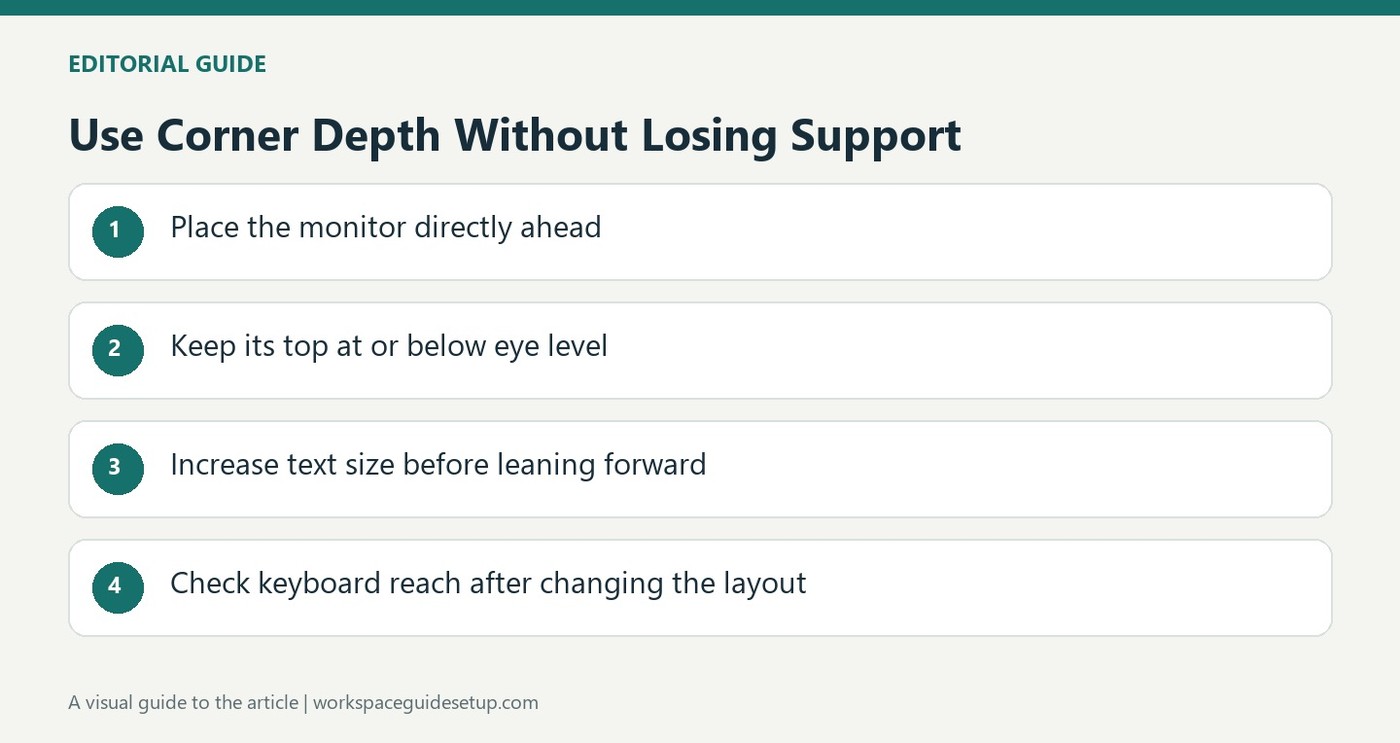
OSHA notes that a corner can provide more monitor depth, while height, readability and reflections still need individual adjustment.
Start with the seated position
The guide recommends a monitor directly ahead, with its top at or slightly below eye level. A typical viewing distance is 20 to 40 inches, adjusted so text can be read with the torso upright and the back supported. If small text encourages leaning forward, increasing text size can be more useful than compromising the seated position. Limited desk depth may require changing the desk arrangement rather than forcing the screen close to the face.
Check tilt and light together
The screen should allow suitable changes in distance, tilt and rotation. OSHA recommends placing it perpendicular to a window and warns that excessive backward tilt can reflect overhead lighting. People wearing bifocals may need a lower screen position. Periodically look away and blink, and alternate computer work with other duties where possible; a carefully positioned screen does not eliminate the need for breaks.
Change the furniture arrangement before losing back support
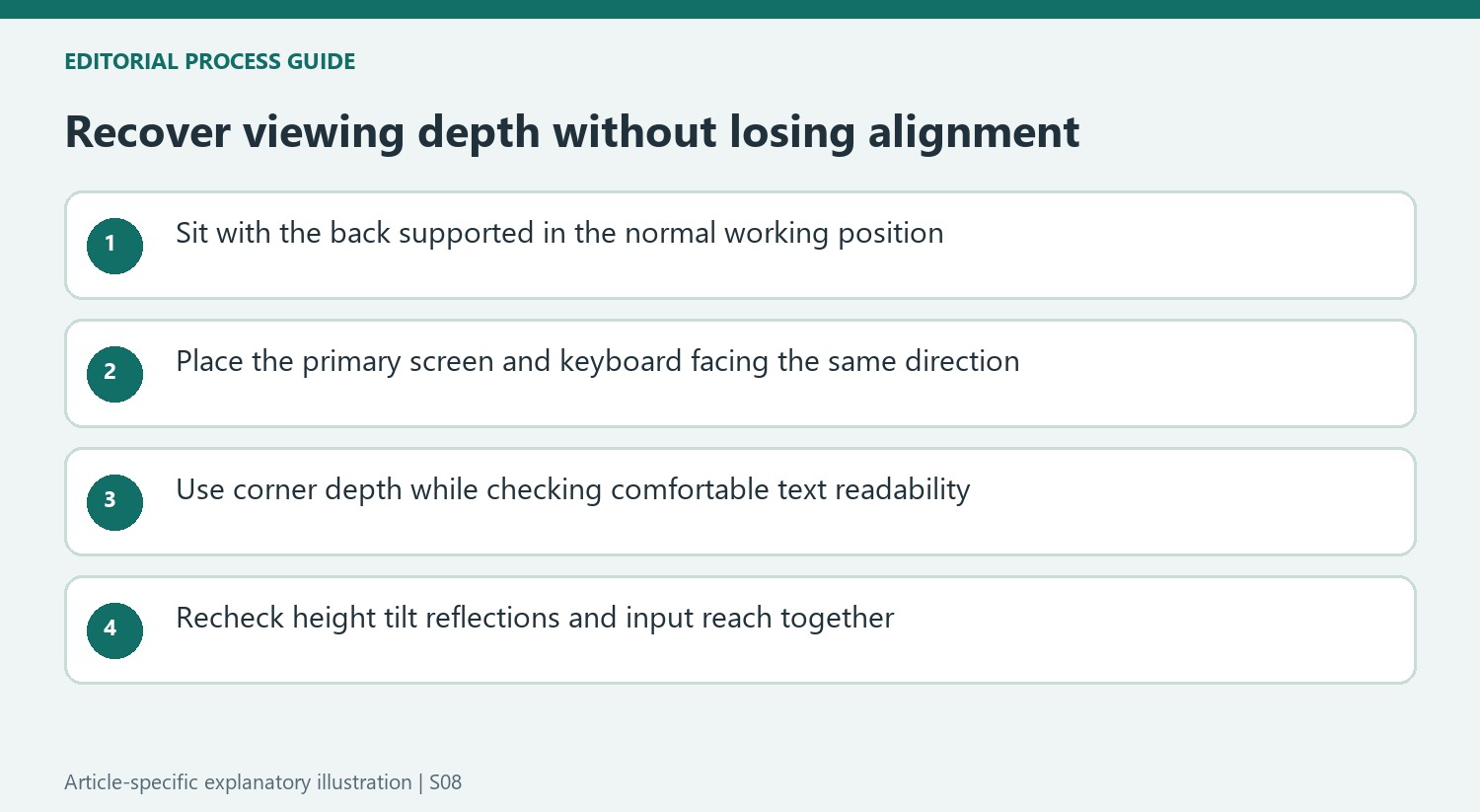
OSHA lists several ways to recover viewing depth when the monitor feels too close. Moving the desk away from a wall can create space behind the display, while a suitably adjustable keyboard tray can move the working position farther back. A corner is another option because it may provide more depth than a straight run of top. Each change still needs enough room for supported feet and unrestricted thighs. If raising the chair improves the view but leaves the feet dangling, the adjustment is incomplete. Check the resulting keyboard reach as well as the screen distance, so solving the monitor problem does not create an outstretched-arm position.
Use the corner to recover depth without rotating the body
OSHA's corner suggestion addresses a specific shortage: not enough space between the user and screen. It is not a recommendation to put the monitor anywhere in a corner while leaving the keyboard facing another direction. Arrange the main screen and input area so the usual task can be done facing forward. Otherwise, recovering depth may introduce sustained neck rotation, one of the separate hazards discussed in the same guidance.
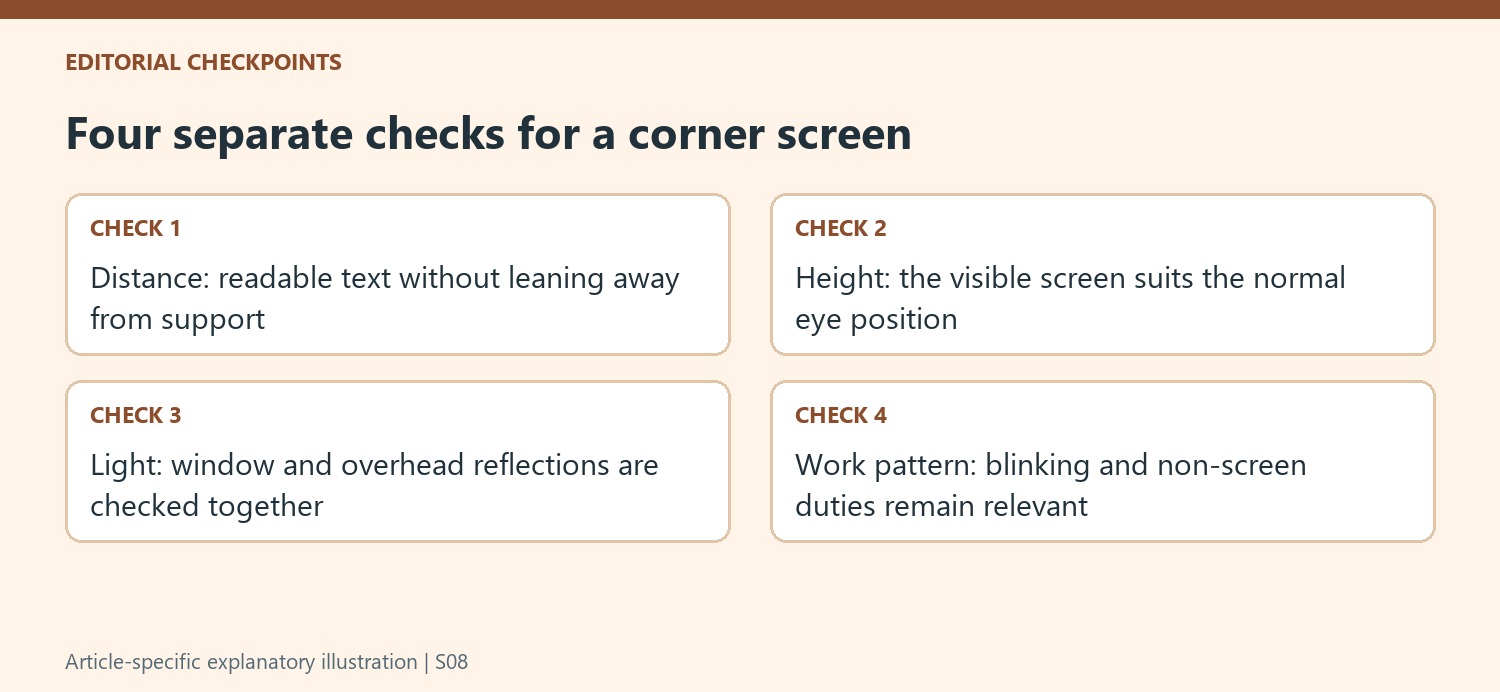
Try the actual reading task while sitting back in the chair. If the screen is moved farther away but small text draws the torso forward again, the geometry has not solved the problem. Increase text size as appropriate and reassess the placement together. The stated 20-to-40-inch range is general guidance, with comfortable readability and supported posture still determining how the arrangement works for the individual rather than a single distance becoming a universal target.
Adjust the screen from the normal eye position
The top edge is a useful reference, but the entire visible area matters, especially with a large panel. OSHA places the screen center below the horizontal line of sight and warns against arrangements that require sustained upward or excessive downward viewing. Check the result after setting the chair for supported working, rather than judging monitor height while standing beside the desk. A screen shelf that looks orderly may still raise the display too far.
Bifocal users are discussed separately because viewing through the lower part of the lenses can encourage tipping the head back. A lower monitor position and appropriate tilt may be needed, with any chair change checked against foot support and keyboard reach. The guidance also mentions computer-specific lenses as an option. Those possibilities illustrate why a generic eye-level rule cannot replace considering the user's vision requirements and the whole workstation together.
Treat reflections and visual breaks as continuing checks
A screen perpendicular to a window is a starting arrangement for reducing difficult reflections, while tilt needs to remain suitable for the viewing direction. A backward tilt may catch ceiling light even when it makes the screen face the user more directly. Test the view at the times of day when the desk is used, and examine both readable text and darker screen areas. A useful support allows changes in tilt, rotation and distance rather than fixing one photographed position.
The eTool also recommends looking away, blinking and alternating with non-screen duties where possible. A well-positioned corner screen does not remove prolonged viewing from the workday. Include those changes in activity as part of the plan instead of relying entirely on a new stand or deeper desk. Keep the display clean according to its instructions, and reconsider text size or placement if routine work repeatedly produces leaning, squinting or an unsupported posture.
References
- Computer Workstations eTool. Occupational Safety and Health Administration.


Bir Cevap Yaz
E-posta adresiniz yayınlanmayacak. Gerekli alanlar * ile işaretlenmişlerdir.