
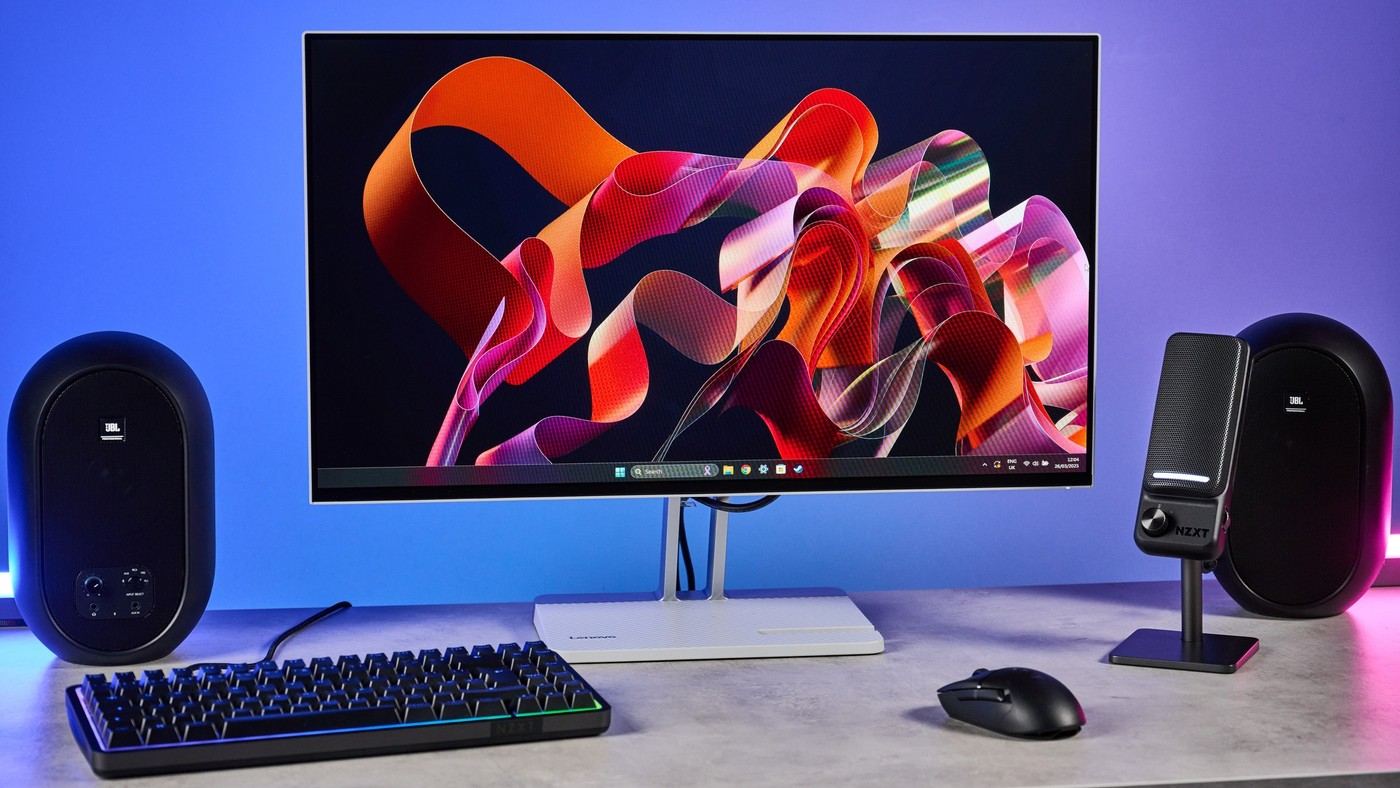
The Lenovo L27i-4B offers a simple office display, but its lack of height adjustment deserves attention before the desk layout is finalized.
A useful screen with a limitation
Tom's Guide describes the L27i-4B as a minimalist 27-inch full-HD monitor with HDMI and legacy VGA connections. The reviewer used it with another display and a laptop, keeping the Lenovo directly ahead for writing. That arrangement demonstrates a practical role for an uncomplicated office screen without implying that its stand provides every ergonomic adjustment.
Account for the fixed height
The review explicitly identifies the inability to adjust height as a drawback. That matters when comparing a low purchase price with the total workstation setup, particularly if the screen position does not suit the user. The review identifies 100-by-100-millimeter VESA holes, although any replacement support still needs a suitable load rating and mounting hardware. Screen resolution, connections and appearance should be considered alongside the physical position the included stand actually allows.
Use the adjustment it actually provides
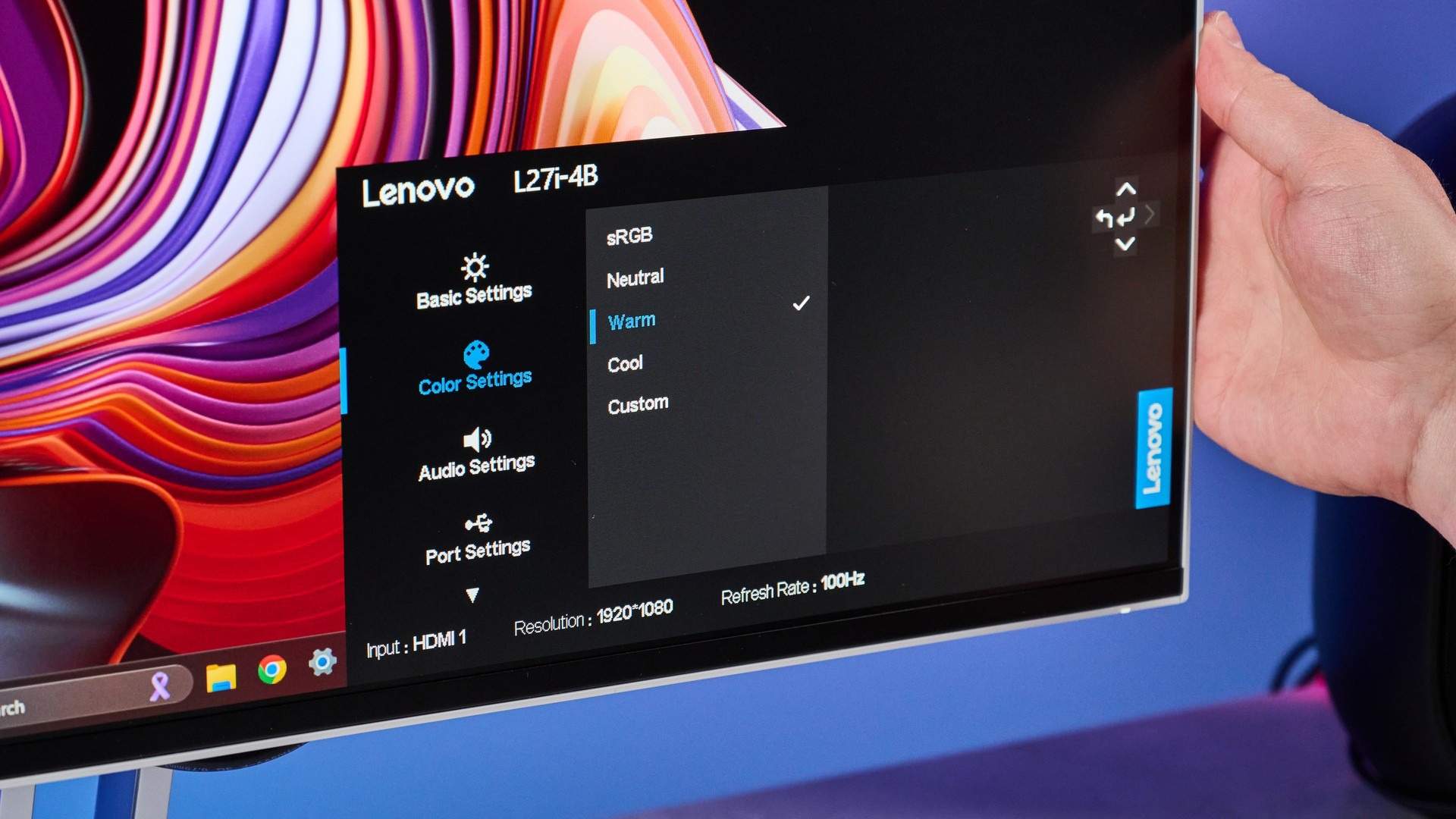
The included stand tilts from minus 5 to 22 degrees, but tilt cannot raise or lower the whole display. That leaves two separate questions: whether the screen angle is comfortable and whether the panel sits at an appropriate height. The review's own multi-screen arrangement kept the Lenovo directly ahead while other material stayed on the laptop and a second monitor. Its rear joystick and buttons also need access for input and brightness changes. Leave room to reach them rather than placing the screen tightly against another object. The 100Hz refresh rate and full-HD panel may suit routine work, but neither specification corrects an unsuitable physical viewing position.
Judge the low price as part of a complete workstation
The review's attraction is an uncomplicated full-HD screen that can perform routine office tasks at a modest publication-time price. Its fixed stand height is therefore part of the total purchase decision, not a minor detail to postpone until after installation. If a suitable support must be added, include that in the comparison with another display offering useful built-in adjustment. Check the actual user and furniture before deciding which route is less costly or more convenient.
The panel's 100-by-100-millimeter mounting interface opens an alternative support route, but it does not establish compatibility with every arm. Confirm the monitor weight in the configuration being mounted, the support's permitted range and the hardware specified for the connection. Likewise, a shelf beneath the original stand offers a fixed lift rather than adjustable height. Choose the solution for the observed viewing position instead of assuming every user needs the screen raised.
Keep ports and image features as separate comparisons
Two HDMI inputs and a legacy VGA socket can suit a mix of newer and older computers, but they do not provide laptop charging or a USB peripheral hub. Plan the video and power connections for the actual host. The source also includes a headphone output, so determine whether audio will be routed there or elsewhere. Counting sockets is useful only when their roles match the equipment intended for the desk.
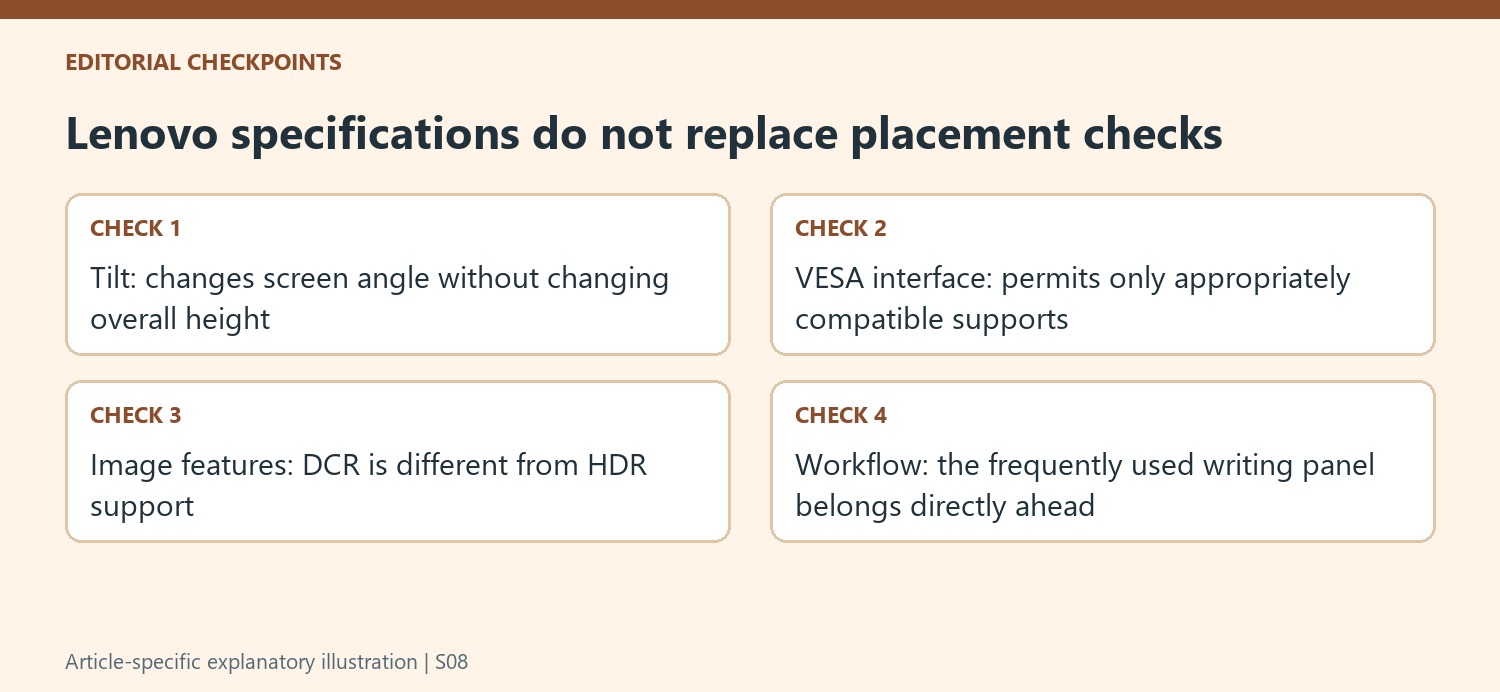
The lack of HDR and the presence of a dynamic-contrast option describe different image features. The review reports little brightness difference between its measured SDR and DCR modes; a contrast setting should not be treated as equivalent to HDR support. Its measured color results and favorable editing impressions belong to the tested unit and procedure. They can inform a comparison without guaranteeing identical accuracy in every mode or eliminating calibration questions for demanding image work.
Use the review's application placement as the practical example
The reviewer placed the Lenovo directly ahead for writing, with spreadsheets and reference material on other screens. That division matters more to the layout than simply having three displays present. Decide which task is primary, then place its panel accordingly. A second monitor can remain useful without forcing the user to center on the gap or constantly turn away from the main input area.
For occasional gaming, the review describes satisfactory use at the available refresh rate rather than a competitive high-refresh assessment. Keep that account distinct from a promise about every game, connection or response-time setting. The rear controls should remain accessible for brightness, input and mode changes, particularly when another screen sits beside it. An inexpensive monitor becomes a useful office choice when its physical position, connections and daily controls fit the actual work, not solely because the specification list looks generous.
References
- I just upgraded my desk setup with this Lenovo monitor — and you won’t believe how little it costs. Tom's Guide; Nikita Achanta.


Bir Cevap Yaz
E-posta adresiniz yayınlanmayacak. Gerekli alanlar * ile işaretlenmişlerdir.