
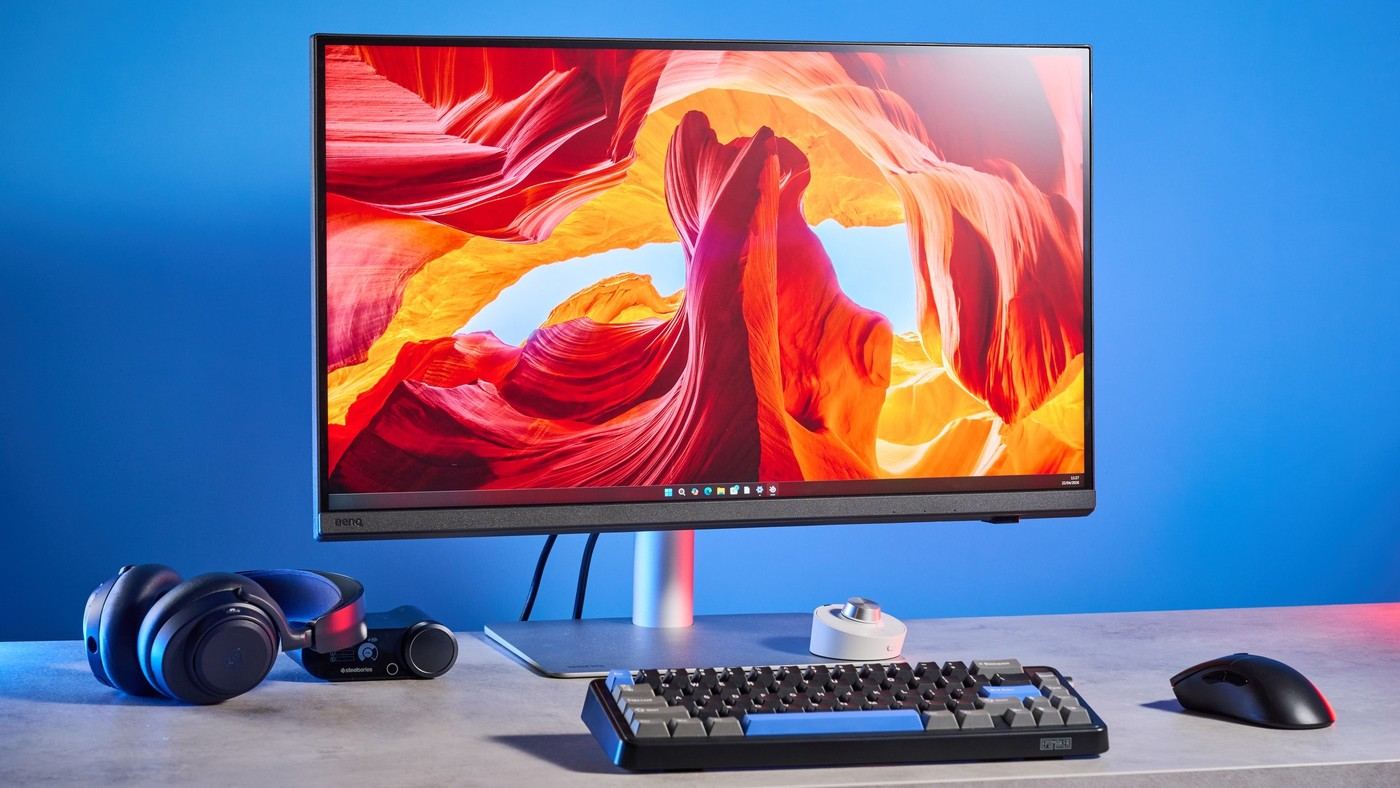
Tom's Guide's BenQ Creative Pro PD2730S review describes a stand base that is not excessively wide. The reviewer fitted the twenty-seven-inch monitor beside another panel and computer speakers. Its height-adjustable assembly occupies roughly nine and a half inches of desk depth.
An anti-reflective coating helps with glare, but position the screen using actual room lighting. Measure the complete base rather than assuming every twenty-seven-inch monitor takes the same space. Nearby speakers, input devices and cable access also belong in the placement plan.
Keep the separate controller within reach
The included Hotkey Puck gives access to common changes without repeatedly reaching around the screen. It is another small object to accommodate, so leave it beside the working area rather than hiding it under a crowded monitor shelf. That is especially relevant if the display sits next to another panel or speakers, as in the reviewer's arrangement.
Match the upstream connection to the laptop
The source lists a 90W Thunderbolt upstream connection and another Thunderbolt port for chaining, alongside additional USB and video sockets. Those ports can consolidate accessories, but their locations and functions are different. Determine which computer connection carries video and data, then check the power requirement before expecting a complete single-cable laptop station. Leave room for plugs behind the base.
Judge the creative features against the task
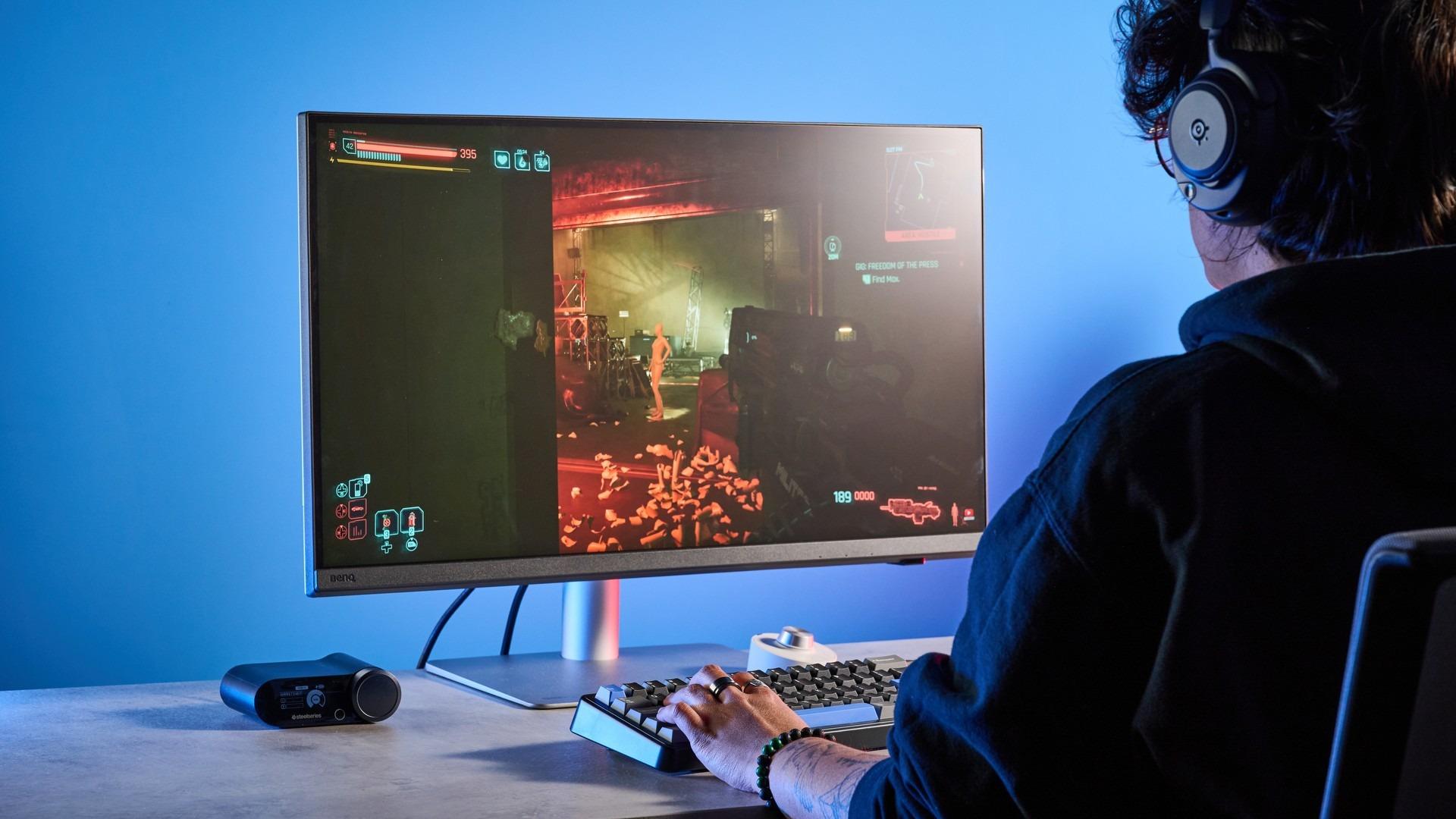
The panel's 5120-by-2880 resolution and measured color accuracy were central to the review's recommendation for creative work. However, the reviewer also notes the absence of an Adobe RGB mode. That limitation may matter more to a particular workflow than the compact base or broad port selection. Fit the support to the desk while choosing the screen's image capabilities for the work it must actually perform.
Reserve space for the screen and its controls together
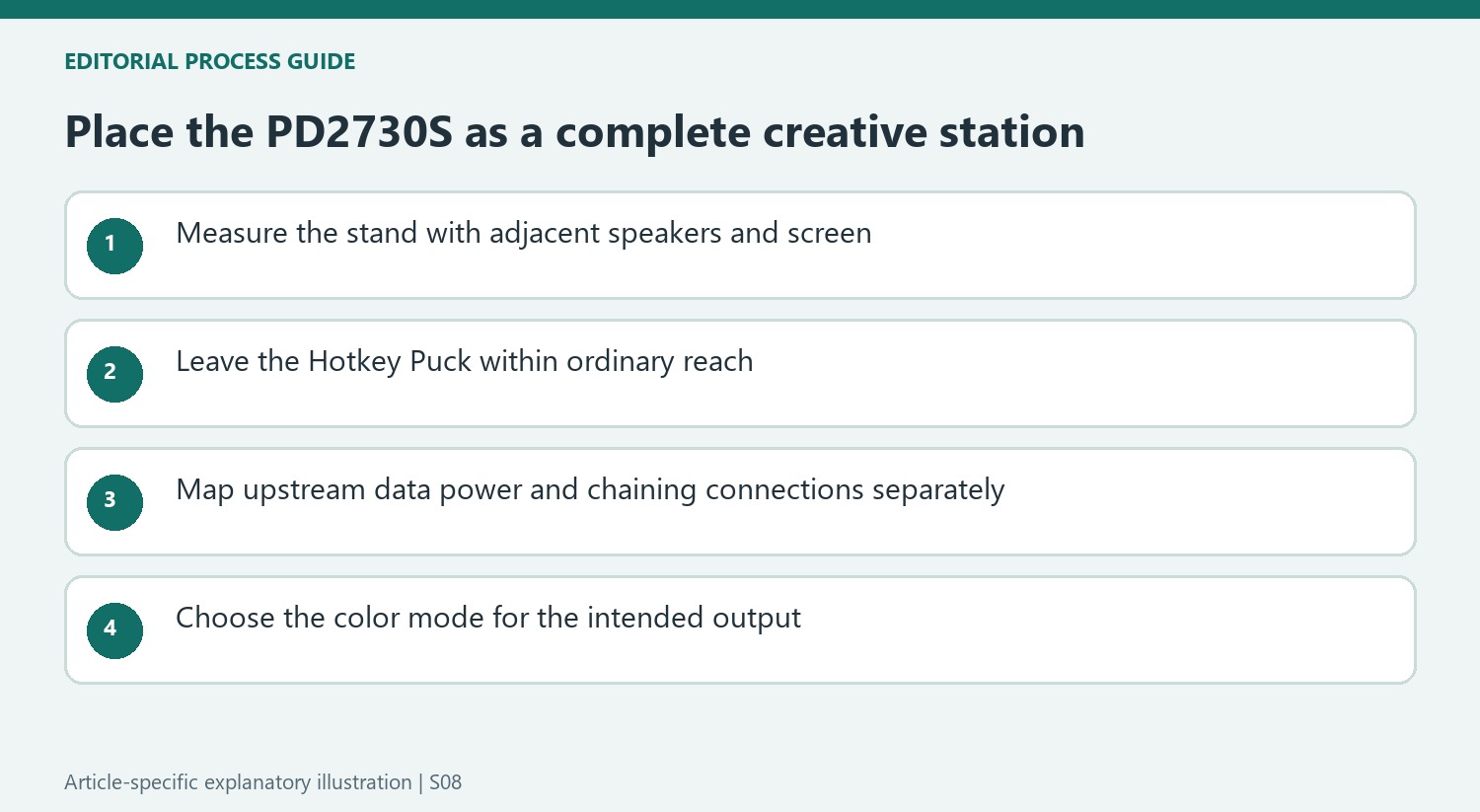
The source's crowded-desk example is useful because it includes another monitor and speakers rather than an otherwise empty surface. Reproduce the measurement logic, not necessarily the same equipment arrangement. Check the complete base depth, the preferred height and room for connectors before positioning the panel. The 27-inch diagonal describes the screen, while the support and attached cables determine how much working surface remains available to the keyboard, mouse and other daily tools.
The separate Hotkey Puck reduces the need to reach around the display, but it should have an accessible position of its own. Map its configurable buttons to changes that are actually repeated, such as inputs or color modes. A controller hidden behind a speaker or under a shelf loses much of its advantage. The reviewer found it useful for switching quickly; that benefit is most credible when the chosen shortcuts match a real workflow rather than every available setting being assigned immediately.
Distinguish upstream, downstream and display-chaining ports
The connector list contains several USB-C-shaped sockets with different purposes. The 90W Thunderbolt upstream route, the lower-power chaining connection and the data-only USB upstream path should not be treated as interchangeable charging inputs. Match each device to the current port diagram and use appropriate cables. If a laptop is expected to handle video, accessories and charging through one lead, verify all three roles on that laptop rather than inferring them from the socket alone.
KVM sharing introduces another independent connection question because each computer needs the necessary video and data paths. Write down which keyboard, pointing device and storage should follow an input change, and test the switching sequence before concealing leads. Display chaining also depends on the host and chosen modes. These checks are particularly relevant when a compact base encourages placing another monitor nearby: a physical two-screen fit does not establish that the computer can drive the intended arrangement.
Choose creative modes according to the output destination
The review's favorable 5K detail and color measurements explain its enthusiasm for digital creative work, but they do not remove the Adobe RGB limitation. Identify whether the main output is online imagery, video, design work or a print process with specific requirements. A large reported gamut figure alone does not describe every part of a managed color workflow. Use the mode and application settings appropriate to the actual deliverable rather than treating the broadest available mode as universally preferable.
Specialized options such as CAD/CAM, Animation and DualView address different viewing tasks. They should not be confused with a promise that every mode is an accurate reference for every export. The anti-reflective surface likewise helps explain ordinary room use without replacing sensible placement under the actual lighting. Compare the historical premium price with today's package and the functions that will be used. The stand, controls and port selection add value when they support the required image work and daily routine together.
References
- BenQ Creative Pro PD2730S review: The endgame of productivity monitors. Tom's Guide; Nikita Achanta.


Bir Cevap Yaz
E-posta adresiniz yayınlanmayacak. Gerekli alanlar * ile işaretlenmişlerdir.