
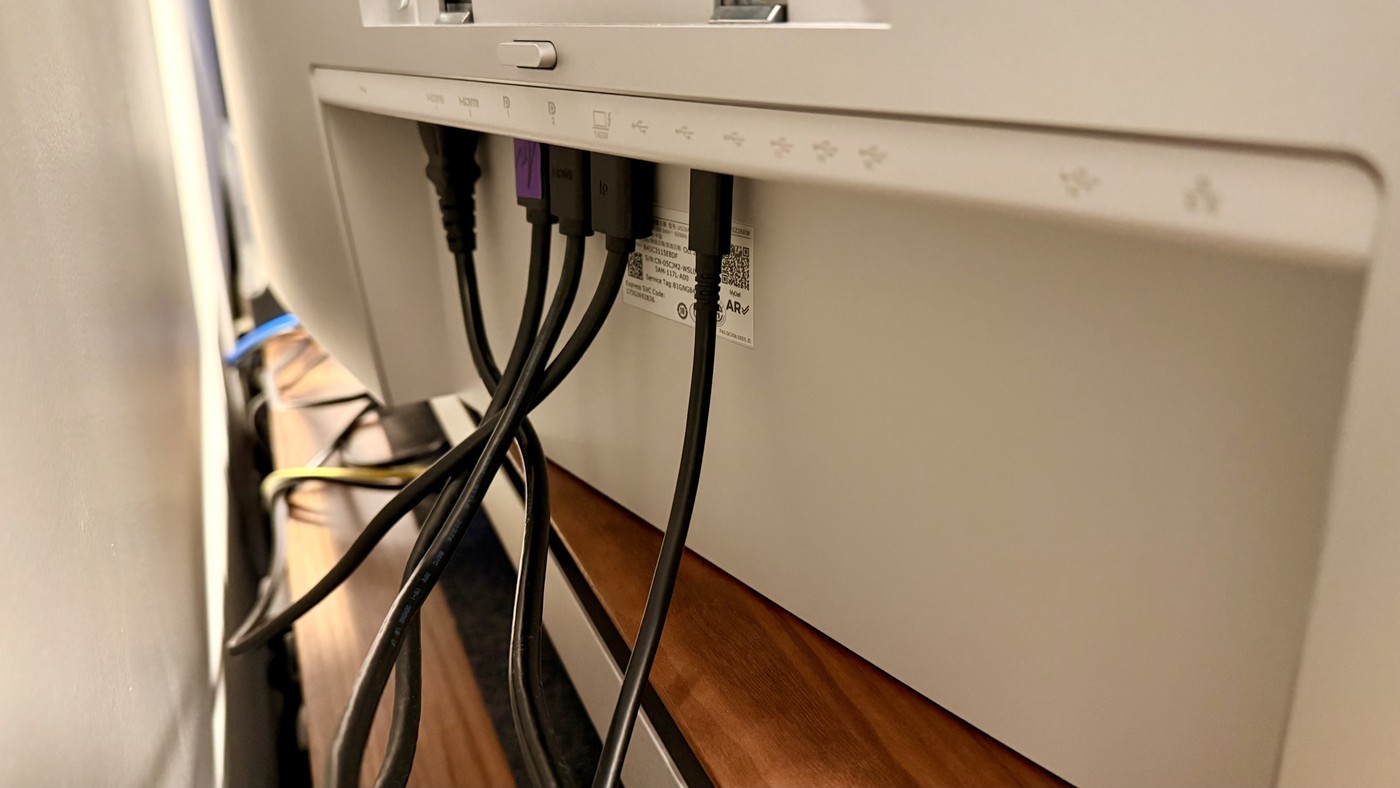
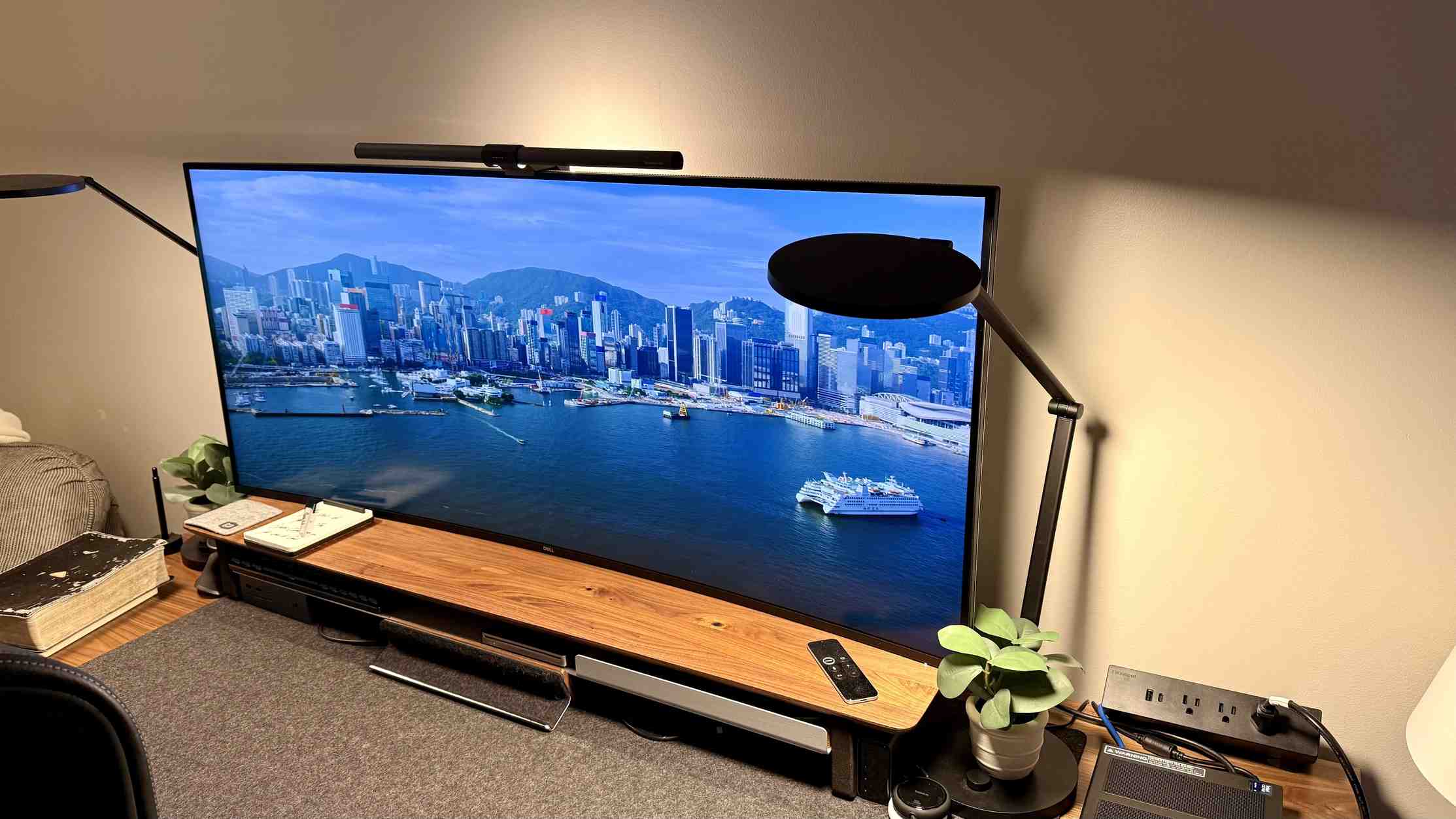
TechRadar's Dell UltraSharp fifty-two-inch review describes an unusually large 6K working canvas. The reviewer liked positioning it on a support that allowed the screen to swivel outward for connecting test computers. That movement made rear access useful as well as visually tidy.
For a display of this scale, confirm the actual panel weight, mounting requirements and desk suitability before copying an arrangement. Leave safe clearance around the moving screen and cables. A personal review setup does not establish that an ordinary monitor arm is adequate.
Do not repeat an improvised support arrangement
The review itself says the writer's usual arm could not carry the panel, leading to a setup that also rested weight on a shelf. That is an individual improvisation, not a manufacturer-approved mounting recommendation. The important lesson is to establish a fully suitable support before installation. Use the display's actual weight and mounting requirements when selecting hardware, rather than assuming a previously reliable arm remains appropriate.
Allow depth as well as width
TechRadar highlights that the panel's scale makes viewing depth a significant issue. A broad working canvas needs enough distance to see its outer areas without repeatedly stretching or twisting. The reviewer sometimes used only part of the available area, which is a reasonable response to the task. There is no obligation to fill every corner with active windows simply because the panel is large.
Preserve access to the central rear connections
The ports sit near the center of the back, making them harder to reach from the side than on a smaller screen. Decide which devices will remain connected and which need frequent changes. A comfortable rear access route may be valuable, but it must coexist with stable support and sufficient cable clearance. Check the computer's output capability too: the source encountered machines that could not deliver the intended high-resolution workspace.
Separate a large canvas from a requirement to fill it
The reviewer describes research sessions and meetings where many windows remained visible, but also says that part of the panel was sometimes unused. That qualification is valuable when assessing a very large screen. Identify the work that benefits from persistent reference areas, then keep the primary task in a useful central zone. Empty space is preferable to moving an important application to an uncomfortable corner merely to make the panel look fully occupied.
A single operating-system display can simplify some window arrangements compared with several panels, yet text scaling and application layout still determine usable workspace. Check the intended computer's supported output and the settings used for normal reading. A screen capable of a high native resolution does not guarantee that every host can drive the desired mode, or that the resulting text size is appropriate without adjustment.
Establish approved support before arranging connections
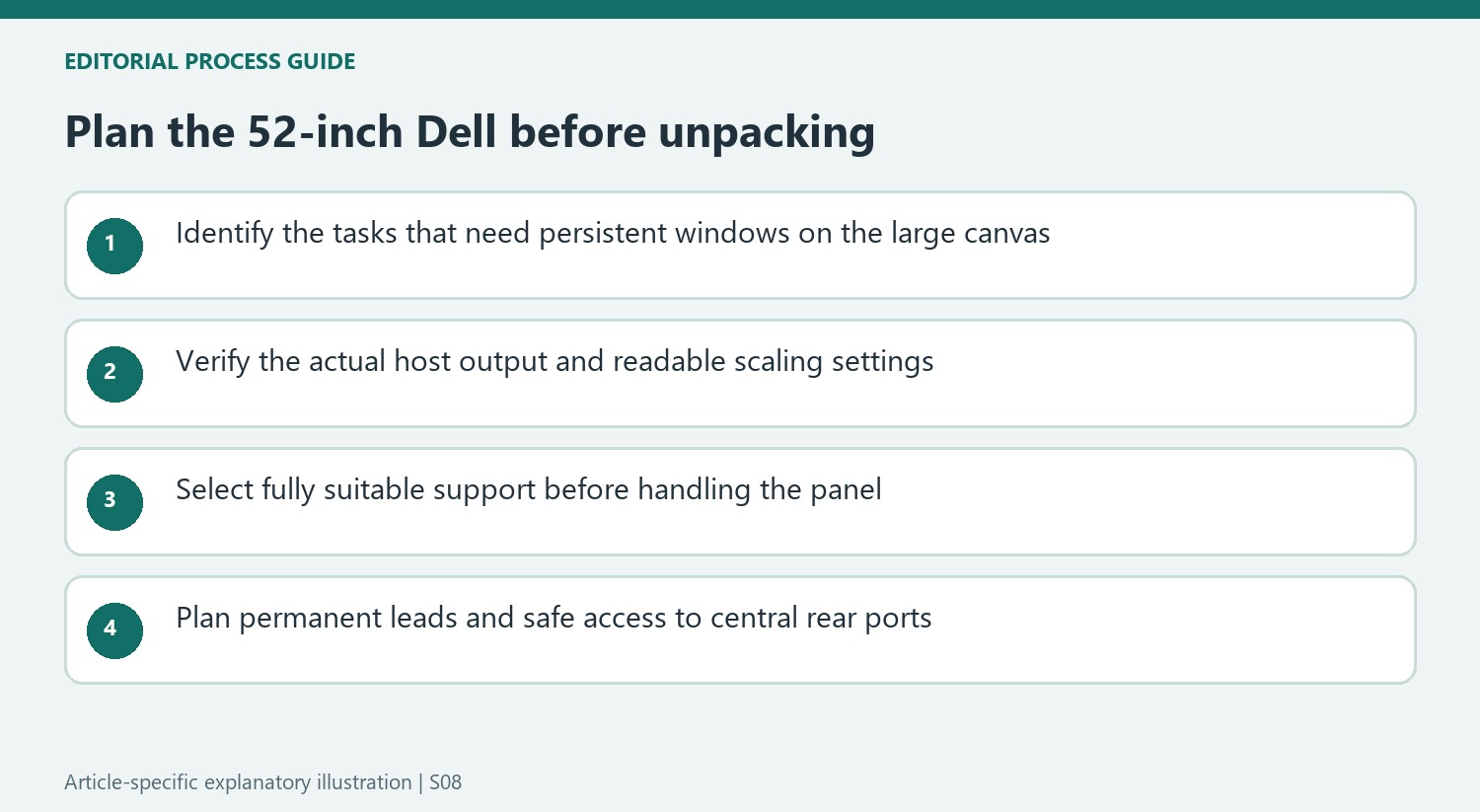
The source's failed attempt with an ordinary arm is the most important installation lesson. It demonstrates that hardware suitable for a familiar large monitor may be inadequate for this panel. Select a fully appropriate stand or mount using the current weight, interface and manufacturer requirements before handling the display. An improvised combination of shelf support and another arm should not become the article's suggested method, regardless of the writer's satisfaction with its appearance.
Include the desk's ability to accommodate the complete support arrangement and the safe access needed to install it. A panel whose base occupies substantial depth can alter the remaining distance for the keyboard and chair. Do not recover viewing distance by stretching the arms toward input devices. Assess the screen, furniture and ordinary working posture together so that solving the panel's physical placement does not simply transfer the problem elsewhere.
Plan permanent connections differently from frequent changes
The central rear port location matters because the panel is too wide to treat access like that of a small desktop monitor. Identify which devices can stay connected and which are changed repeatedly. Suitable permanent leads may reduce later reaching, while an approved installation should still provide a practical access method when needed. Do not rely on swiveling hardware that has not been established as suitable for the full load.
The writer used multiple sources and picture-sharing functions during his extended use, but each computer and cable still needs to support its intended mode. A built-in dock can reduce separate hardware without eliminating the monitor's own power or the needs of every attached device. Compare the current complete arrangement against the actual alternatives it would replace. The review's enthusiasm describes a demanding personal workflow, not measured proof that a larger panel makes every user more productive.


Bir Cevap Yaz
E-posta adresiniz yayınlanmayacak. Gerekli alanlar * ile işaretlenmişlerdir.