
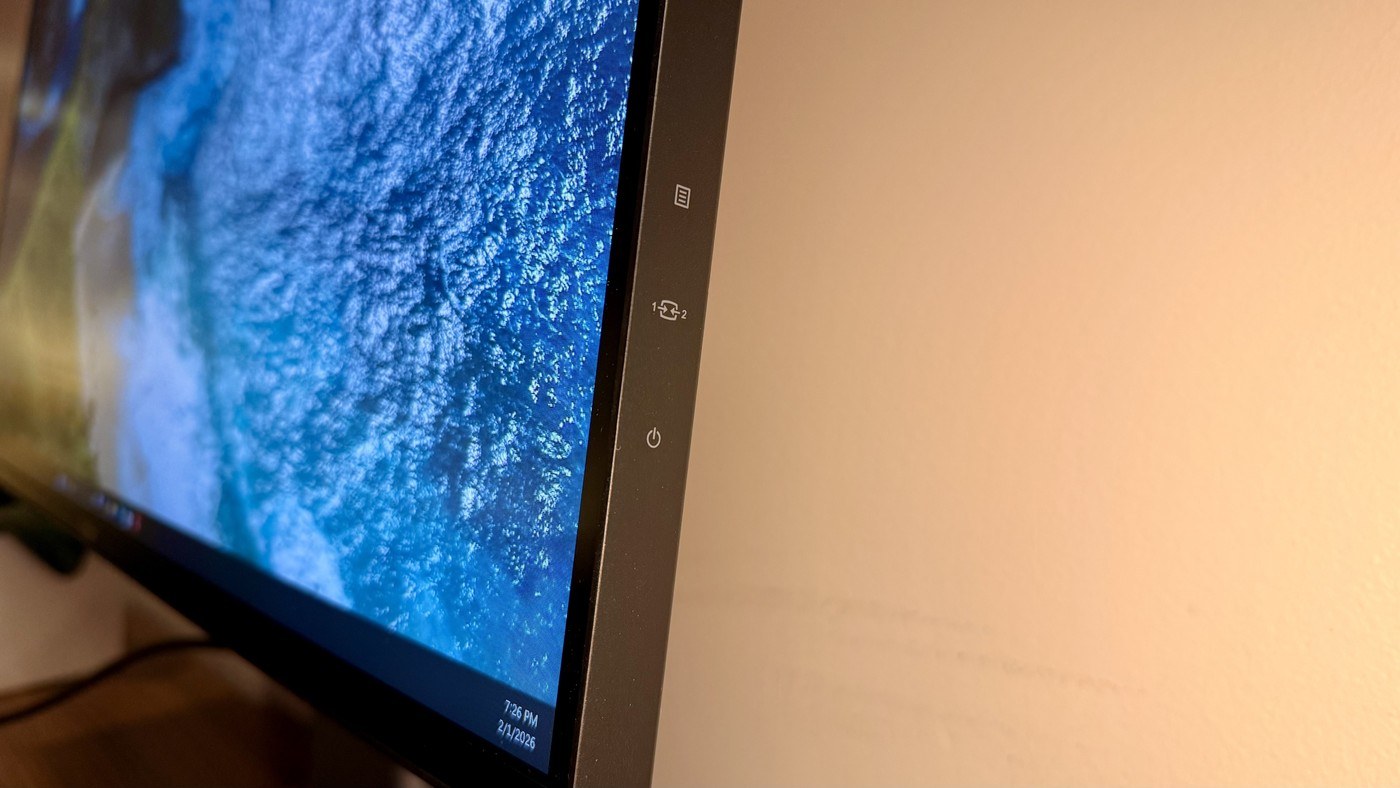
TechRadar's Lenovo ThinkVision P27Q-40 review describes a twenty-seven-inch QHD display with a stand that rotates ninety degrees in either direction. The reviewer highlights a landscape center screen with a portrait companion as one useful arrangement. Minimal bezels make differing orientations less visually intrusive.
USB-C and supported daisy-chaining can simplify the connection path, but host compatibility still matters. Check the portrait panel's height and cable reach before setting the base position. Adjustable orientation is useful only when the resulting arrangement fits the work area.
Find the unusual ports before placing the base
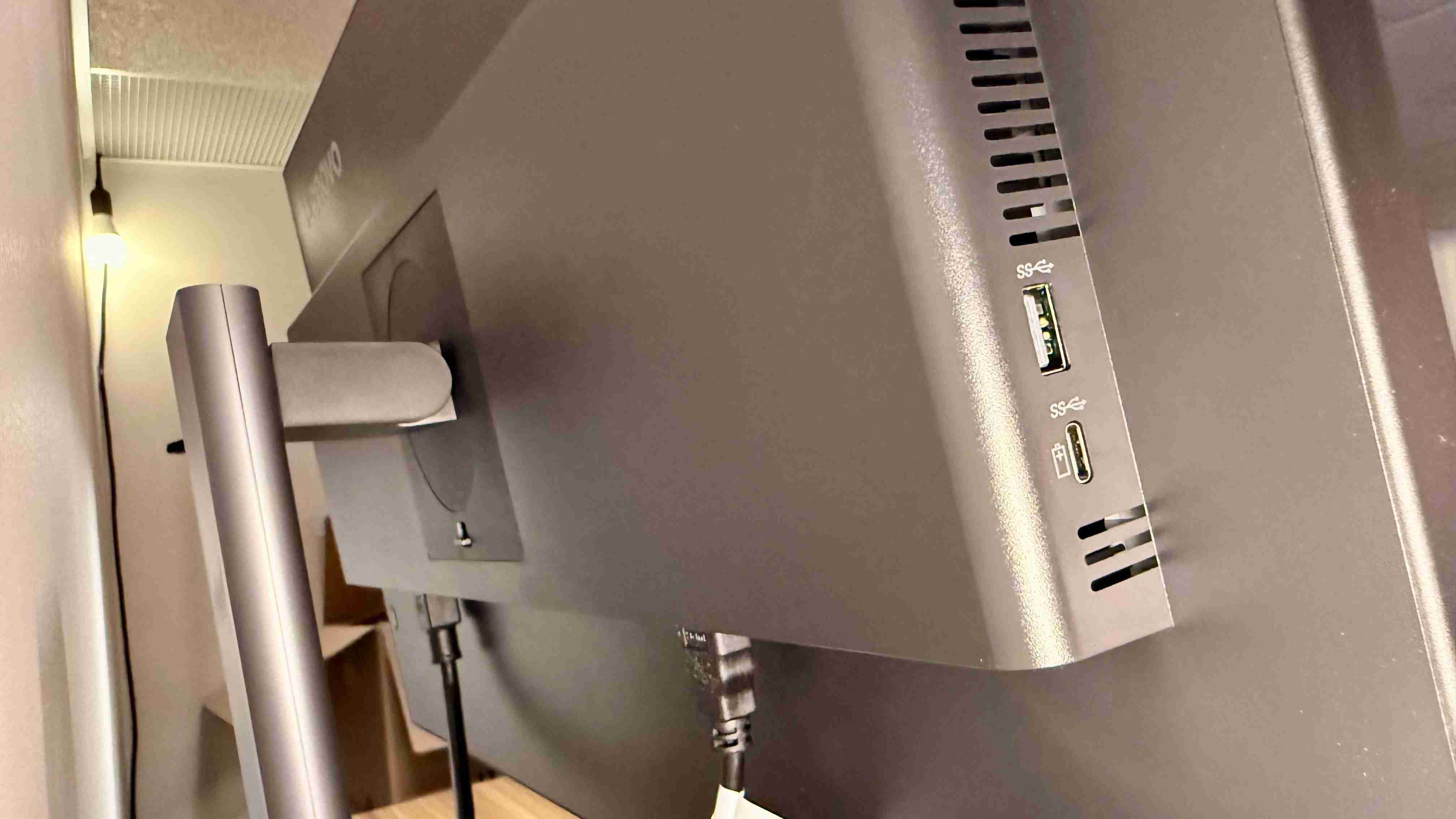
The reviewer initially overlooked the side USB-C connection and a USB-A socket concealed beneath a rubber cover at the top. That upward-facing port is particularly useful for a webcam because it can reduce a separate cable run down the back of the desk. Locate these connections before arranging a portrait companion, as a rotated panel changes the direction in which sockets and cables face.
Check a shared desk with every intended computer
The source emphasizes USB-C connections and display chaining as useful for hot-desking. Whether those functions replace a separate dock depends on the host's supported outputs, charging requirements and connection method. Test the full arrangement with the machines that will actually use it. One successful laptop connection does not establish identical behavior across a shared office's whole device fleet.
Match enterprise features to the actual need
Lenovo Display Fleet Manager support is a central point of the review, alongside the 2560-by-1440 business panel. Remote administration may be valuable for a managed group of workstations, while an individual home user may care more about the stand and connections. Choose the physical orientation for the work performed daily, and treat fleet-management tools as an additional benefit only when someone will use them.
Use the rotation range without losing access to connections
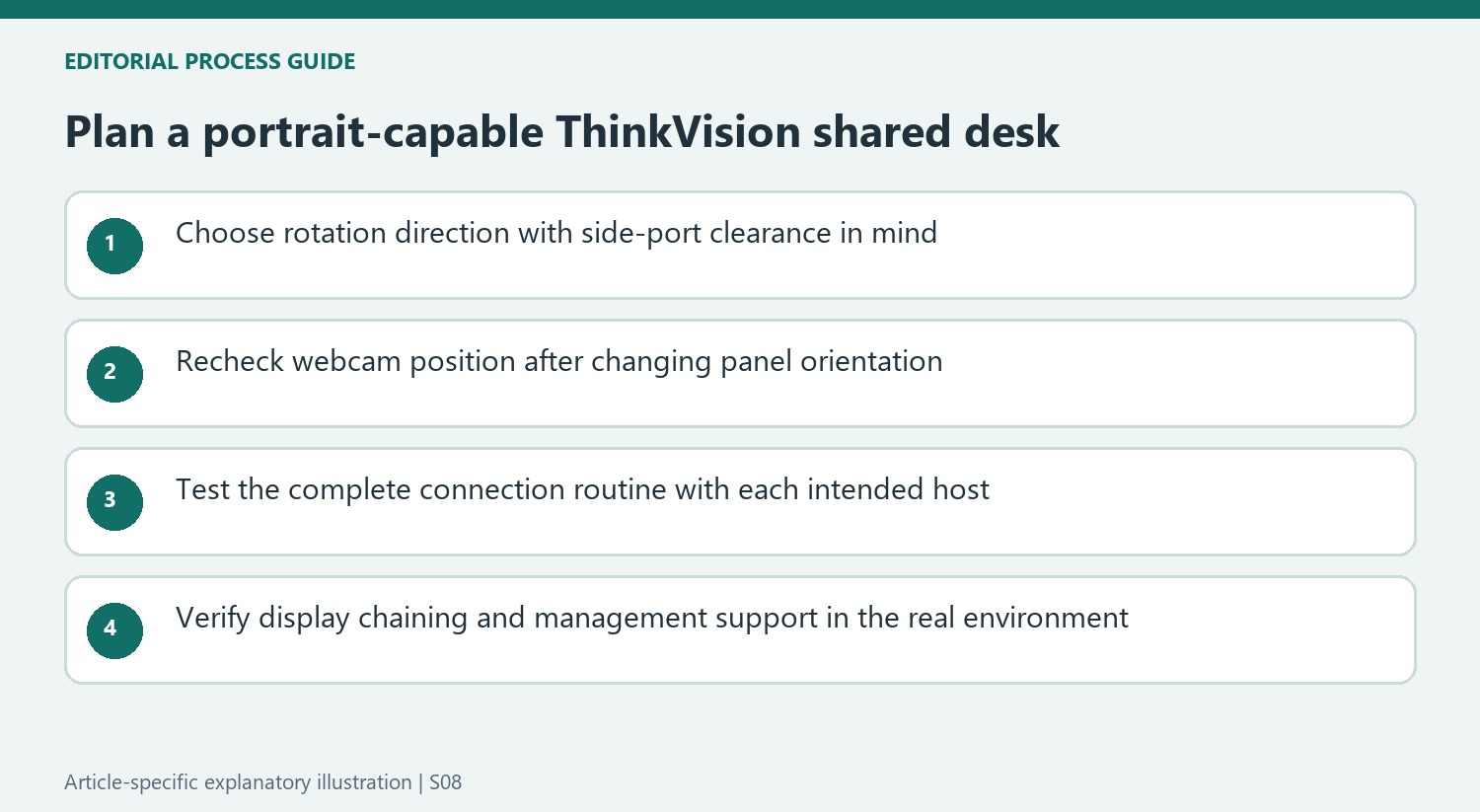
The stand's ability to pivot in both directions can help place a portrait companion on either side, but the choice also changes where the port group faces. Check the side USB-C connection and any lead projecting from it in the intended orientation. Leave room for the neighboring panel and the cable bend rather than assuming thin bezels allow every edge to touch in every configuration.
The upward-facing USB-A socket offers a convenient route for a suitable webcam in the usual landscape arrangement. After rotation, reconsider the camera location and its lead instead of treating the socket's original direction as unchanged. The source had only one panel, so its comments about pairing describe supported possibilities rather than a completed test of every two-monitor arrangement. Confirm the final geometry using the actual displays and stands.
Check hot-desking as a complete daily connection routine
The review values arriving at a station and attaching a compatible laptop with fewer separate devices to manage. That convenience depends on the host and connection supporting the intended video, peripherals and power together. Test ordinary arrival, use and departure with each type of computer that will share the desk. A successful picture from one laptop does not establish the same charging behavior or second-display support for another.
Display chaining adds another compatibility condition. Check the current monitor and host instructions for the desired number of panels and modes, along with the required leads. A separate dock may become unnecessary in a supported setup, but the review's general enthusiasm should not be extended to unsupported hardware. Keep accessible connections and a clear place for the laptop so the simplified routine remains usable after several people have used the station.
Value fleet management differently from individual display preferences
Remote administration can matter to an organization maintaining many stations, while a home user may have little reason to prioritize that feature. The source emphasizes the former perspective and reports reliable use over an extended personal test period. Those observations help explain the business recommendation without proving a particular service outcome for every deployment. Confirm the management platform, permissions and supported functions in the organization's actual environment.
The QHD panel and ordinary office applications described by the reviewer also offer a task-specific comparison with higher-resolution screens. Some people will prefer more pixels for visual work; others use larger interface scaling and place more value on convenient connections. Ask what the staff actually need before standardizing on the most impressive specification. The stand, readable image, connection routine and management tools together determine the practical value, with the historical price checked against the current configuration and terms.


Bir Cevap Yaz
E-posta adresiniz yayınlanmayacak. Gerekli alanlar * ile işaretlenmişlerdir.