
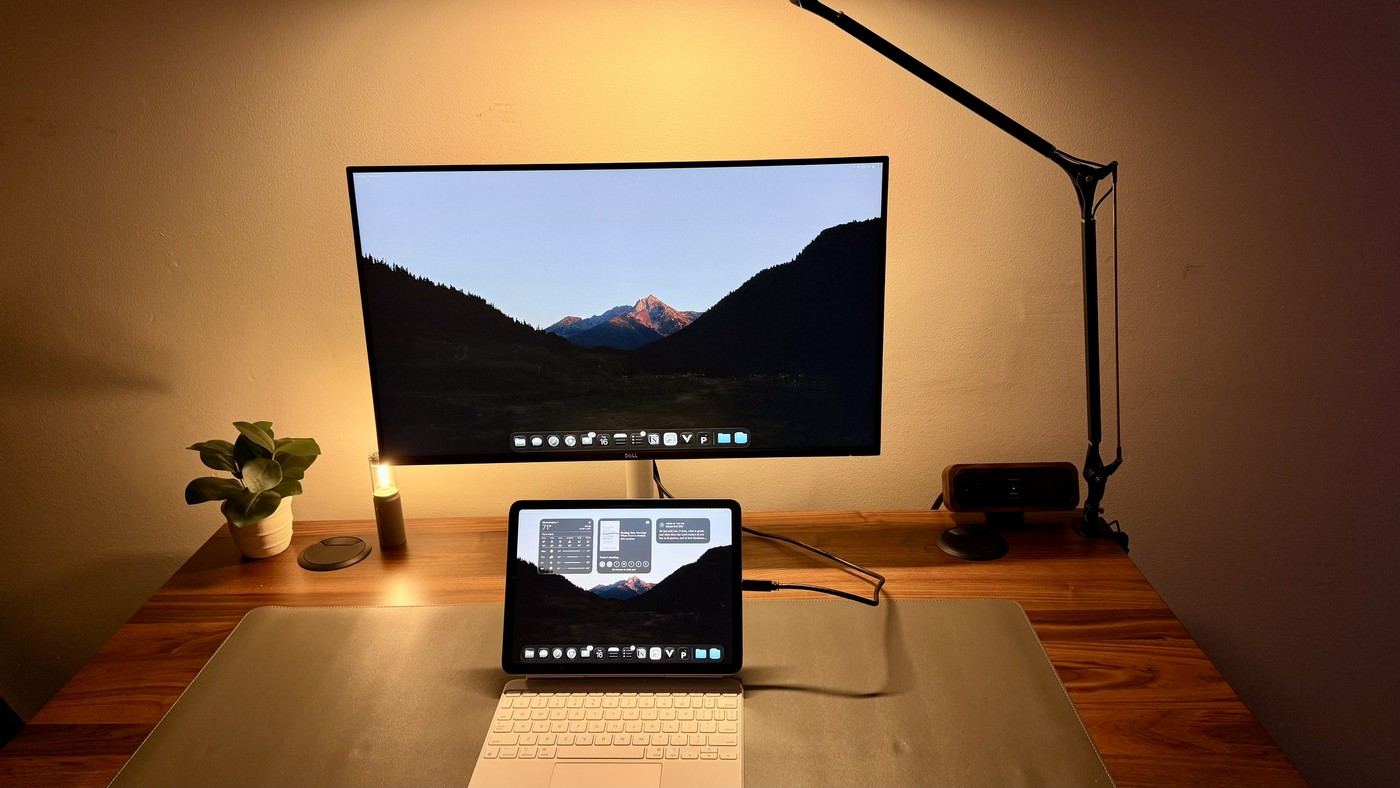
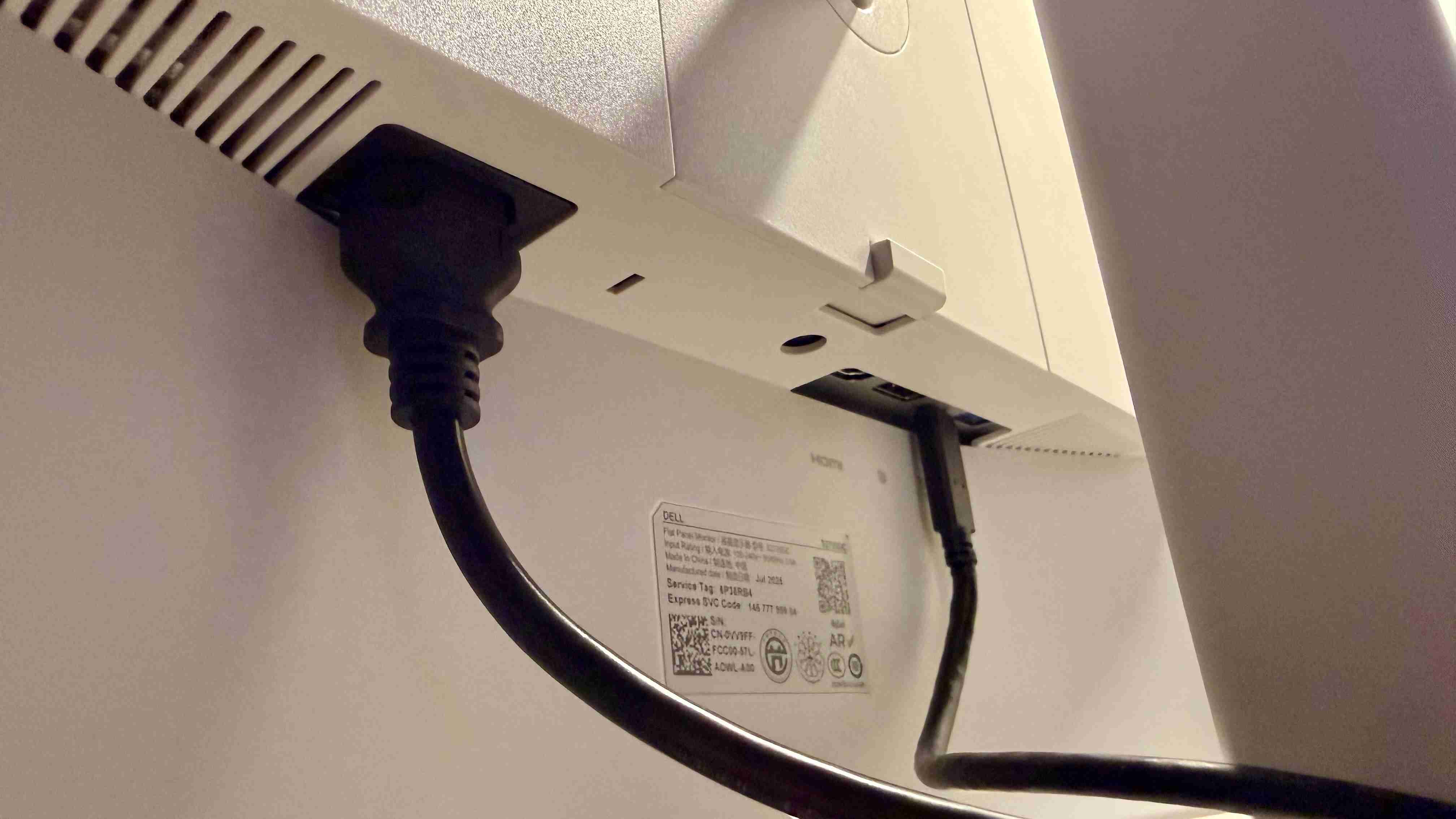
TechRadar's Dell 27 Plus S2725DC review emphasizes USB-C docking as a simple way to connect an office laptop. The supplied cable gives some flexibility for routing, and the stand uses a rear clip rather than a pass-through in the base. The reviewer found the display unusually light.
If using an arm, confirm its minimum supported load as well as the maximum and adjust it for the monitor. A light panel can be difficult for an unsuitable arm to hold down. Check the chosen mounting instructions before removing the original support.
Treat the monitor hub as a modest connection center
The review describes accessible pop-out ports for small file transfers and charging accessories, rather than the high-speed expansion expected from a specialist dock. That may be sufficient for an office laptop, but it should be compared with the actual peripherals and storage drives in use. A separate dock can remain useful when the workload requires connections the monitor does not provide.
Keep controls reachable after mounting
The on-screen menu uses a joystick for input selection and USB-C settings. A monitor arm can improve positioning while also moving that control farther from the user's reach. Test both the normal reading position and occasional access to the menu before closing up the cable route. The rear cable clip is useful with the original support but does not replace the arm's own routing system.
Check the laptop instead of assuming universal charging
The writer successfully tried several laptops, tablets and phones, but a USB-C label alone does not promise video and sufficient charging on every device. Compare the computer's requirements with the monitor's current specification and the supplied lead. The main attraction is reducing the number of separate connections for everyday office tasks, not removing every compatibility question or replacing a high-performance production workstation.
Test the host, cable and power as one connection
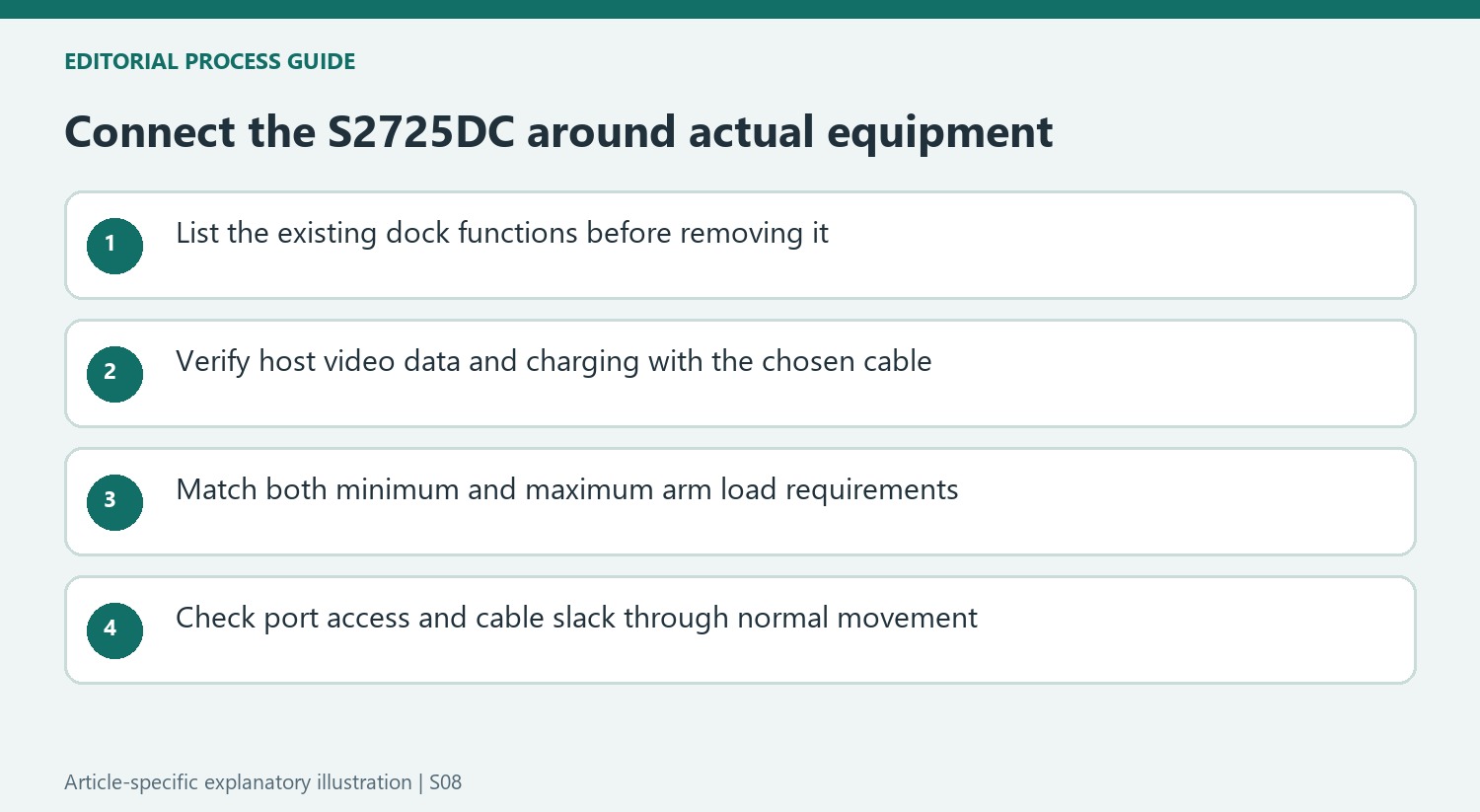
The source describes successful use with several kinds of computer and mobile device, which is useful practical evidence rather than a guarantee about every USB-C socket. Video output, data and charging depend on the connected host and cable as well as the monitor. Before removing an existing dock, list its present jobs and verify each one on the proposed connection. A screen appearing correctly is only the first part of that check.
The supplied long lead can help route a laptop connection without stretching across the keyboard area. Extra length still needs somewhere to go when the laptop sits close to the screen. Follow a route that preserves access to the rear joystick and any ports used frequently. Try ordinary arrival and departure with the laptop, including its expected workload, to establish whether the arrangement actually simplifies the daily routine rather than moving inconvenience behind the display.
Check the arm's lower load limit as well as its capacity
The review draws attention to an unusually light panel. A mounting arm designed to support much heavier displays may have too much upward force even though the monitor is safely below its maximum stated capacity. Compare both ends of the arm's supported weight range with the current monitor documentation and any attached accessories. Use the adjustment procedure specified by the arm maker instead of assuming maximum capacity is the only compatibility figure that matters.
The original stand and an aftermarket arm also create different cable paths. The rear clip offers basic organization without a hole through the stand, so leads should not be forced through an imagined route. Once a compatible support is installed, check movement slowly and preserve the cable slack required for the available positions. A neat stationary arrangement is incomplete if raising or turning the screen pulls on a connector or blocks a control.
Choose the hub for the peripherals actually used
The accessible connections can be useful for small accessories and ordinary transfers, but the source does not establish that they replace every specialist dock. Write down the actual storage, network, audio and display functions needed. Compare their requirements with the monitor's documented connections, including the host power budget. Someone using a keyboard and occasional portable drive may reach a different conclusion from someone handling high-bandwidth equipment throughout the working day.
The QHD panel and basic speakers should likewise be judged against the office work described in the review. Email, spreadsheets and project tools do not demand the same evidence as color-critical production or demanding gaming. Play a typical meeting through the audio system and decide whether headphones are still needed. The historical price provides context, while the useful comparison is the current complete workstation cost with any arm, power supply or peripheral equipment that remains necessary.


Bir Cevap Yaz
E-posta adresiniz yayınlanmayacak. Gerekli alanlar * ile işaretlenmişlerdir.