
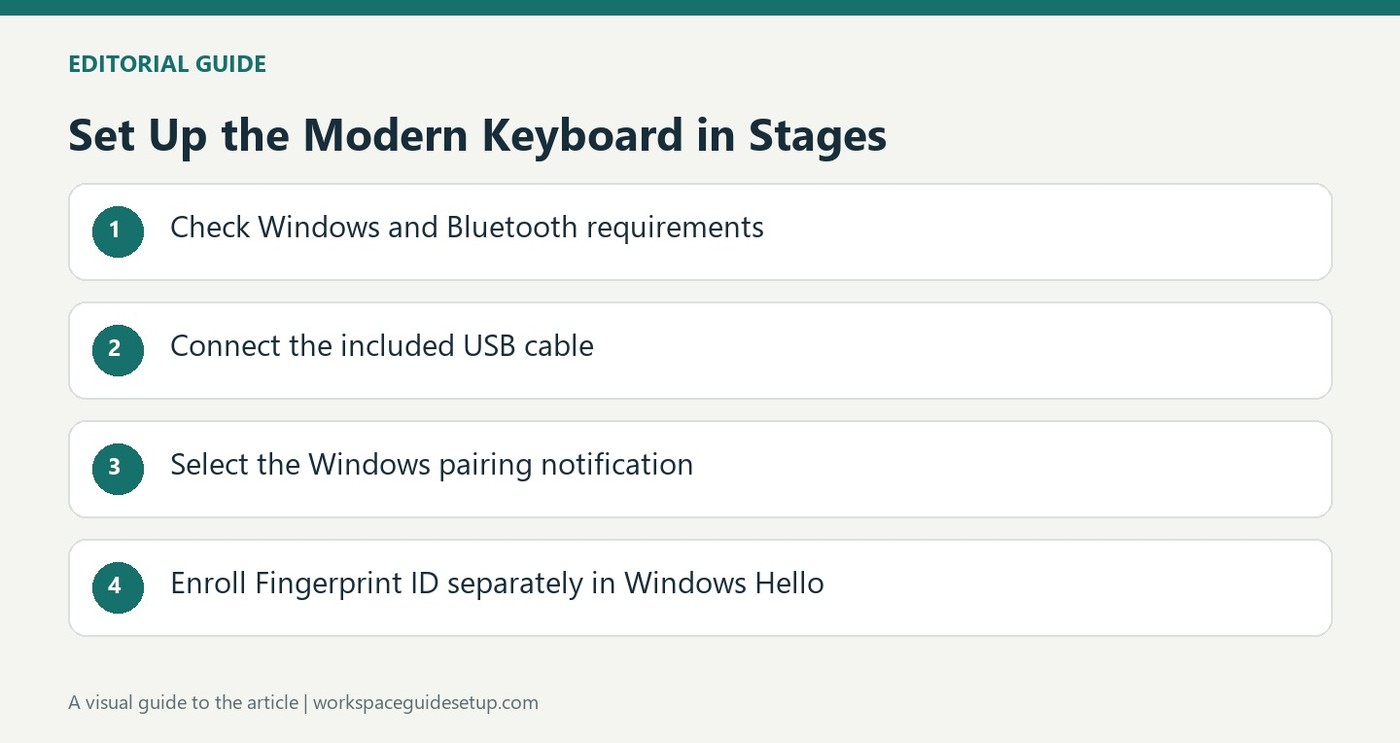
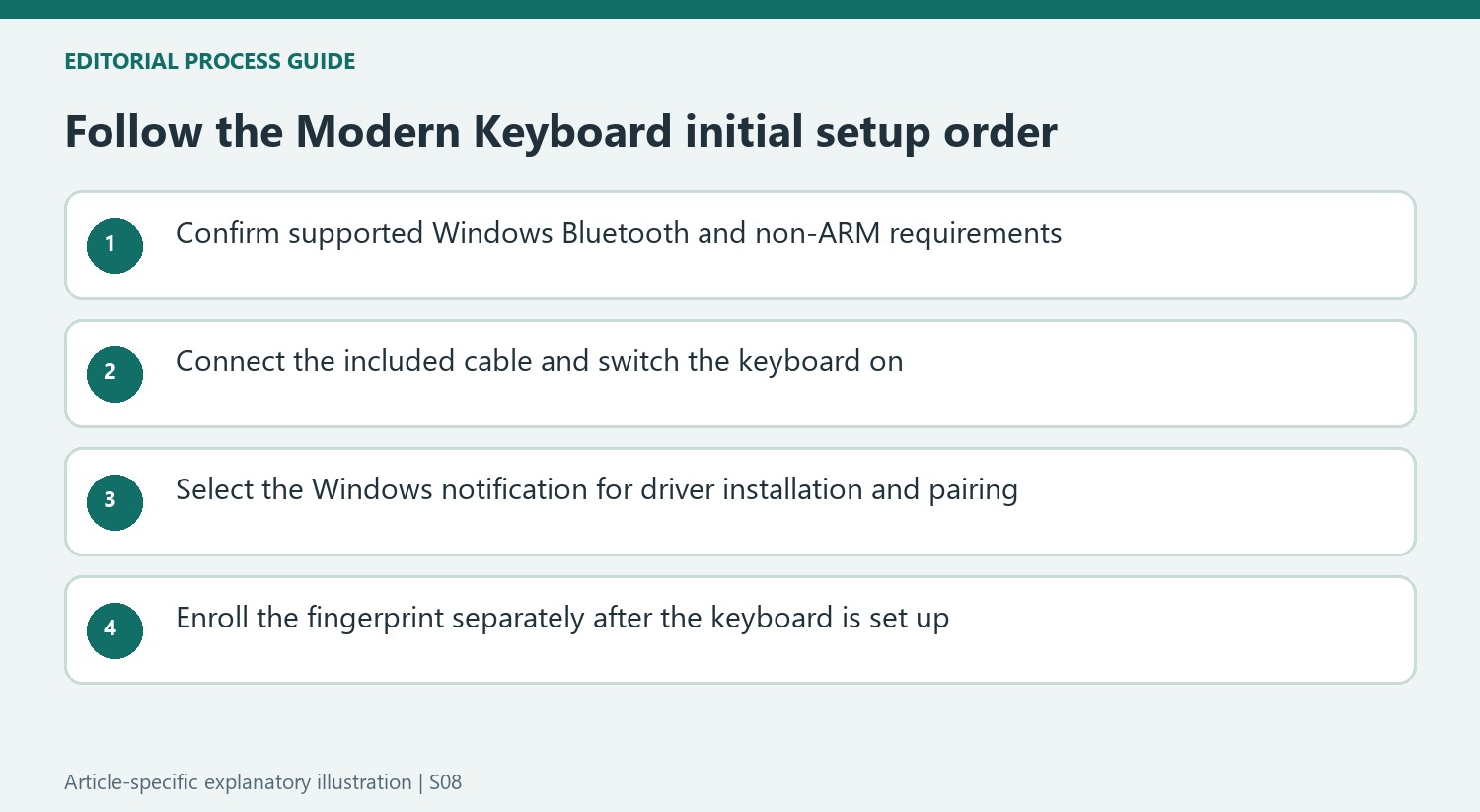
Microsoft Modern Keyboard with Fingerprint ID uses its included USB cable for the initial setup. Microsoft's instructions require an internet-connected Windows 11 computer with compatible Bluetooth support. Connect the cable, switch the keyboard on and select the notification so Windows can install the driver and pair the device. The installer is not compatible with Windows ARM-based PCs such as Surface Pro X.
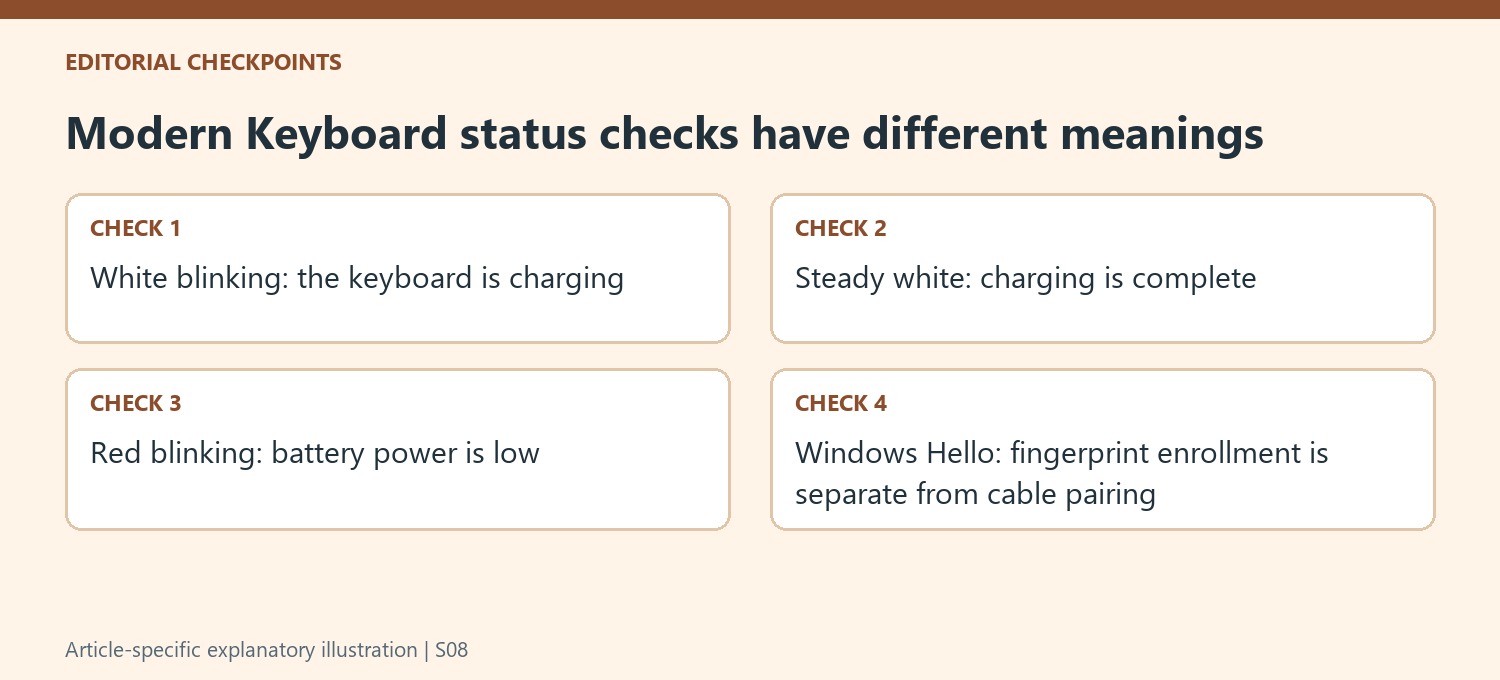
After setup, the keyboard can operate with or without the cable. Charging is shown by a blinking white light above the Up arrow, which becomes steady when complete; a blinking red light indicates low power. Fingerprint enrollment for Windows Hello is a separate step and does not require leaving the USB cable connected. Confirm compatibility before reorganizing the desk around this keyboard.
Check requirements before starting the cable setup
Microsoft specifies Bluetooth 4.0, Bluetooth LE or Bluetooth Smart alongside the Windows requirement. Update Windows and connect the computer to the internet before following the pairing sequence. Those checks matter because using the included cable is part of this product's initial pairing process, not merely an optional way to avoid wireless setup.
Restart the notification step if it is missed
The driver and pairing sequence begins from the Windows notification after connecting and switching on the keyboard. If that message is missed or cannot be selected, Microsoft's instructions say to turn the keyboard off and on to restart the process. This gives a specific recovery step before reorganizing connections or assuming the keyboard is defective.
Distinguish pairing from fingerprint enrollment
Successful keyboard pairing establishes the input-device connection. Enrolling Fingerprint ID in Windows Hello is a separate procedure, and Microsoft states that the USB cable need not remain attached for it. Afterward, keep the cable accessible for charging and use the LED indications to distinguish low power from a completed charge. That preserves the option of a tidy wireless desk without losing the means to maintain the keyboard.
Treat the cable as part of initial pairing
For this particular keyboard, Microsoft's sequence starts with the included USB cable rather than a generic Bluetooth discovery routine. Prepare the supported Windows computer, internet access and cable before beginning. This reduces the chance of following instructions intended for another Microsoft input device whose pairing method looks similar. Product-specific steps matter even when several keyboards share a familiar wireless logo or connector.
The operating-system and Bluetooth requirements are independent checks. A suitable radio does not remove the stated Windows requirement, and an updated Windows installation does not establish compatibility with an ARM-based computer. The source explicitly excludes the Fingerprint ID installer on Windows ARM systems such as Surface Pro X. Check the actual computer platform before moving other equipment or planning a fingerprint-based sign-in routine around hardware that the installer does not support.
Watch for the notification before troubleshooting elsewhere
After connecting the cable and switching on the keyboard, the Windows notification initiates the driver installation and automatic pairing. Keep that part of the screen visible while performing setup. If the notification is missed or cannot be selected, the documented recovery is to switch the keyboard off and on again so the process restarts. That is a specific next action, rather than evidence that the keyboard must immediately be reset by an unrelated procedure.
Follow the official support route if the prescribed sequence still does not finish. Microsoft distinguishes general setup help from a linked manual Fingerprint ID driver procedure, so use the instructions appropriate to the point of failure. Pairing, driver installation and biometric enrollment should not be collapsed into a single unexplained step. Recording which part completed makes any subsequent support request more useful than simply reporting that the keyboard did not work.
Keep charging status separate from fingerprint enrollment
The light above the Up arrow reports charging information: white blinking while charging, steady white after completion and red blinking when power is low. Use those states as described instead of interpreting every light as a pairing indicator. Once setup is complete, the source permits use with or without the cable, allowing a wireless desk while retaining the option of a direct connection and routine charging.
Windows Hello enrollment is a later task, and the document says the cable does not need to remain connected for it. Successful text entry therefore does not by itself confirm that a fingerprint has been enrolled, while an unplugged cable is not automatically the reason enrollment has not been completed. Keep the supplied lead accessible rather than permanently hiding it. The resulting routine can be simple when initial setup, ordinary input, battery maintenance and sign-in configuration remain distinct tasks.
References
- Use Microsoft Modern Keyboard with Fingerprint ID. support.microsoft.com.


Bir Cevap Yaz
E-posta adresiniz yayınlanmayacak. Gerekli alanlar * ile işaretlenmişlerdir.