
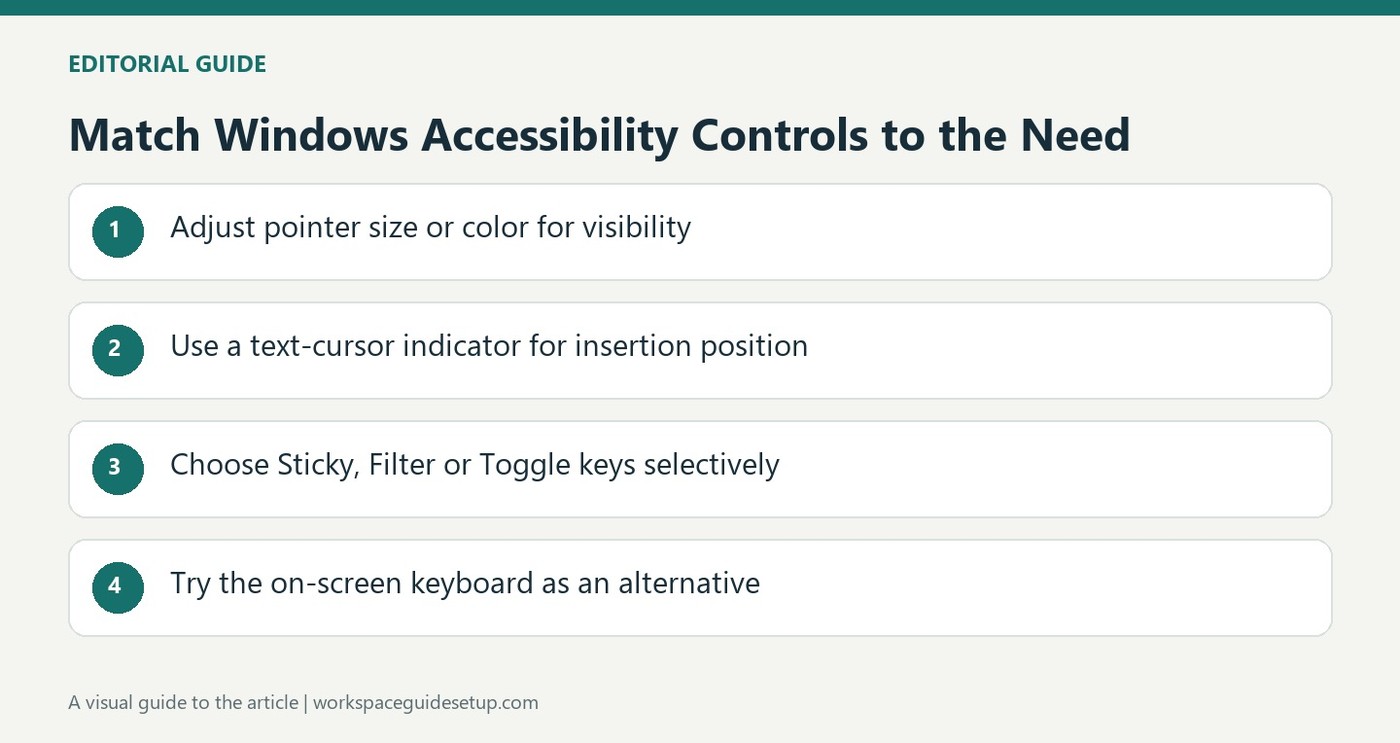
Windows offers several input adjustments before a new mouse or keyboard becomes necessary. Microsoft's accessibility guide points to Mouse pointer and touch for a larger or differently colored pointer, and Text cursor for a thicker cursor or a colored position indicator. Mouse keys can move the pointer with the numeric keypad when that control method is useful.
Keyboard options address different difficulties. Sticky keys lets a shortcut such as Ctrl+S be entered one key at a time, while Filter keys changes how brief or repeated keystrokes are handled. Toggle keys adds a sound for lock keys. Open Accessibility with Windows+U and test the relevant setting rather than enabling every option together, since each changes a specific part of input behavior.
Separate pointer visibility from text-cursor visibility
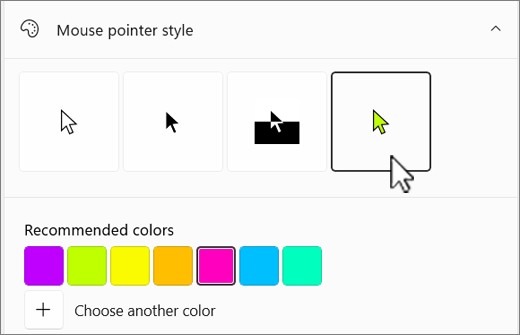
A larger or brighter mouse pointer helps locate the object moved by the mouse. The text-cursor controls instead change the insertion marker used while typing, including its thickness and colored indicator. Microsoft provides previews for those adjustments. Test them against the documents and background colors actually used, since improving one marker does not automatically make the other easier to find.
Choose the keyboard option for the specific difficulty
Sticky keys changes how multi-key shortcuts are entered, while Filter keys addresses brief or repeated inputs. Toggle keys adds an audible indication for lock keys. These options solve different problems and can alter familiar behavior. Enable the relevant setting, try an ordinary task and retain only the changes that help. Mouse keys also depends on using the numeric keypad as a pointer control.
Keep an alternative input route available
Microsoft includes an on-screen keyboard under Accessibility and gives Windows plus Ctrl plus O as a shortcut to open it. That provides another way to select keys with a pointing device. It is useful to know alongside the physical keyboard settings, particularly when testing a new arrangement. The guide's purpose is adapting input behavior to the user, so software choices deserve evaluation before replacing every piece of desktop hardware.
Identify which on-screen marker is difficult to find
The mouse pointer and text insertion cursor are different objects. A larger pointer can make navigation easier while leaving the typing position unchanged, so choose the control that matches the actual difficulty. Windows provides separate previews for text-cursor thickness and indicator appearance. Try the result in the documents and background colors used regularly, including dense text where an oversized indicator may affect what is visible nearby.
Pointer color options also offer several approaches rather than one universally preferred style. A white, black, inverted or chosen bright pointer may stand out differently across applications. Compare a small number of useful alternatives from the normal viewing position. The aim is reliable location during work, not enabling every visual effect. Pointer trails and basic mouse settings remain separate controls even though they are discussed in the same accessibility guide.
Choose keyboard assistance by the interaction it changes
Sticky keys permits a multi-key command to be entered sequentially, which addresses a different issue from Filter keys. The latter can ignore brief or repeated input, while Toggle keys adds a sound for lock-key changes. Test an ordinary shortcut and a short passage of typing after changing the relevant option. An unexpected result may reflect the newly selected behavior rather than a failing physical keyboard.
Underline access keys can make available keyboard commands easier to discover, while the Print Screen option changes a capture action. These features should be considered according to actual use rather than treated as a single accessibility package that must be enabled together. Record which change helped, and leave unrelated controls for later. That approach makes a useful setting easier to retain when the workstation or application arrangement changes.
Try an alternative input route within its hardware requirements
Mouse keys uses the numeric keypad to control the pointer. Confirm the available keypad and the intended workflow before treating it as a substitute on a compact keyboard that lacks those physical controls. The on-screen keyboard offers a different route through a pointing device, with the documented Windows, Ctrl and O shortcut providing quick access. These options change how commands are entered, not the physical fit of every connected accessory.
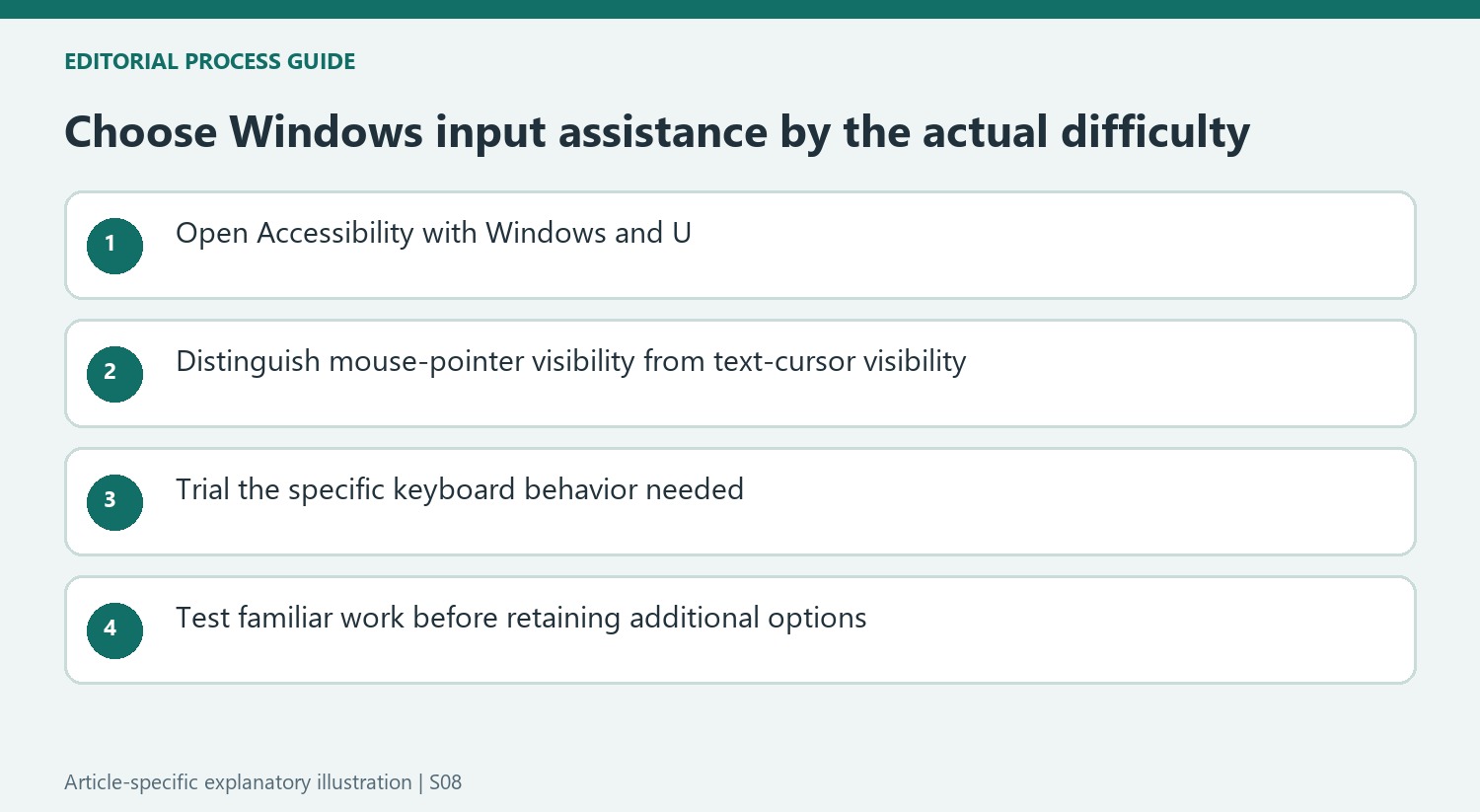
The Windows and U shortcut opens Accessibility directly, making a focused settings trial easier than repeatedly searching the menus. Start with the option that addresses a specific difficulty and test the main applications before deciding new hardware is required. Software can offer useful choices alongside a suitable desk arrangement, while it cannot guarantee that every device shape or reach is comfortable. Preserve that distinction when combining visual aids, shortcut assistance and alternative input methods.
References
- Make your mouse, keyboard, and other input devices easier to use. support.microsoft.com.


Bir Cevap Yaz
E-posta adresiniz yayınlanmayacak. Gerekli alanlar * ile işaretlenmişlerdir.