
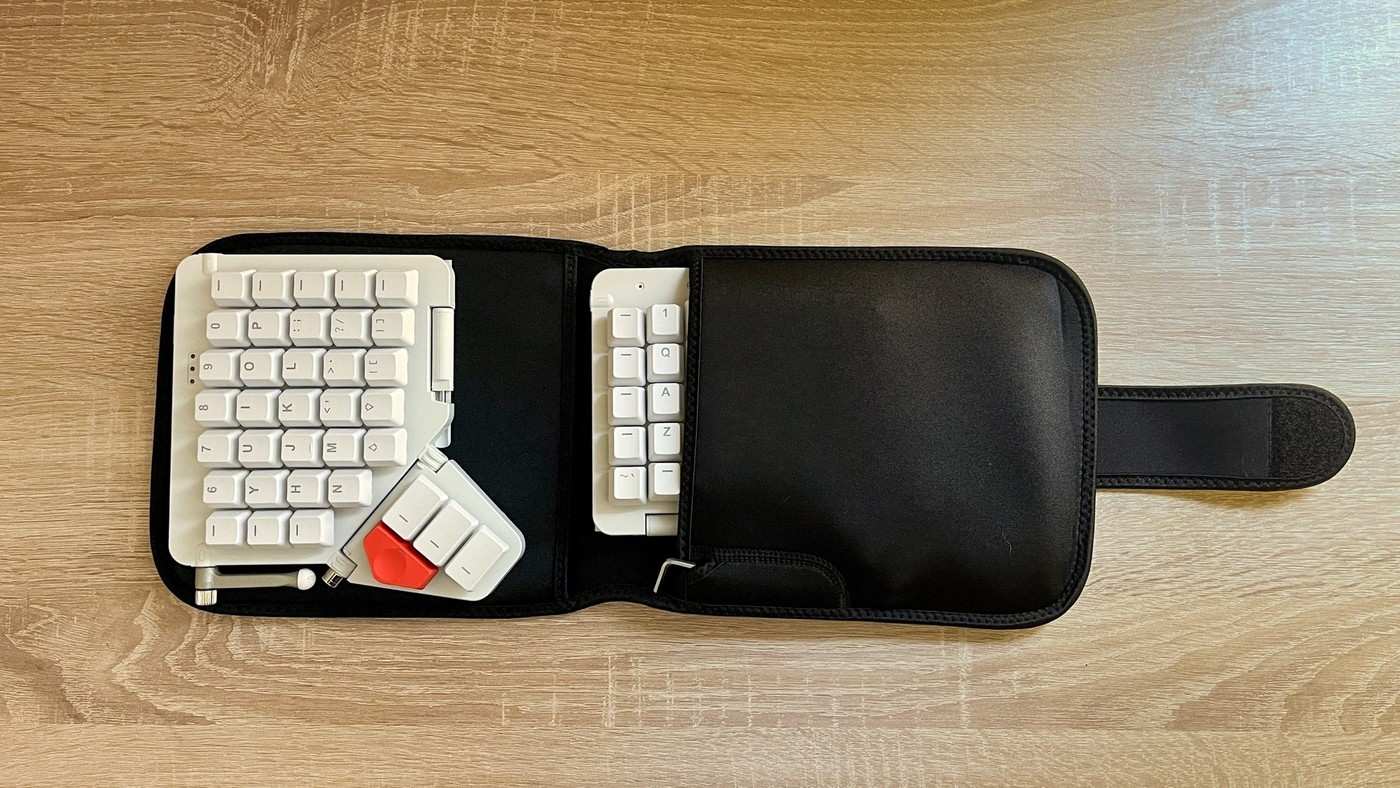
Tom's Guide's long-term Moonlander review describes an ergonomic split mechanical keyboard with hot-swappable switches and several tenting positions. Its two halves can be arranged for the user instead of forcing one fixed-width placement. Configuration and training software help with the unfamiliar layout.
The reviewer liked its adaptability and typing feel but found parts somewhat flimsy and easy to move. The white version also collected visible dirt. Plan stable positions for the halves and allow time to learn the layout; high customization does not remove the adjustment period or guarantee the same comfort for everyone.
Make room for the connection and thumb clusters
The Moonlander uses a wired USB-C connection through the left half. The adjustable thumb clusters and removable supports add flexibility, but their chosen angles affect the space needed in front of each hand. Check those positions together with the mouse rather than arranging the halves by appearance alone. A split layout can fit a person differently without necessarily occupying less total desktop area.
Build a small set of useful layers first
The source describes Oryx and Keymapp tools for remapping and training, including actions that differ when a key is tapped or held. That can reduce awkward combinations, but adding many custom commands immediately also increases the learning burden. Start with the essential typing and navigation actions, then introduce shortcuts that solve a repeated task. The review notes that default multi-modifier combinations can interact with Windows application shortcuts.
Check stability at the selected tenting angle
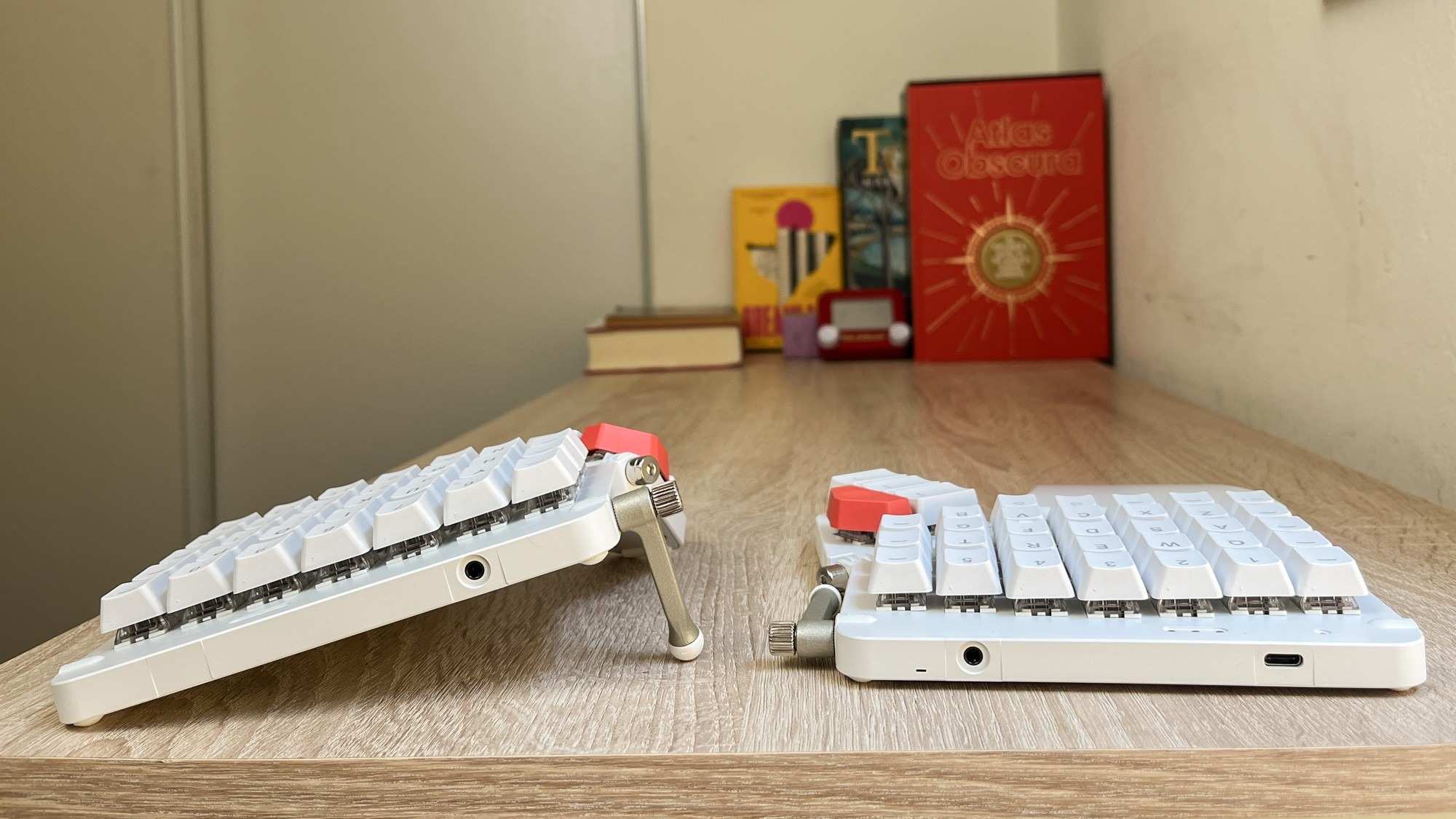
The reviewer found the board could move when placed in some tented positions and discussed an optional support platform. That is a physical fit issue separate from how good the switches feel. Test light typing and ordinary hand placement with the chosen supports before expanding the configuration. Hot-swap switches and extensive remapping make the system adaptable, but stable placement remains the foundation for using those features comfortably.
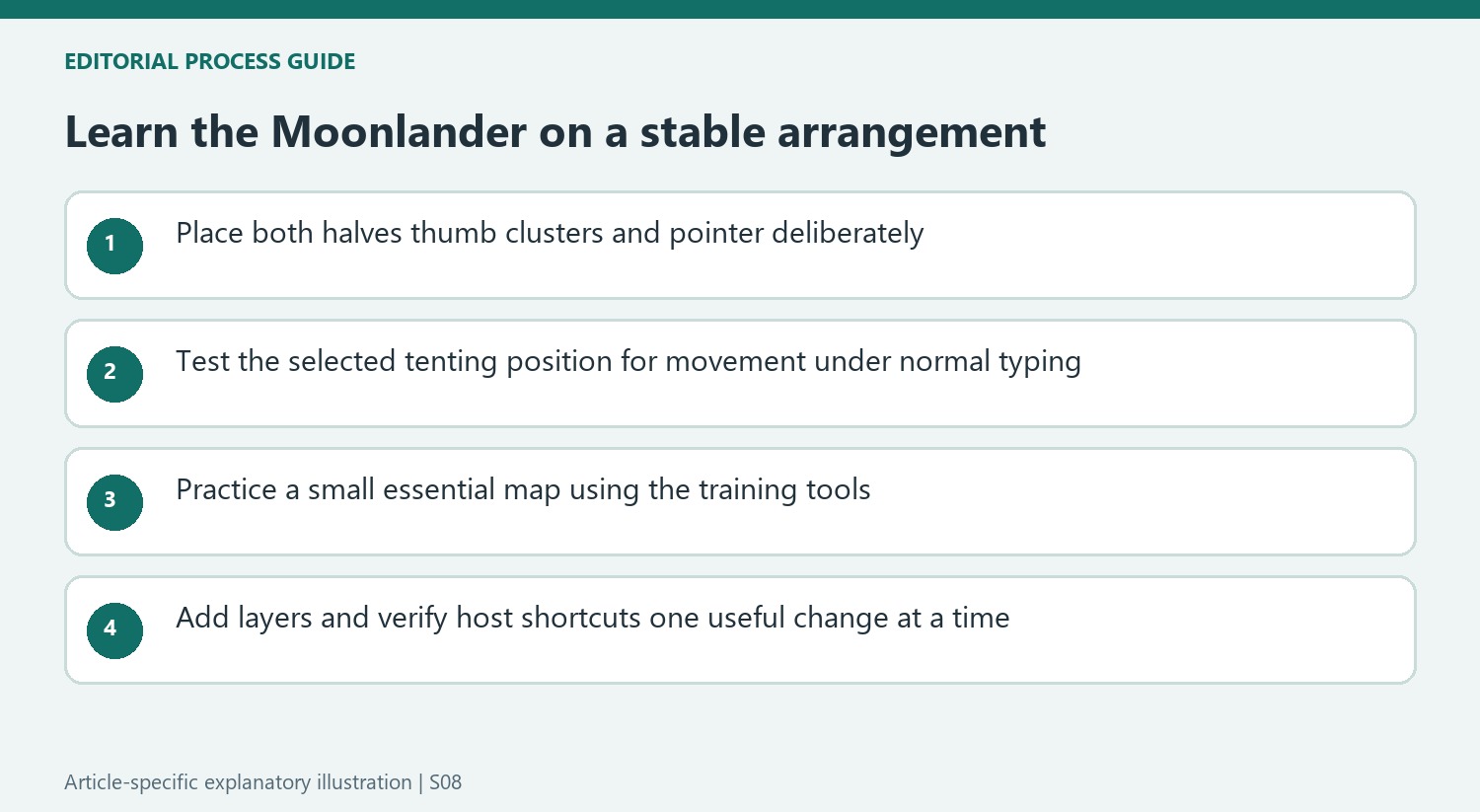
Establish physical positions before building complex layers
Two movable halves allow the keyboard to follow the user's arrangement instead of imposing one fixed case width. That flexibility still requires a deliberate trial. Position the halves, thumb clusters and supports around the actual chair, desk and pointer, then check ordinary typing. A split design can occupy more total surface than expected when the halves are separated, so measure usable working area rather than interpreting modular construction as an automatic space saving.
The source found movement under the hands particularly noticeable in some tented positions. Test the chosen angle with ordinary key pressure before assuming the layout is settled. The optional Platform was considered by the reviewer but not tested, so it should not be described as a verified fix in this account. Its current compatibility and cost require a separate assessment. Stable placement is the starting point for learning the controls, not a concern to postpone until after extensive customization.
Learn the essential map before multiplying actions
Oryx and Keymapp make reassignment approachable, while tap, hold and combined behaviors can place several functions on one physical key. That capability is useful only when the user can predict the result reliably. Begin with typing, navigation and frequently repeated commands. Add a layer when it solves an identifiable task, then practice it before changing several other parts of the map. The source's learning period makes this a realistic part of ownership rather than an optional inconvenience.
Training can use familiar prose, code or other chosen text, allowing practice to reflect the actual work. The reviewer's positive experience with live feedback and progress measures explains why the software mattered as much as the hardware. Avoid treating a powerful editor as evidence that the layout is immediately natural. A saved configuration and a stable physical arrangement provide a clearer basis for evaluating progress than constantly changing both the key functions and the keyboard positions.
Keep shortcut compatibility and switch preference distinct
The source notes that the default multi-modifier Hyper combination can trigger existing Microsoft application shortcuts. Check the actual host behavior before assigning important commands around an assumption that such combinations are unused. A supported remapping can address the intended workflow, but it should be tested in the applications involved. The keyboard's flexibility does not remove interactions with operating-system shortcuts.
Hot-swappable switches provide another way to tailor the device, with options differing in force, travel and feedback. Compare the current choices and try the supplied action before assuming a more elaborate configuration is needed. The reviewer's favorable Kailh experience and long use are personal evidence rather than universal comfort results. Include the present base price, any support accessories and learning time in the decision, alongside the actual benefits of the split positions and useful software tools.
References
- ZSA Moonlander review: The most customizable keyboard I've ever used. Tom's Guide; Alex Wawro.


Bir Cevap Yaz
E-posta adresiniz yayınlanmayacak. Gerekli alanlar * ile işaretlenmişlerdir.