
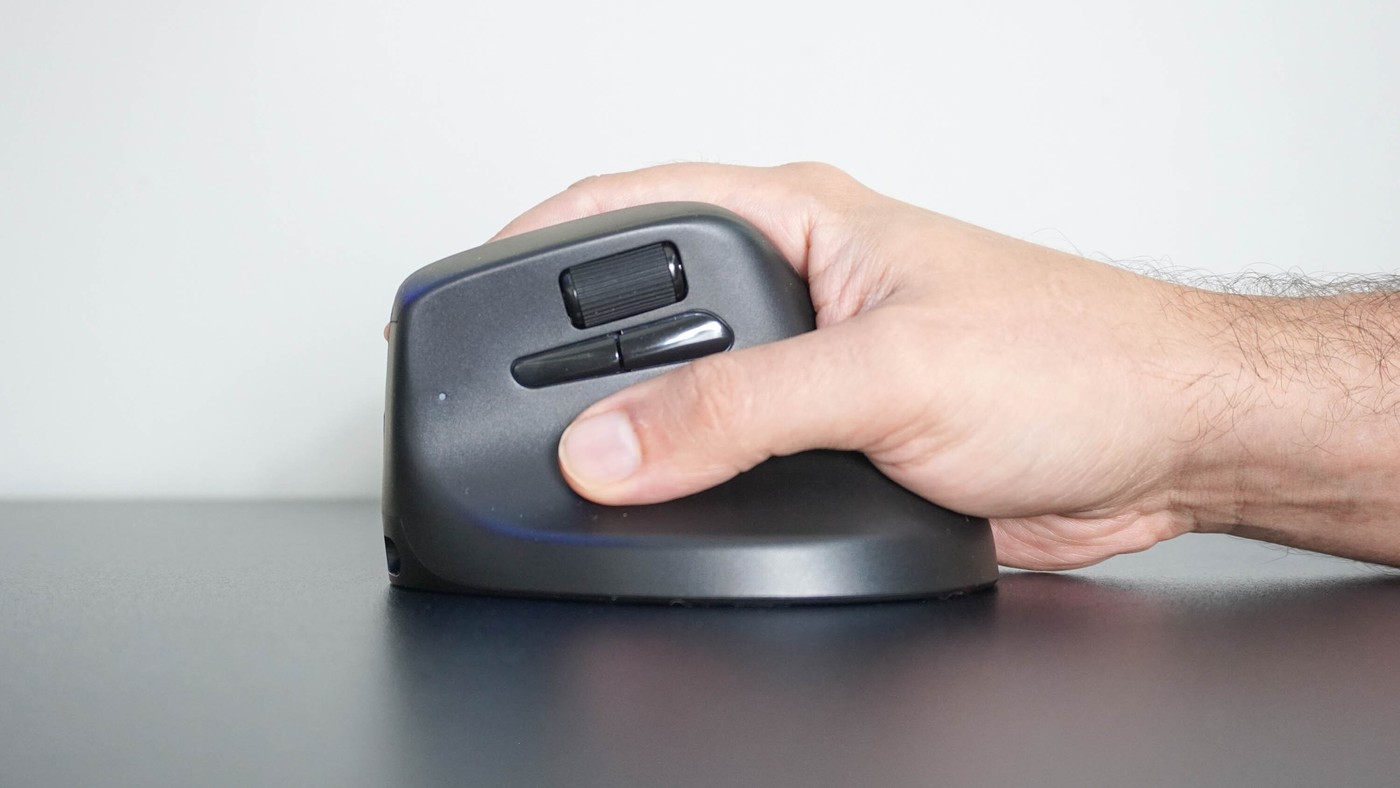
A Keychron M5 account compares a familiar mouse workflow and tilted grip with the writer's usual trackball arrangement.
Compare the movement as well as the shape
Tom's Guide describes a mouse that puts the hand into a tilted, handshake-like position rather than flat over conventional buttons. Unlike a stationary trackball, it still needs room to move. The reviewer used it beside a split keyboard and initially had to overcome the habit of placing the hand flat. The account describes personal comfort, not a clinical guarantee for other users.
Match the extra controls to the work
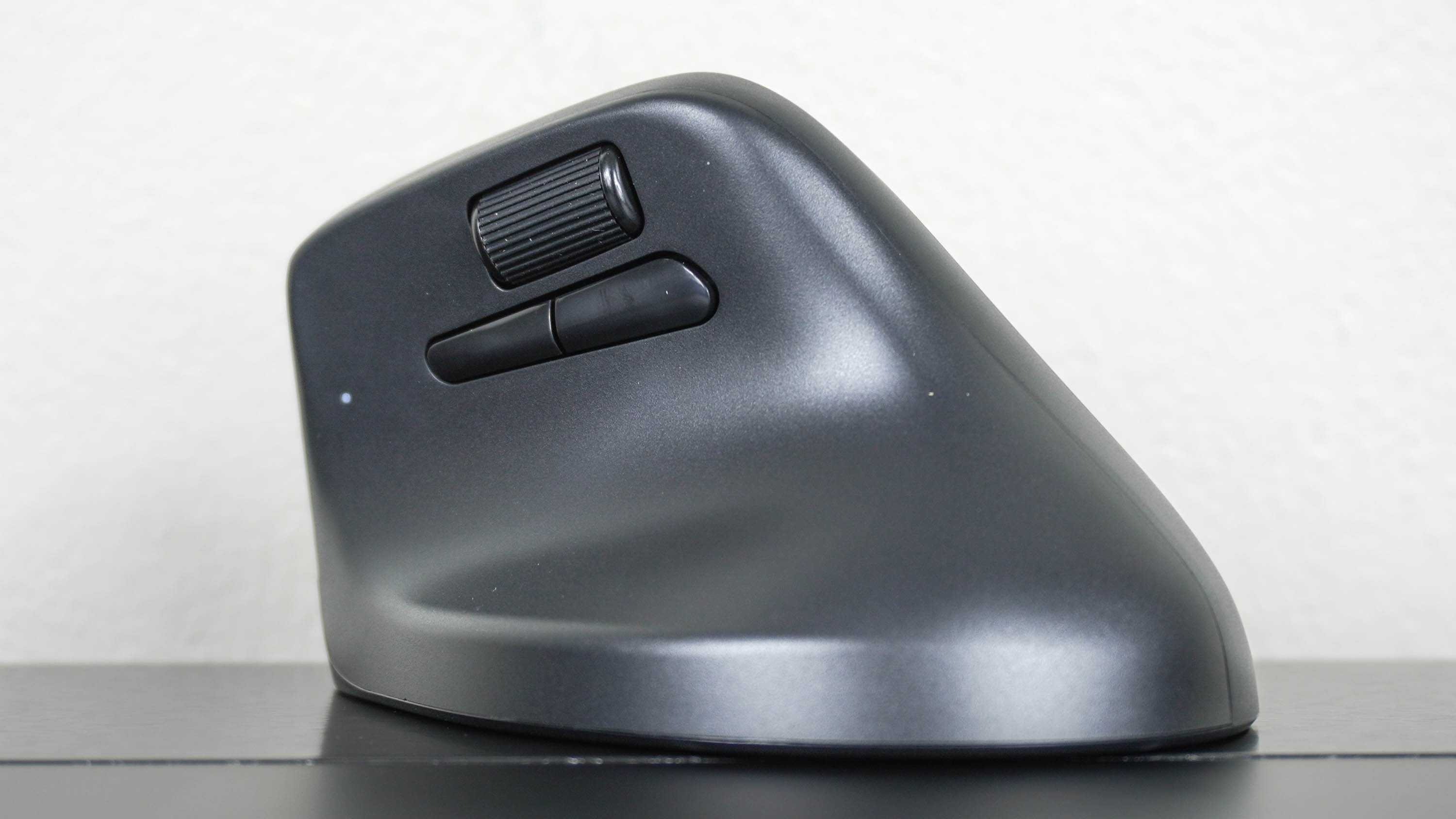
The M5 includes a second scroll wheel and customizable side buttons. The writer used its browser-based configuration tool to assign copy and paste and to enable horizontal scrolling for wide spreadsheets. It can connect by receiver or Bluetooth and can also operate through its charging cable. Those workflow features matter alongside the grip. Compare available desk movement, hand fit and the functions actually used before choosing it over a trackball.
Balance reporting speed with the charging routine
The source describes separate underside controls for sensitivity and polling. The writer generally used ordinary reporting settings and charged once during roughly a month of personal use; the quoted 140-hour battery specification remains a manufacturer claim. Moving above 1,000Hz increases power demand, so the fastest setting should be a deliberate choice. The supplied USB-C lead supports charging and wired use, and an adapter is included for USB-A connections. Keep enough slack for the device's actual travel when using that cable. Although the writer discussed possible gaming use, the account did not include a gaming test, so its demonstrated results concern the described desk workflow.
Keep a movement zone even with the tilted grip
A vertical mouse changes the hand's orientation while retaining the ordinary need to move the whole device. That is the main space distinction from the trackball used previously by the writer. Leave a clear travel area beside the actual keyboard position and try moving across the display without hitting nearby objects. A comfortable handshake-like hold does not by itself establish that the available desktop area permits the required movement.
The source's split-keyboard arrangement formed part of the trial. A reader using a single wide keyboard may have a different reach relationship and should not transfer the whole comfort result to the mouse alone. Check ordinary transitions between typing and pointing. The writer needed a brief period to stop flattening the hand out of habit, which is a useful reminder to allow a trial rather than expecting a different grip to feel familiar immediately.
Configure repeated actions before adding every possible control
The extra wheel and two side buttons provide practical options beyond the tilted shell. In the account, copy and paste served repeated text work while the larger wheel handled horizontal spreadsheet movement. Those assignments explain why the hardware mattered to that workflow. Start with similarly frequent actions in the actual applications rather than assuming the same commands are right for every user.
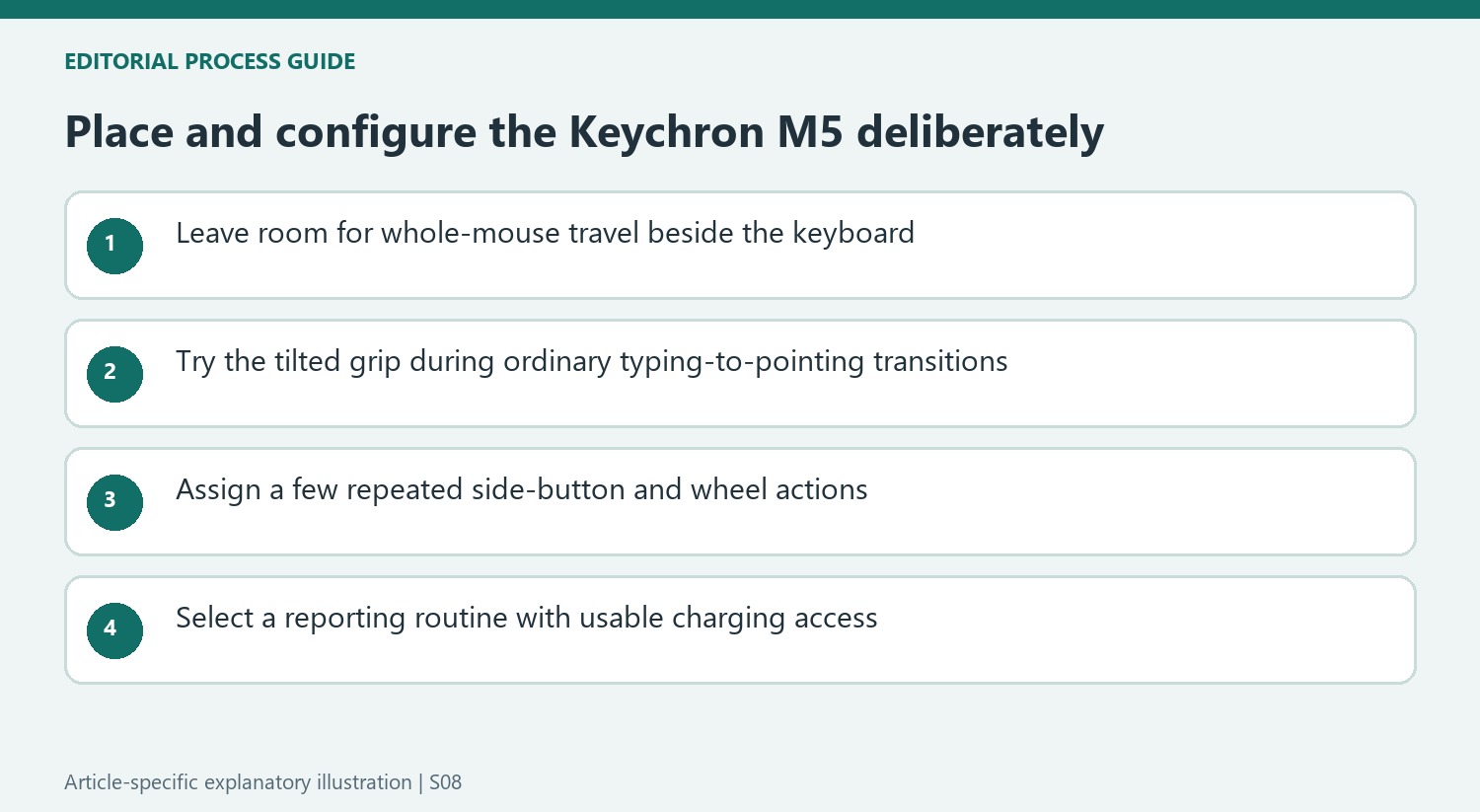
The browser-based Launcher lets supported controls be customized, and the source describes setting the two horizontal directions separately. Verify the resulting behavior before relying on it. This differs from merely connecting the mouse successfully over Bluetooth or the receiver. The underside controls for sensitivity, reporting and Bluetooth channels also need to be learned, so keep the first setup modest enough to distinguish a changed mode from an application-specific assignment.
Treat reporting rate and battery duration as a trade-off
The account quotes a manufacturer endurance figure and reports one recharge during about a month of the writer's use. Neither establishes identical duration at the maximum reporting setting. The source specifically notes greater power use above ordinary rates. Choose a mode for the actual task and keep the switching method available, instead of assuming the fastest setting must remain active throughout every document and browsing session.
The front USB-C connection supports charging and wired operation, with a supplied adapter for the relevant USB-A arrangement. Leave enough lead slack for real movement when connected. The writer discussed gaming as an expectation rather than a completed test, so the demonstrated evidence remains the described productivity workflow. Evaluate the mouse by its fit, controllable movement, useful side commands and acceptable maintenance, keeping personal comfort observations separate from any medical or untested gaming promise.
References
- I finally tried a vertical mouse and it was the ergonomic upgrade my desk setup was missing. Tom's Guide; Anthony Spadafora.


Bir Cevap Yaz
E-posta adresiniz yayınlanmayacak. Gerekli alanlar * ile işaretlenmişlerdir.