
Tom's Guide's hands-on account of HHKB Studio examines a mechanical keyboard with a pointing stick in the home row. Three additional buttons along the bottom provide left, middle and right mouse clicks. The arrangement lets the writer move the pointer without reaching across the desk for a separate mouse.
That integration comes with a distinctive keyboard layout and dark key legends that can make learning harder. The supplied PBT keycaps felt pleasant, but replacing an unusual key set is less straightforward than buying a standard layout. The account presents the Studio as a specialized alternative, so consider whether your work favors frequent small pointer adjustments or still needs the precision and movement range of a separate mouse.
Expect familiar shortcuts to move
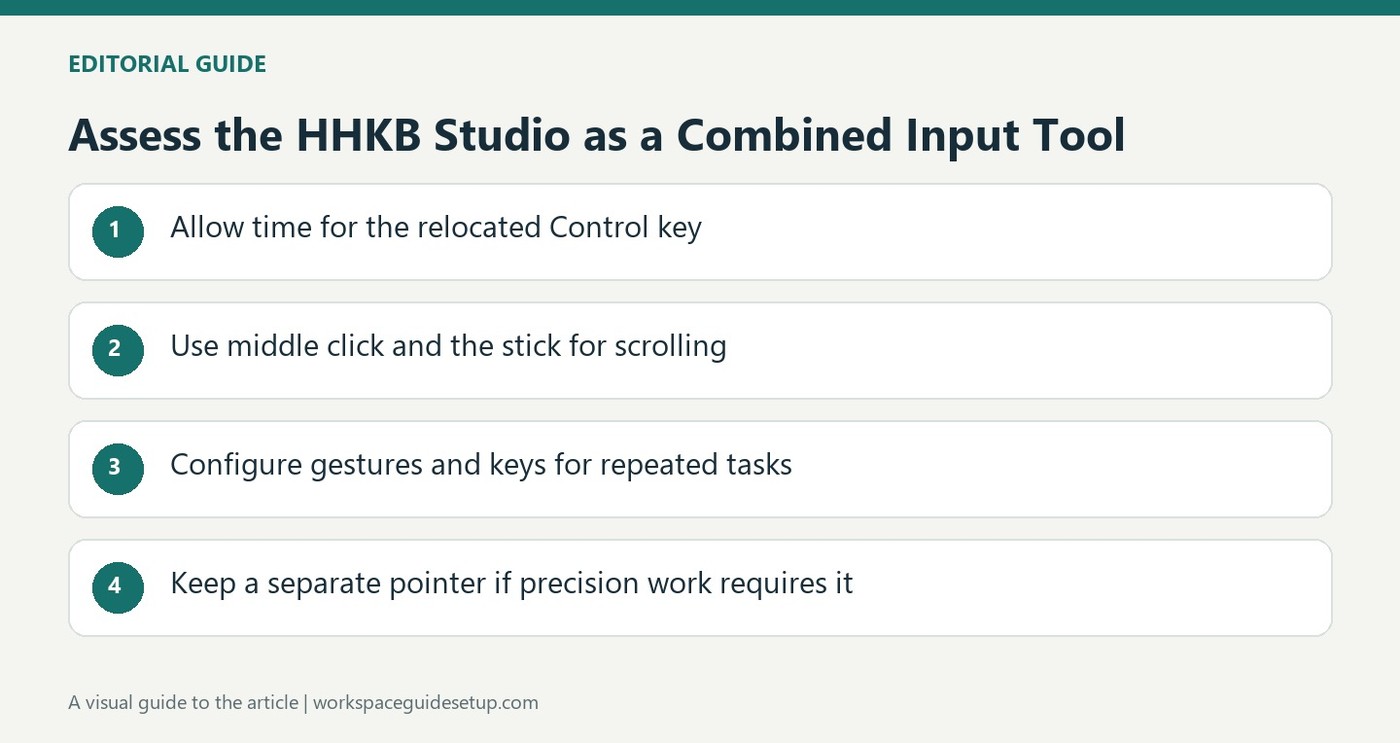
The HHKB layout places Control where Caps Lock commonly sits. The writer found that change difficult initially because frequent editing shortcuts depended on a learned hand position. It is therefore worth trying ordinary document editing, not just a short typing test. Dark legends and a distinctive layout can create a learning cost even when the switches themselves feel good.
Distinguish USB use from battery maintenance
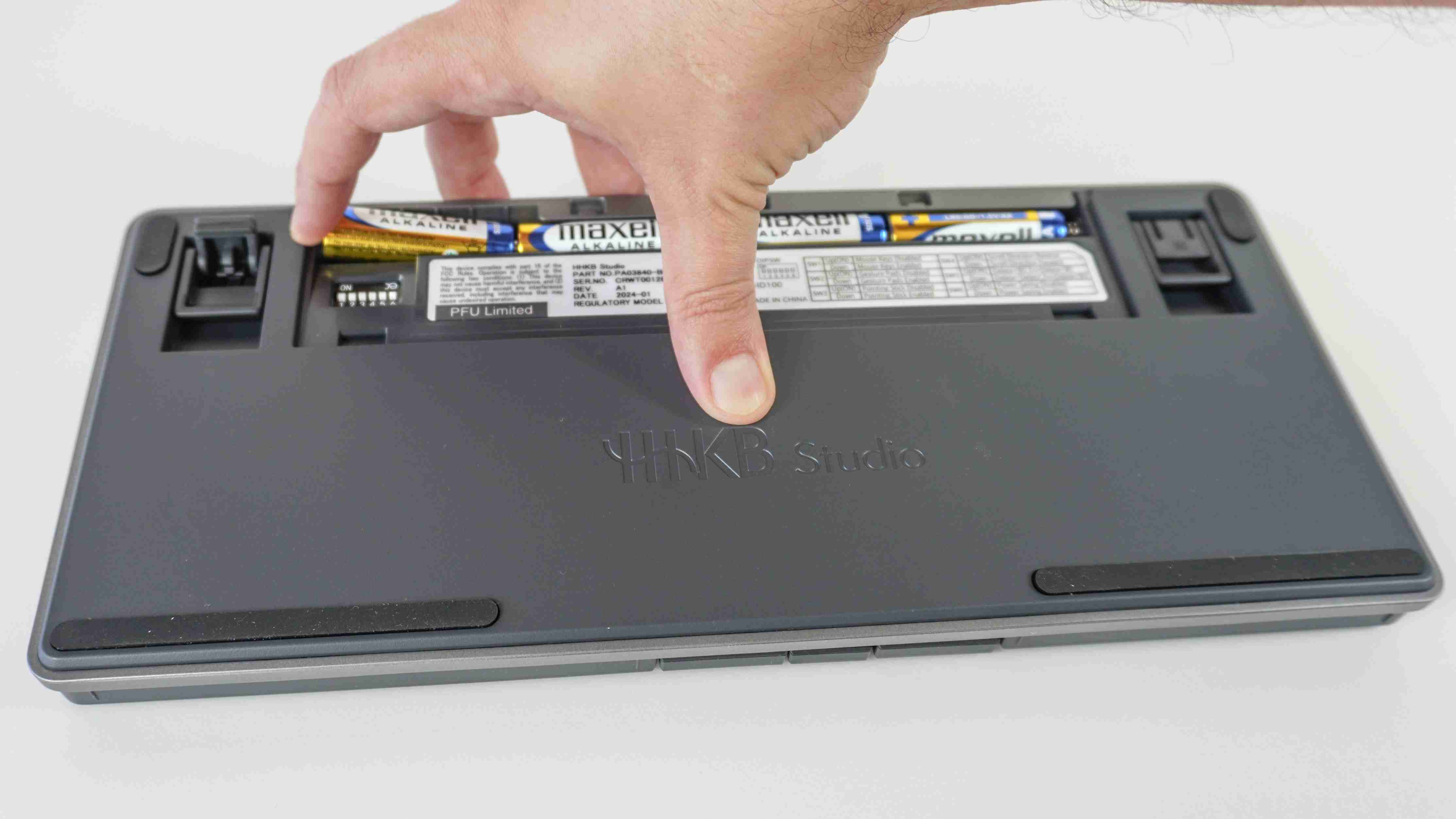
The keyboard supports a direct USB-C connection and Bluetooth, with four replaceable AA batteries for wireless use. The source describes Bluetooth power-saving behavior that interrupted the writer's preferred workflow until settings and connection choices were adjusted. A cable can make a permanent desk arrangement simpler, while wireless use preserves the need to manage replaceable batteries and the chosen sleep behavior.
Use the pointer where it is most helpful
The writer found scrolling especially convenient by holding the middle button while moving the pointing stick. Reprogrammable gesture areas and the Keymap Tools application offered additional shortcuts. Detailed editing still favored the writer's separate trackball, so the integrated pointer did not remove every reason to keep another device. Start by assigning scrolling and small navigation tasks to the built-in controls, then assess whether a dedicated pointer remains useful.
Try the layout with commands that matter every day
The changed Control location is not merely a cosmetic difference for someone who uses editing shortcuts constantly. Test copying, linking, selecting text and switching between applications as part of a familiar work session. The source describes a real adjustment period before the layout became comfortable. That experience supports allowing time for learning, while avoiding any promise that every user will eventually prefer it to a more conventional arrangement.
The dark key legends add another consideration when the layout is unfamiliar. A person who usually types letters without looking may still need visible labels for less common commands. Inspect the board under ordinary desk lighting and check the exact key arrangement before purchase. The pleasant PBT surface reported by the writer concerns feel, while finding a compatible replacement keycap set concerns a different issue created by the unusual layout.
Assign the pointing stick a useful subset of work
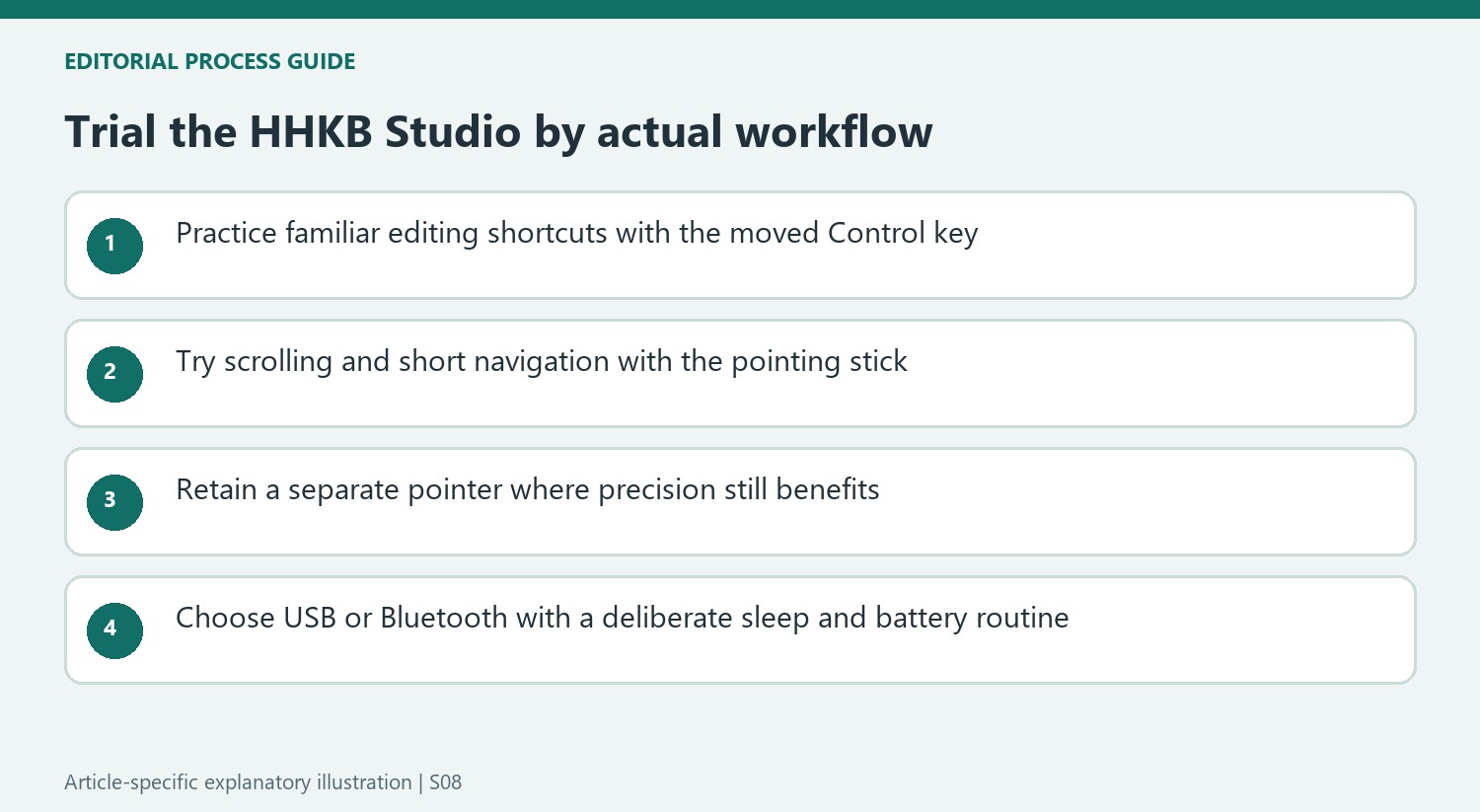
The source found the integrated pointer increasingly natural for short movements and particularly useful for scrolling with the middle button. That is a concrete task to test before deciding whether the keyboard replaces a separate pointing device. Try long documents and ordinary navigation first. The benefit comes from fewer hand transfers for suitable actions, rather than assuming a small pointing stick offers identical control to every mouse or trackball in every application.
The writer retained a trackball for detailed editing and familiar programmable buttons. Keeping both devices was therefore a valid outcome of the trial, not a failure of the keyboard concept. Compare the actual precision and shortcut requirements of the work. A combined keyboard and pointer can be valuable even when a second device remains within reach for specialized actions that would otherwise be slower or less controlled.
Choose a connection routine deliberately
Wireless operation uses four replaceable AA batteries, while the USB-C connection offers a direct desk route. These are different power and connection habits from a board built around an internal rechargeable pack. Do not assume that attaching the cable recharges ordinary installed batteries. Check the current manual for permitted battery types and handling, and compare that maintenance routine with the actual frequency of moving the keyboard away from its main computer.
Bluetooth sleep behavior interrupted the reviewer's routine until he evaluated the software settings and direct connection. His eventual preference preserved sleep for later wireless use while making a cable convenient at the main desk. The gesture pads and local Keymap Tools application offer further customization, but begin with a small number of repeated actions. The strongest case for the premium price is a coherent everyday arrangement that justifies its learning effort, rather than simply counting integrated features.
References
- I tried this mechanical keyboard with a built-in pointing stick — and it almost convinced me to ditch my mouse. Tom's Guide; Anthony Spadafora.


Bir Cevap Yaz
E-posta adresiniz yayınlanmayacak. Gerekli alanlar * ile işaretlenmişlerdir.