
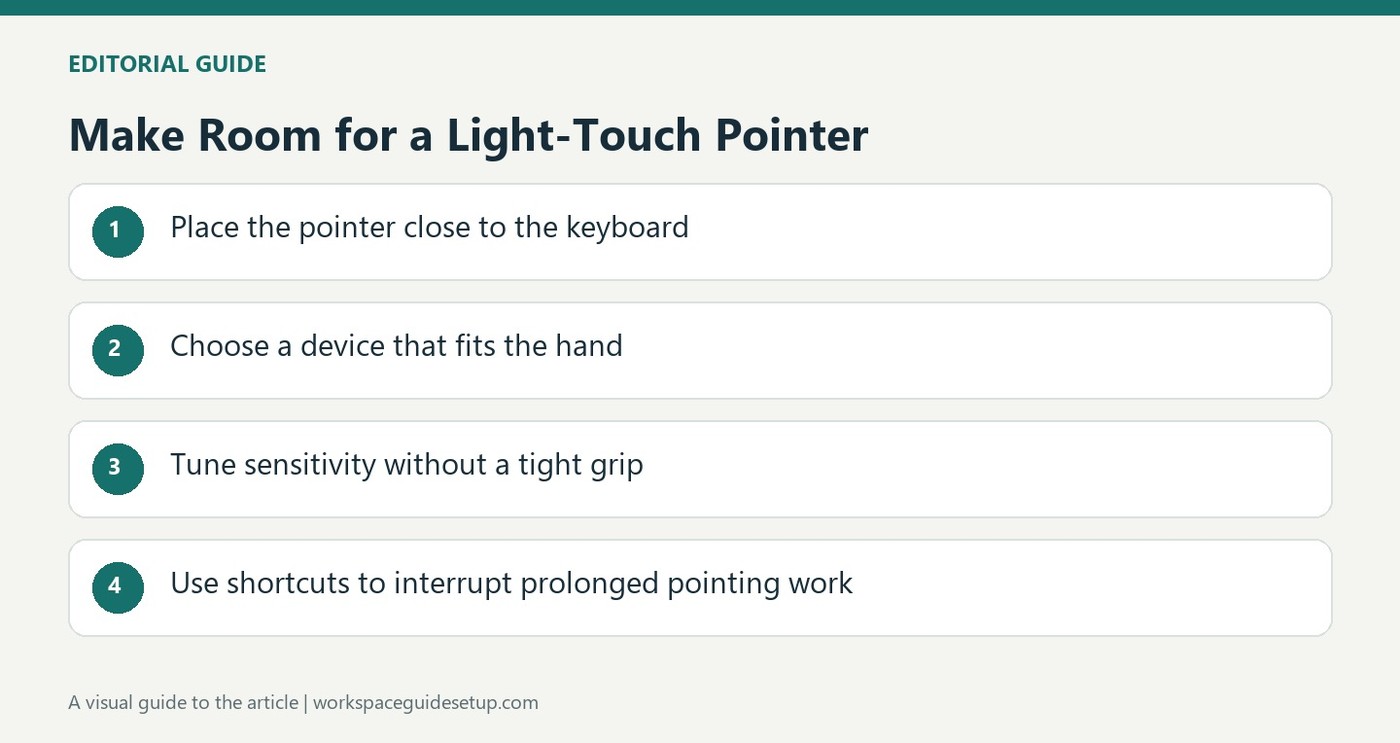
OSHA describes larger trays, separate mouse surfaces and keyboards without fixed number pads as ways to avoid excessive reach.
Make space beside the keyboard
The pointer should be close enough that its use does not require the arm to reach outward for long periods. If the tray is too small for both devices, OSHA describes alternatives including a larger tray, an additional mouse surface or a keyboard without a fixed number pad. The aim is enough usable space for a straight wrist, not simply squeezing the devices onto a crowded ledge.
Match the device and settings to the hand
Size and shape need to fit the hand that uses the pointer. Sensitivity should let the cursor cover the screen without excessive wrist movement or a tight grip. Trackballs and touchpads are possible alternatives, but the guidance recommends trying a device before long-term use. Keyboard shortcuts and changes between tasks can also reduce continuous pointing work; no single mouse design removes the need to consider the full workstation.
Set sensitivity for a light touch
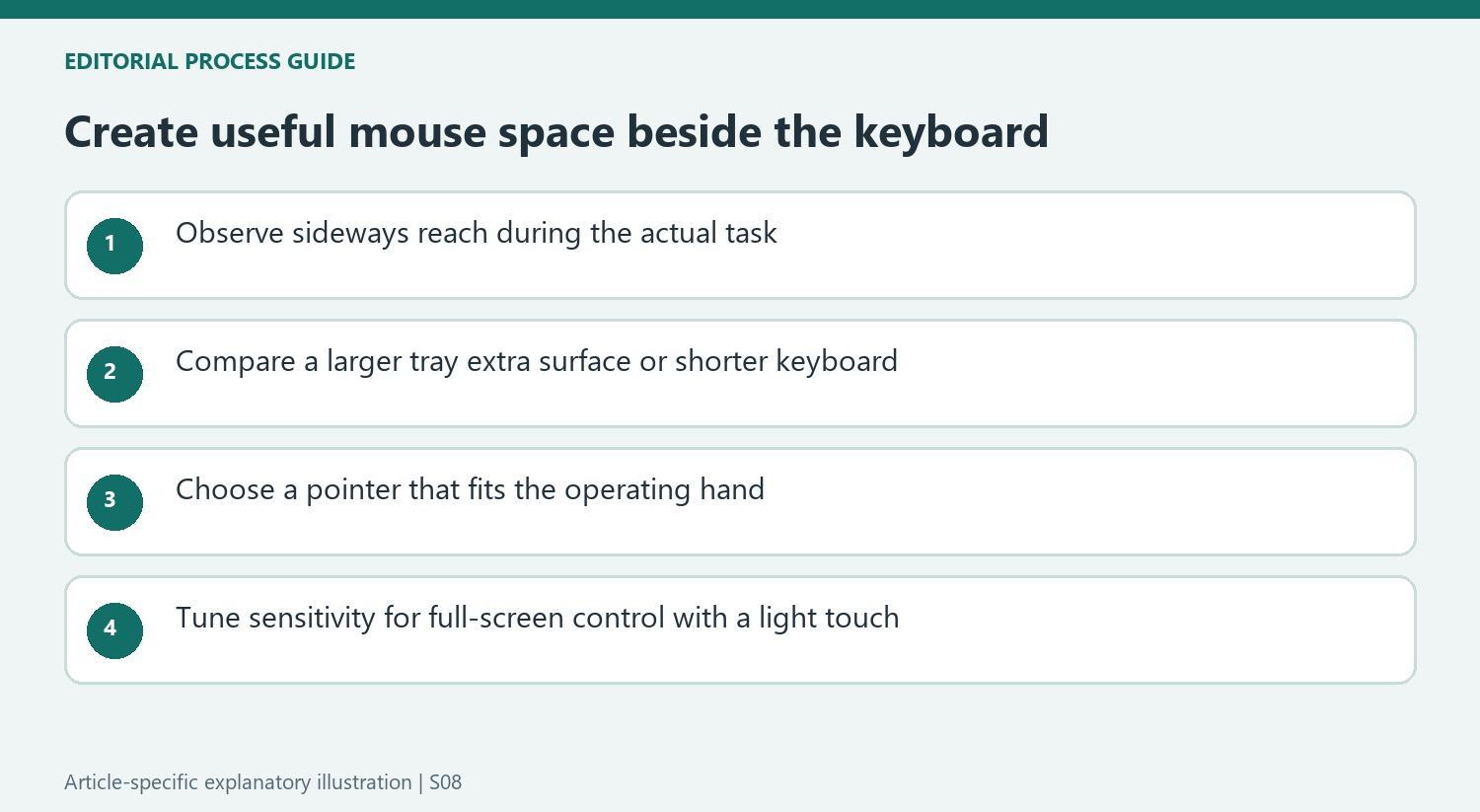
OSHA describes two opposing problems: a slow pointer can demand excessive wrist movement, while an overly sensitive one can make the user grip tightly to maintain control. The useful setting lets the pointer cross the required screen area while the wrist remains neutral and the hand stays relaxed. Try the adjustment in real work, including small targets and longer movements. If the device itself fits poorly, a software setting may not solve the problem. The guide also includes integrated keyboard pointers, touchpads and trackballs as alternatives to evaluate. Their value depends on the task and hand position, rather than an assumption that one category is always safer than another.
Inspect the shared surface before choosing another pointer
A mouse can be suitable for the hand yet sit in an unsuitable place because the keyboard occupies the whole tray. OSHA's examples address that distinction by changing the available surface as well as the device. Measure the space used during ordinary typing and pointing, including how far the arm travels sideways. The goal is an arrangement that permits a neutral wrist and avoids sustained reaching, rather than proving that both objects technically fit on the same ledge.
A larger tray, an adjacent mouse surface or a shorter keyboard provides different ways to recover that space. A platform over the number pad is another option, while an integrated keyboard pointer changes the layout more substantially. Compare these with the actual tasks: frequent numeric entry may make covering the pad inconvenient, whereas someone who seldom uses it may gain useful room. The source presents alternatives to assess, not one prescribed accessory for every workstation.
Fit the controls to the hand that uses them
Shape, size and handedness matter independently from footprint. A right-handed contour may create awkward contact if operated with the left hand, even when its buttons can be reversed in software. Choose a device intended for the hand and size involved, and try it before long-term use. A model that looks small and efficient beside a compact keyboard is not automatically the one that requires the least force or maintains the best alignment.
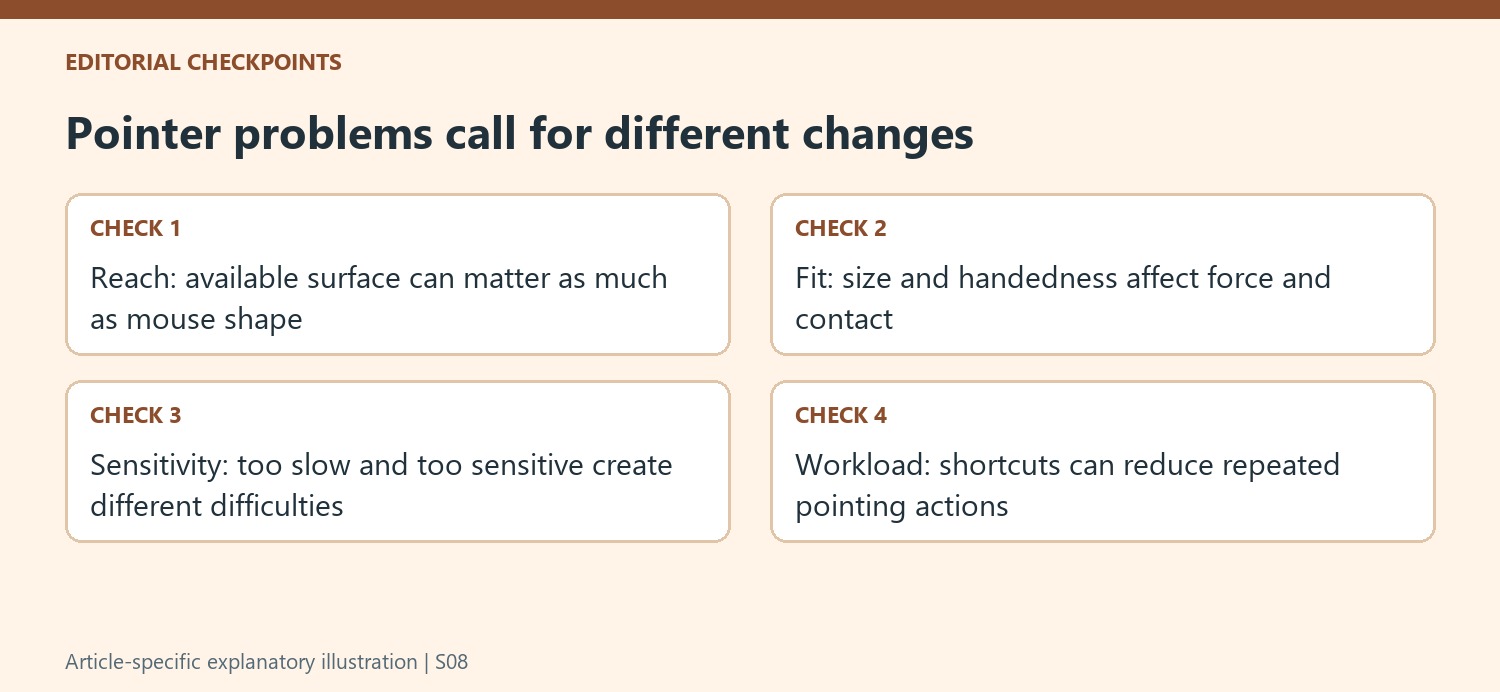
Alternative pointers also need a task trial. A trackball, touchpad or fingertip joystick changes how movement is generated, but none should be described as universally less fatiguing. Test representative small selections, scrolling and longer cursor movements. Notice whether the device can be controlled without a tight grip or bent wrist. These observations make the choice more concrete than relying only on a product's ergonomic label or another person's preferred input method.
Tune movement while reducing unnecessary continuous use
OSHA identifies problems at both sensitivity extremes. If the cursor moves too little, repeated wrist deviation may be required; if it moves too readily, a user may grip harder to maintain control. Adjust the supported setting and try both full-screen travel and small targets. The useful result is controllable movement with a light touch, rather than the fastest possible journey from one corner of a large display to another.
Keyboard commands can remove some repeated pointing actions without changing the mouse itself. Begin with tasks used frequently, such as saving, printing or moving through pages, and keep the relevant devices close enough for natural transitions. Alternating hands can provide another option where the equipment and task permit it. These routine changes complement a suitable surface and pointer; they do not turn any single device into a guarantee against the effects of prolonged repetitive work.
References
- Computer Workstations eTool. Occupational Safety and Health Administration.


Bir Cevap Yaz
E-posta adresiniz yayınlanmayacak. Gerekli alanlar * ile işaretlenmişlerdir.