
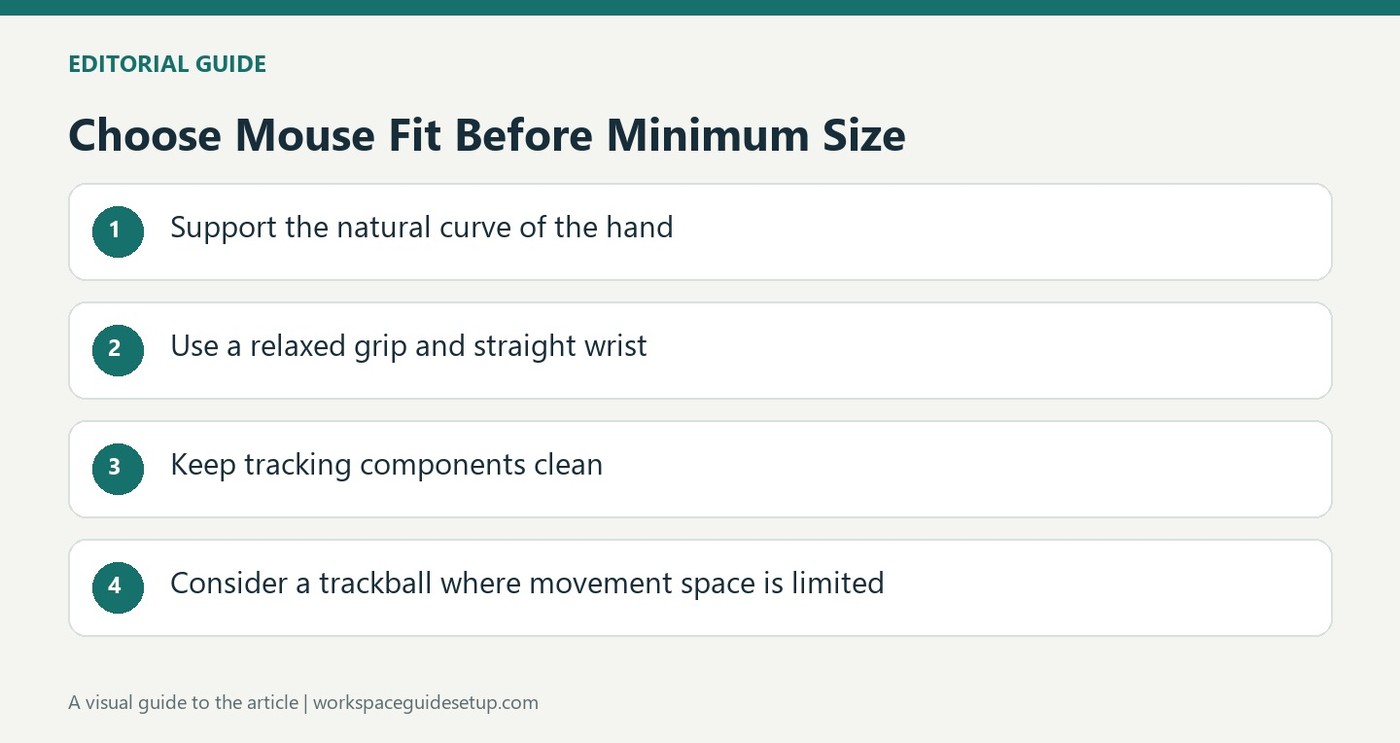
CCOHS compares mouse and trackball options while emphasizing relaxed grip, neutral wrists and a suitable shape for the user.
Try the shape before committing
The fact sheet recommends a mouse that supports the natural curve of the hand, with buttons that respond without excessive force or accidental clicks. Wireless models offer more positioning freedom. Trackballs allow the hand and arm to remain in one place while the ball moves the pointer, making them an option where the desktop has little room for sweeping mouse movements.
Keep the grip and workload varied
The guide advises a relaxed grip and moving an ordinary mouse from the elbow rather than repeatedly bending the wrist. Keyboard shortcuts and, where feasible, alternating hands can reduce continuous use. It also cautions that an incorrectly used wrist rest can increase pressure instead of helping. A comfortable device should be considered alongside the chair, keyboard and placement, and should not be assumed to suit another person simply because it worked well for the first user.
Check simple causes when movement becomes erratic
CCOHS notes that dust on a sensor or other tracking components can make a mouse jumpy or less responsive. Before replacing a familiar device or increasing grip force to compensate, check the appropriate cleaning instructions and the surface being used. The fact sheet also mentions click-lock or drag-lock behavior as a feature to consider when selecting controls. That can change the need to hold a button continuously for certain tasks. These practical details sit alongside the larger ergonomic questions: correct size, an easy button action and comfortable placement. A small desk benefits from reclaiming usable reach space, not merely from choosing the smallest object that fits on it.
Compare usable hand space with the device footprint
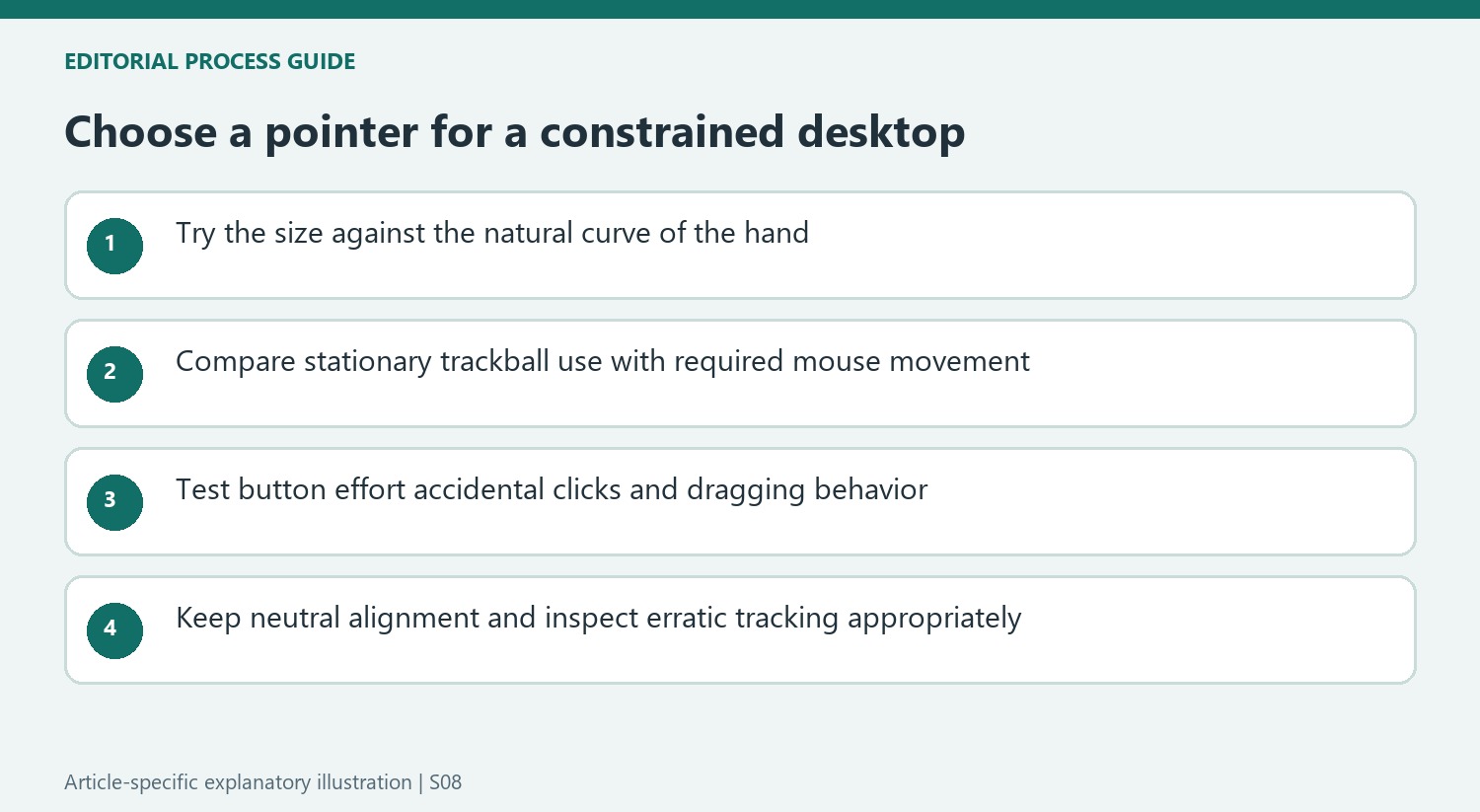
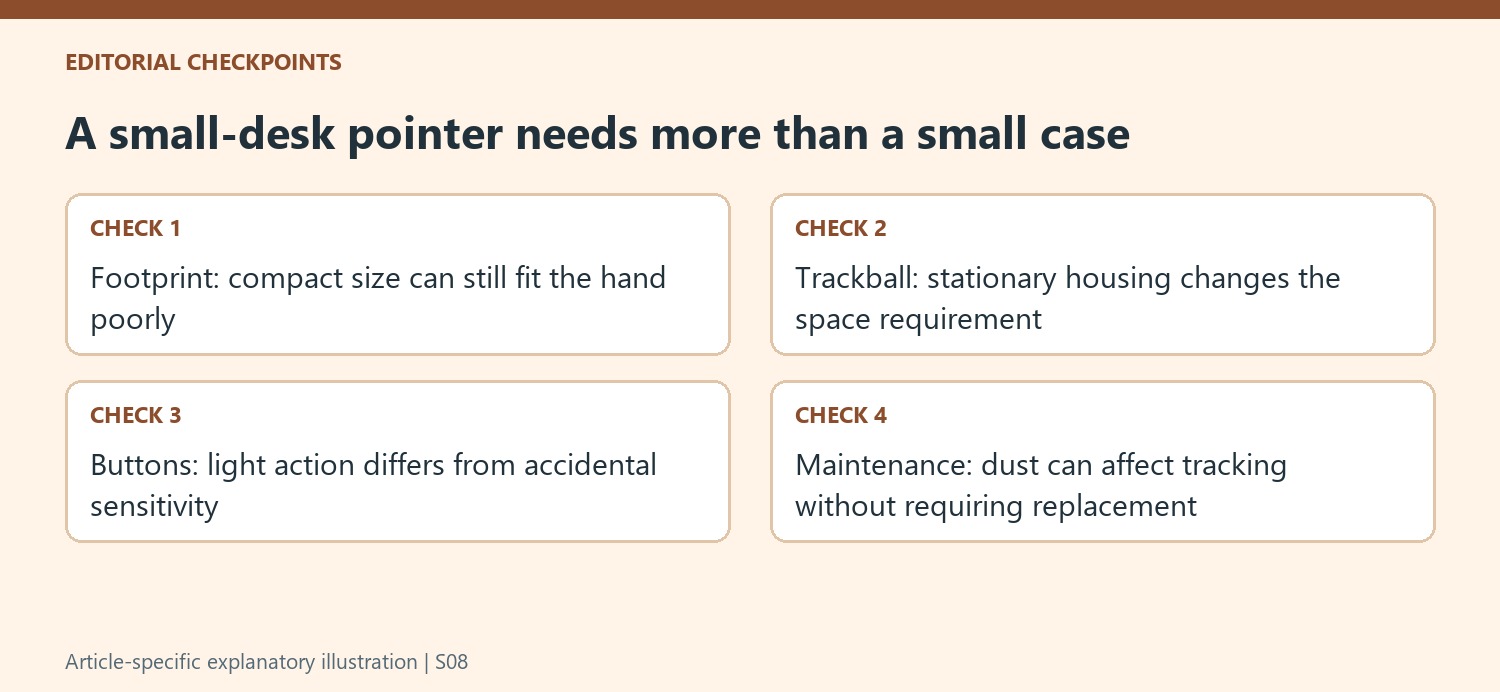
The smallest mouse is not necessarily the most suitable one for a small desk. CCOHS asks whether the shape supports the hand's natural curve and allows neutral alignment. A device that is too small may encourage an awkward hold even though it occupies less surface area. Try it with the keyboard in its normal position, so the comparison includes where the arm rests and how the pointer is reached during actual work.
A trackball can remain stationary while its ball moves the cursor, which offers a clear space-saving distinction from a conventional mouse. That difference is useful where sweeping movements are restricted, but the buttons and ball still need to fit the user. Other designs change hand orientation or the movement source in different ways. Treat them as options to test with representative tasks rather than a ranking in which a particular category is automatically appropriate for everyone.
Check button behavior as well as movement
The source recommends controls that respond to a light touch without becoming so sensitive that accidental clicks are common. Test ordinary selection, dragging and repeated commands. A shape that feels comfortable at rest may place a frequently used button too far from the finger or require more force during a real task. The width and spacing of the controls therefore deserve attention alongside the overall hand contour.
Click-lock or drag-lock options can change tasks that otherwise require a held button. Check the supported behavior on the intended system and application before assuming new hardware is necessary for every difficulty. This is separate from choosing the device's physical shape: software can alter an interaction pattern, but it cannot make an unsuitable grip fit. Combining a reasonable button action with a suitable placement gives a more complete assessment than selecting a mouse on appearance alone.
Maintain a relaxed routine and a responsive device
CCOHS advises against squeezing the mouse and describes movement from the elbow rather than repeated bending at the wrist. Keep the device where that approach is practical, with the forearm, wrist and hand aligned. A wireless connection can make positioning easier without cable drag, but it does not establish the correct location automatically. The keyboard, chair and available surface remain part of the same arrangement, including any support that might create unnecessary contact pressure.
If tracking becomes erratic, inspect the sensor or other relevant components using the device's cleaning instructions rather than compensating with a stronger grip. The source identifies dust as a possible cause of jumpy behavior, not the only diagnosis for every tracking fault. Shortcuts and feasible changes of hand can also reduce continuous pointing. Keep those options in the routine after choosing a comfortable device, because an improved mouse does not remove the need to vary repeated work.
References
- Office Ergonomics - Computer Mouse - Selection and Use. Canadian Centre for Occupational Health and Safety.


Bir Cevap Yaz
E-posta adresiniz yayınlanmayacak. Gerekli alanlar * ile işaretlenmişlerdir.