
Windows Mouse settings let users change the primary button and pointer speed without replacing their hardware. Microsoft's guide places these controls under Bluetooth and devices, then Mouse. Scrolling can move several lines or a whole screen at a time, and supported settings also allow inactive windows to scroll when the pointer hovers over them.
Additional mouse settings contains double-click timing and visibility options, including pointer trails and a locator that appears when Ctrl is pressed. Horizontal scrolling requires a mouse that supports it. Adjust one behavior at a time and try it in the applications used most often; a pointer that crosses a large display quickly may still need a different double-click timing or wheel increment for comfortable everyday use.
Separate movement speed from clicking behavior
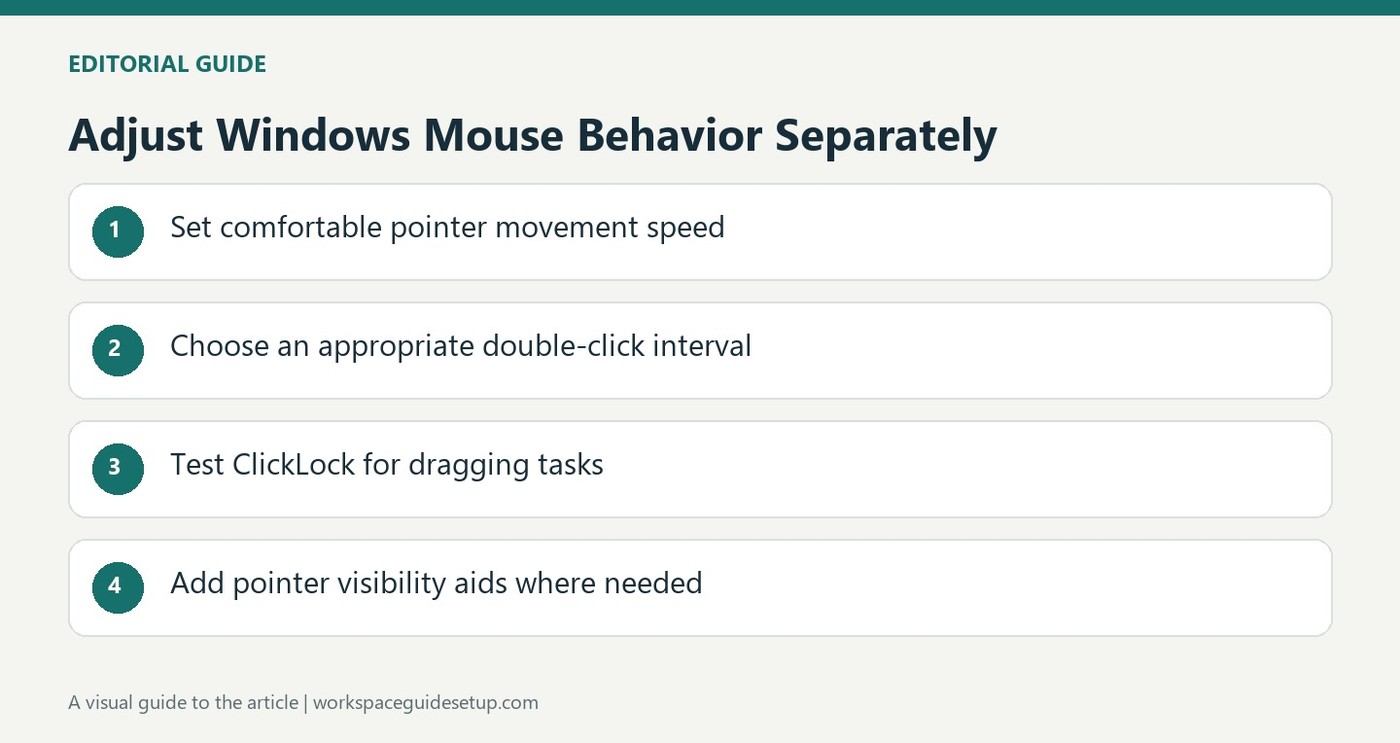
The pointer-speed slider controls how far the on-screen pointer travels for a given mouse movement. Double-click speed is a different setting in the Buttons tab of Additional mouse settings. A pointer that feels correctly paced may still need an easier double-click interval. Change one option at a time and test it with familiar files and applications.
Use ClickLock for supported dragging tasks
Microsoft describes ClickLock as a way to highlight or drag without continuously holding the button down. It is enabled separately in Mouse Properties. This changes an interaction pattern rather than the device's physical size, making it worth evaluating before buying hardware to address every dragging difficulty. Confirm that the behavior suits the applications used regularly.
Choose visibility aids for the actual display
Pointer trails, larger pointer size and a Ctrl-key locator address different visibility problems. Windows also offers an option to hide the pointer while typing and an automatic move to a dialog's default button, though some applications do not support the latter. Select the aids that resolve a specific difficulty. Enabling every option together can make it harder to identify which change improved the working experience.
Begin with the behavior that is causing difficulty
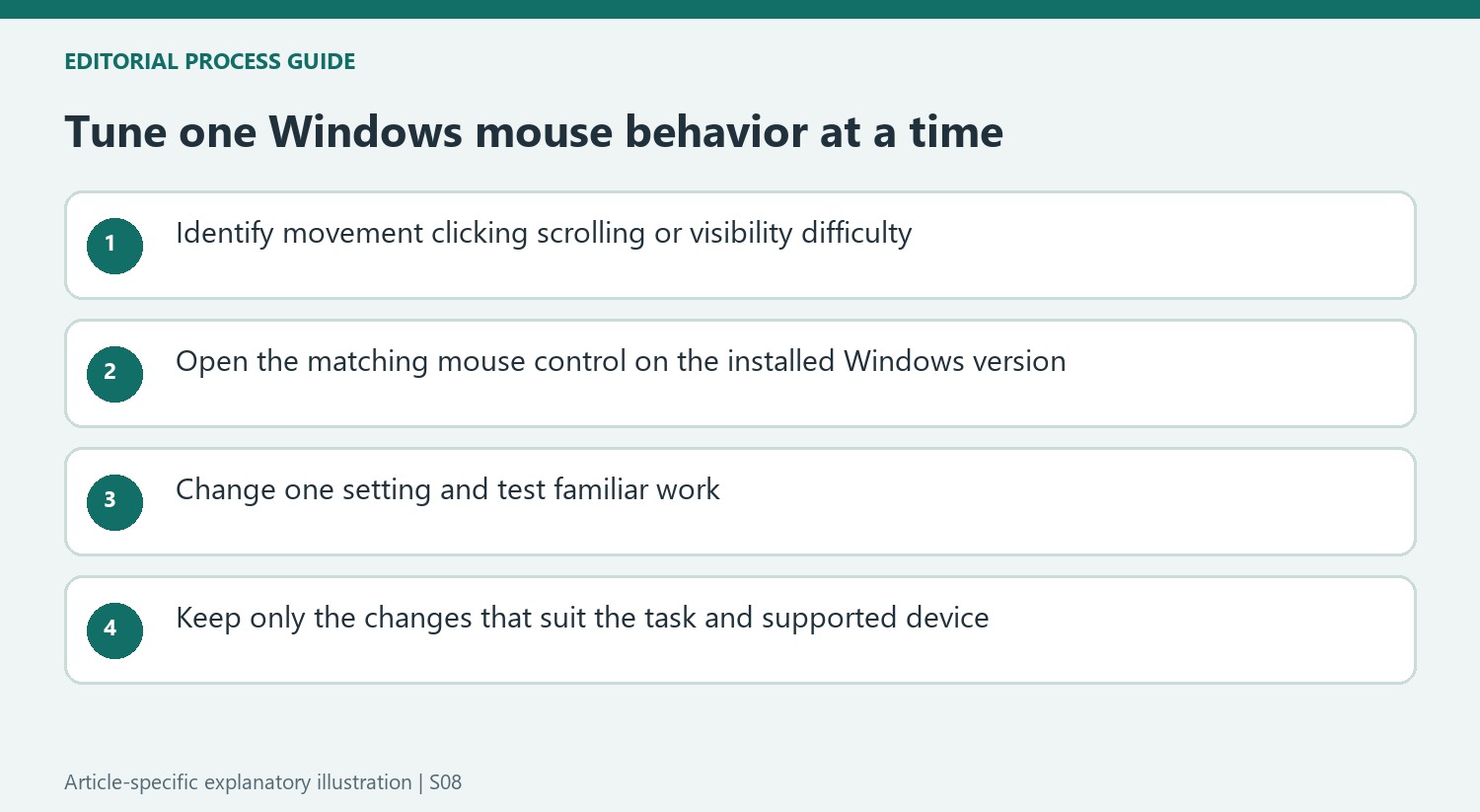
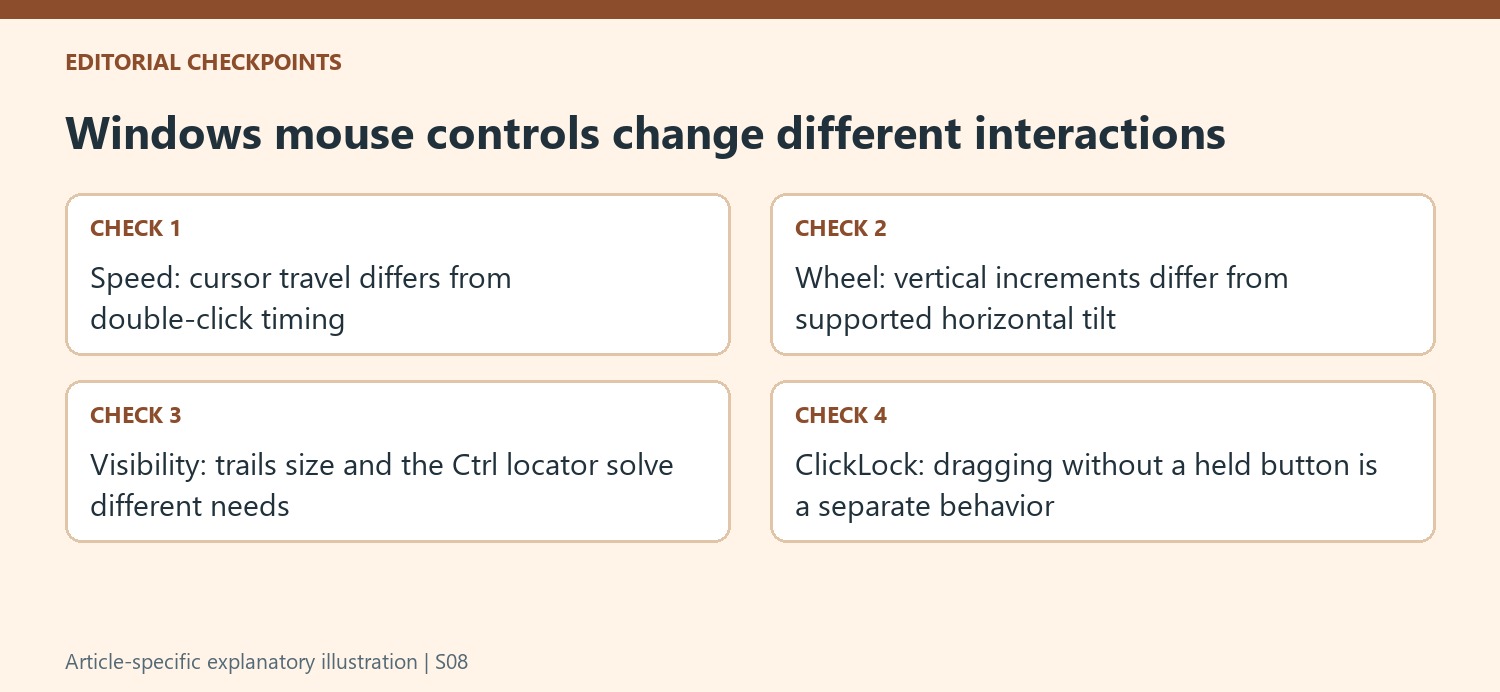
Windows groups several mouse controls together, but they change different parts of interaction. If the pointer crosses the display too slowly, start with movement speed. If a double-click is not recognized reliably, inspect the separate timing setting. If the pointer disappears against the material on screen, visibility options are more relevant. Identifying one specific difficulty makes a settings trial easier to evaluate than changing speed, trails, wheel behavior and appearance at the same time.
Use a familiar task after each adjustment. Moving across a wide desktop and selecting a small control are both useful checks of movement, while opening ordinary files tests double-click timing. Microsoft's guide also describes enhanced pointer precision for slow movement; it should be evaluated as a supported behavior rather than assumed to solve every control problem. A software change can improve interaction without changing the mouse's physical size or the reach needed to use it.
Keep scrolling choices tied to the material
Multiple lines per wheel step and a full screen per step create different navigation patterns. The former can suit close reading, while the latter makes much larger jumps. Try the documents and applications used regularly and choose a result that remains easy to follow. The inactive-window option is a separate convenience: it allows hovering to target scrolling without first making that window active, which may or may not suit the user's habits.
Horizontal wheel settings depend on the device supporting that motion. Entering a character count in Windows does not add a tilting wheel to hardware that lacks one. Check the actual control before troubleshooting the setting, especially when switching between different mice. Scrolling direction is another independent preference in the documented controls. Keep those decisions separate from pointer speed so a useful wheel change is not mistaken for improved movement or clicking accuracy.
Choose visibility and dragging aids selectively
Pointer trails help show movement, the Ctrl-key locator marks a position on request, and a larger or differently styled pointer changes its everyday appearance. These tools address related but distinct problems. Try the smallest set that resolves the actual difficulty across the normal background colors and applications. Hiding the pointer while typing can prevent it obscuring text, while automatic movement to a dialog's default button has application-support limits explicitly noted by Microsoft.
ClickLock changes a held-button interaction for highlighting and dragging. Enable it separately and verify that the resulting sequence suits ordinary work before relying on it. The primary-button selector likewise changes button roles without physically reshaping a handed mouse. The guide provides different settings routes for Windows versions, so follow the path that matches the installed system. Preserve the distinctions between movement, clicks, wheel actions and accessibility aids when deciding what improved the experience.
References
- Change mouse settings. support.microsoft.com.


Bir Cevap Yaz
E-posta adresiniz yayınlanmayacak. Gerekli alanlar * ile işaretlenmişlerdir.