
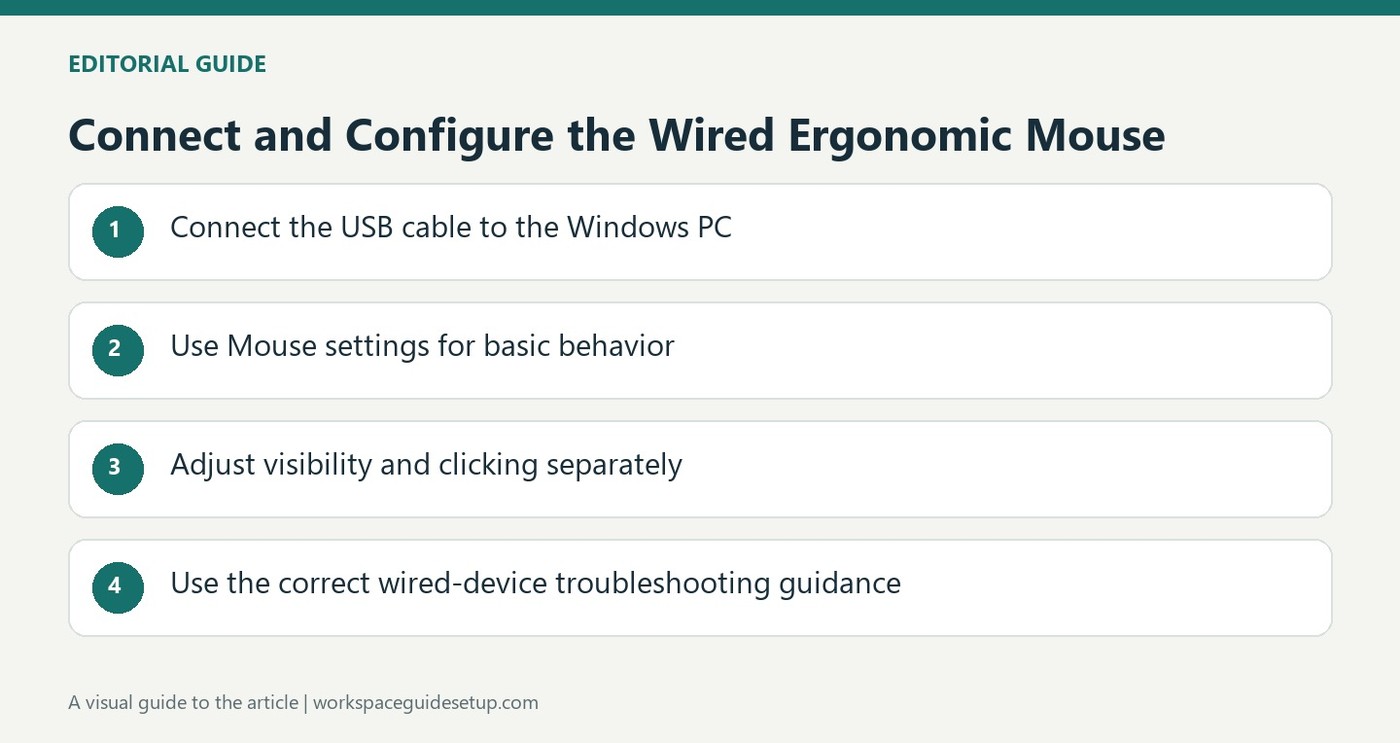
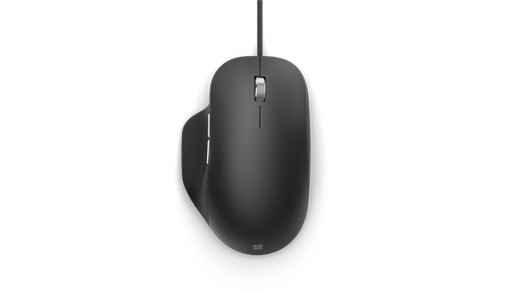
Microsoft Ergonomic Mouse is a wired accessory, so its setup differs from Microsoft's similarly named Bluetooth model. The official instructions call for a Windows 10 or Windows 11 PC and a direct USB connection. Plug the mouse into an available USB port; there is no Bluetooth pairing sequence or wireless battery compartment to configure.
After connection, adjust its behavior through Mouse settings: Bluetooth and devices in Windows 11, or Devices in Windows 10. Microsoft Mouse and Keyboard Center provides further supported personalization. On a desk with several accessories, distinguish the cable-connected model before looking for wireless controls. Follow the relevant support guidance if it fails to respond instead of attempting Bluetooth troubleshooting on a device that communicates through USB.
Start with the correct USB connection
Microsoft's product instructions describe a direct wired setup on a compatible Windows PC. Establish that connection before looking for software customization. If the pointer does not respond, the relevant next resource is Microsoft's mouse-and-keyboard troubleshooting guidance. Searching for a pairing button or changing wireless settings does not address the communication method of this model.
Set routine behavior after connection
Microsoft's separate mouse-settings guide describes controls for pointer speed, primary-button choice and scrolling. Those settings can be useful after a wired mouse is working, just as they are with compatible wireless devices. For example, choose whether a wheel step advances several lines or an entire screen, then test the result in the documents used most often.
Use personalization for a specific need
Additional mouse settings provides double-click timing, pointer visibility and ClickLock options. Mouse and Keyboard Center offers further supported device personalization, while Windows accessibility settings can enlarge or restyle the pointer. Treat those as separate choices: a visibility aid does not alter the physical cable route, and a faster pointer does not change double-click timing. Keep the settings tied to the task instead of assuming that one preset suits every workstation.
Identify the wired model before following setup advice
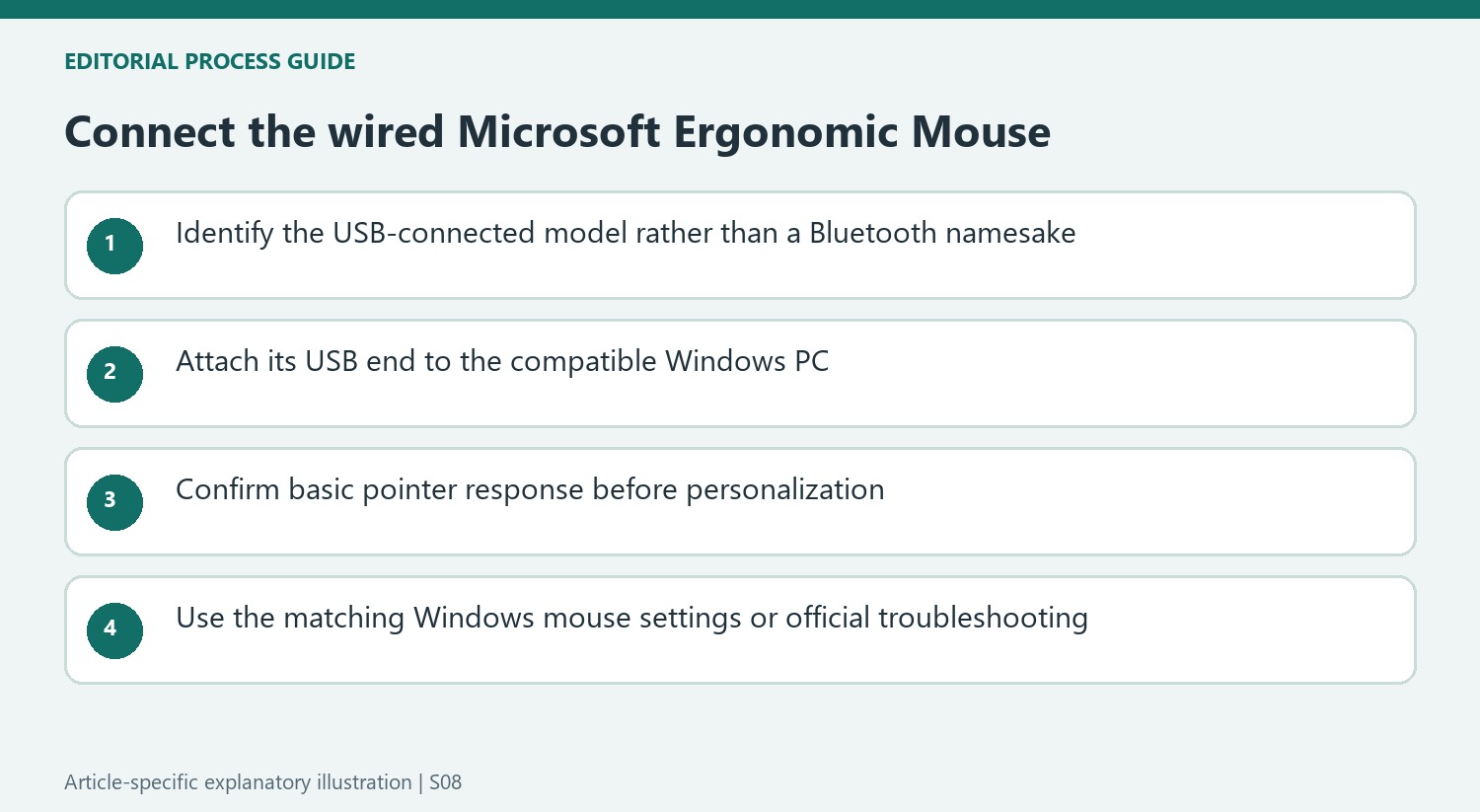
Microsoft uses similar names across several input devices, so identify this USB-connected Ergonomic Mouse before selecting instructions. Its official connection step is simply to attach the USB end to a compatible Windows PC. There is no reason to look for a Bluetooth pairing sequence on a model whose communication path is the cable. The distinction is especially useful at a desk where a wireless keyboard or another Microsoft mouse is also present.
Check that an available port can be reached without pulling the lead across the main working area. If the computer requires a connection accessory, verify that accessory's compatibility rather than treating all adapter arrangements as identical to the documented direct connection. Keep the initial test straightforward: establish whether the pointer responds before making several personalization changes. That separates a connection issue from a setting that merely makes a working mouse behave differently.
Use settings after basic operation is established
Microsoft directs Windows 11 users to Bluetooth and devices, then Mouse, even though this particular mouse is wired. The name of that settings section does not mean the device must be paired through Bluetooth. The corresponding older Windows route is under Devices. Follow the path for the installed system and compare the available controls with the official guidance rather than assuming a menu label describes the cable technology of every device listed there.
The existing settings guide distinguishes pointer speed, primary-button roles and scrolling choices. Adjust the behavior that needs attention and test it in familiar work. A pointer that moves far enough may still need a different double-click interval, while a visible pointer may still scroll too many lines. These are independent controls, so changing them one at a time helps establish which option actually improves the routine.
Keep personalization and troubleshooting separate
Mouse and Keyboard Center is described as a route for further supported customization. Check the current software and device support before expecting every feature associated with another Microsoft model. Windows accessibility controls provide a different route for changes such as pointer size or appearance. Neither category should be presented as a prerequisite for the basic USB connection described by the product page, nor as evidence that the cable route itself has been resolved.
If the mouse does not respond after the prescribed connection, use Microsoft's linked mouse-and-keyboard troubleshooting guidance and report the actual symptom. Searching for wireless batteries or pairing controls would address a different kind of device. If it works but feels awkward, distinguish settings from physical fit and placement. The official introductory comfort language is not a guarantee of fatigue-free use for everyone; a working connection still leaves the ordinary workstation and task choices to evaluate.
References
- Use Microsoft Ergonomic Mouse. support.microsoft.com.
- Change mouse settings. support.microsoft.com.


Bir Cevap Yaz
E-posta adresiniz yayınlanmayacak. Gerekli alanlar * ile işaretlenmişlerdir.